HOPEX IT Architecture Desktop Presentation
The menus and commands available in HOPEX IT Architecture depend on the product licenses that you have and on the profile with which you are connected.
 For more details on using the Web platform for HOPEX solutions, see the HOPEX Common Features guide.
Presentation of space common to all profiles
All users, with the exception of users connected with the Applications Contributor and Applications Viewer profiles, have a HOPEX IT Architecture desktop and access to the following panes:
• Home: presents the main tiles useful for the user.
• Dashboards: displays the list of indicators required to steer objects such as processes, applications or org-units.
• Reports, enabling access to the group of reports available for each solution.
For more details on the use of these reports, see "Generating Reports”.• Collaboration, which enables access to all collaborative tools provided by HOPEX.
For more details on the use of collaborative tools, see Access to Collaboration in HOPEX. This pane allows you to manage the ideas, if you have the product license.
For more details on managing ideas and projects, see Submitting and evaluating ideas.HOPEX IT Architecture Home space proposes a add tile button .
.
.The panes provide access to the following menus:
• History, which contains all the objects you access or modify.
For more details on the use of history, see Using the History.• Favorites, to access to important objects and to usual actions.
For more details on the use of favorites, see Managing Favorites.Presentation of the IT Architecture Functional Administrator space
In addition to the panes offered in standard mode to all HOPEX IT Architecture desktop users, users connected with the IT Architecture Functional Administratorr profile have access to the panes described below:
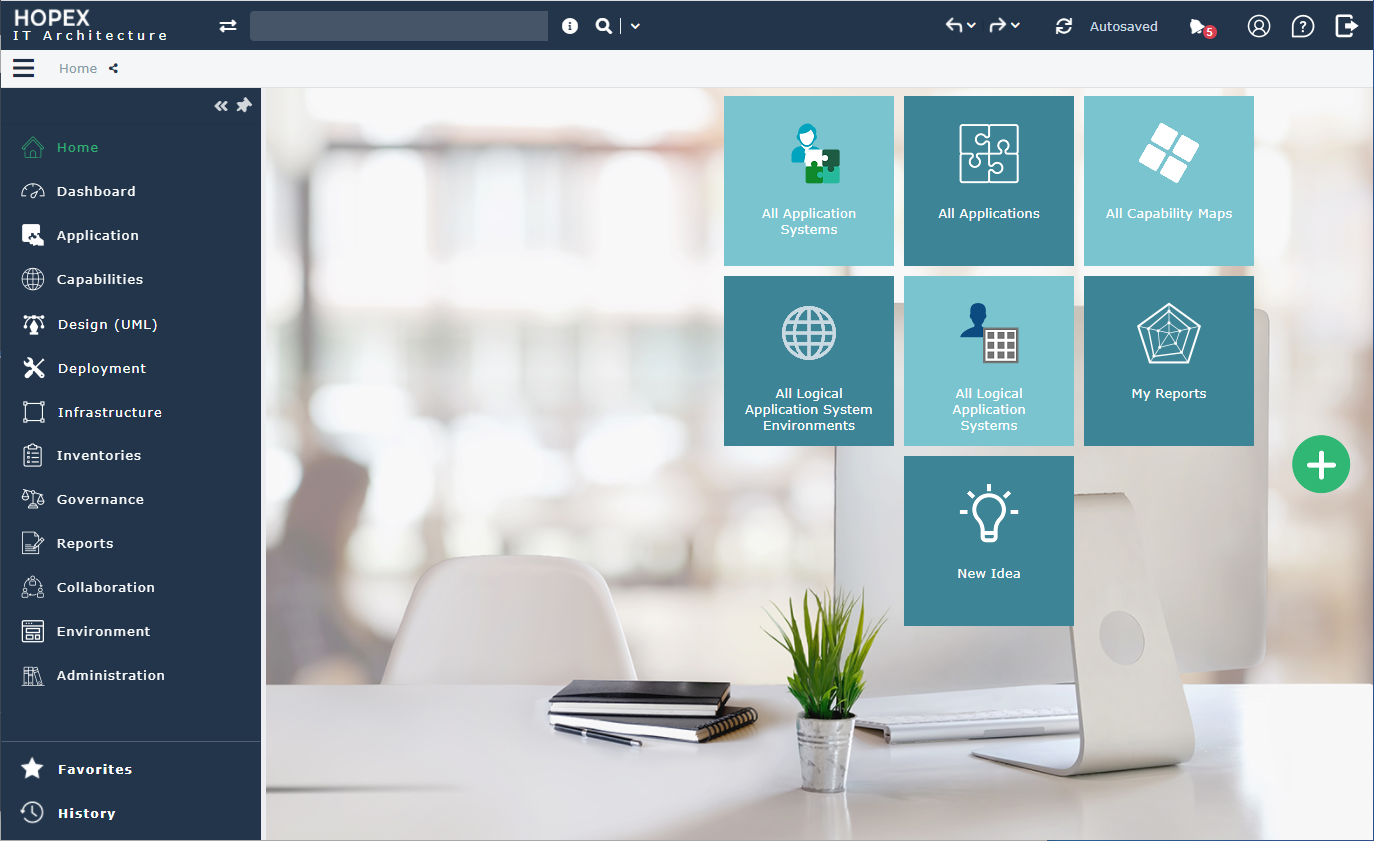
The Applications pane
The Application pane provides access to the following menus.
• Hierarchy View, to access the elements of the system architecture.
For more details on system architecture, see Describing System architecture.• Applications, to describe the application elements of the information system.
For more details on application elements, see Modeling Applications and System Architectures.The Capabilities pane
The Capabilities pane provides access to the following menus.
• Business Capabilities, to describe the business capabilities and business capability maps.
For more details on logical architectures, see Describing Business Capabilities with HOPEX IT Architecture.• Features, to describe the functionality maps of the information system.
For more details on functionalities, see Using Functionalities with HOPEX IT Architecture.• Logical Architecture, to access the elements of logical architecture.
For more details on logical architectures, see Describing Logical Application Architecture.• Technical functionalities, to access to technical elements functionalities.
For more details on the use of functionalities, see Using Functionalities with HOPEX IT Architecture.• Hardware functionalities, to access to hardware elements functionalities.
For more details on the use of functionalities, see Describing a hardware functionality.The Design (UML) navigation panel
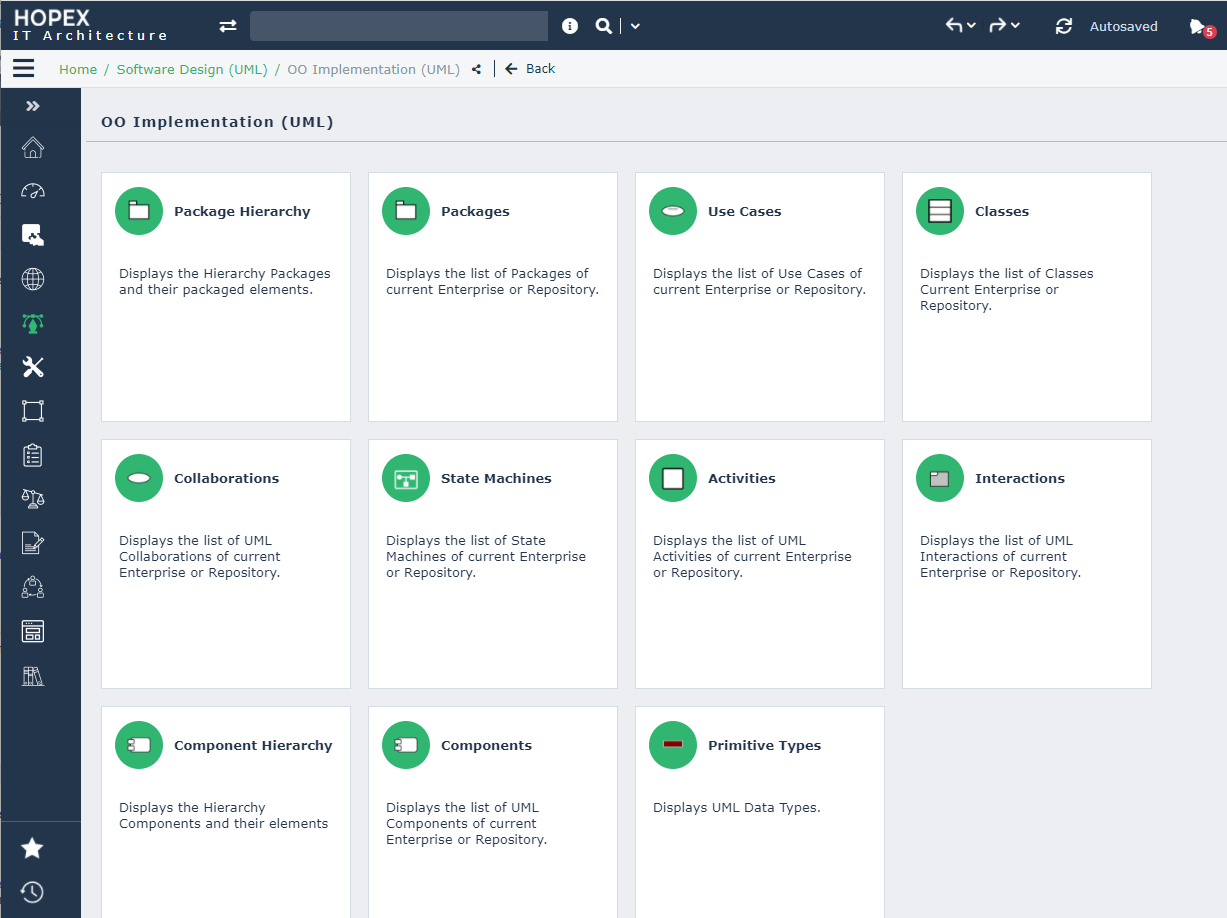
The Design (UML) navigation pane provides access to the following menus:
• OO Implementation (UML), to model your IS with UML formalism.
For more details on the use of UML concepts, see About UML implementation.Depending on the selected options, two menus are also available:
To see those menus , open the Options window and check that IT Architecture > HMI modeling and batch processing functionality (ADES) option is activated.• Batch and Program Implementation,
For more details, see Describing Batch Processing.• User Interface Design,
For more details on describing user interfaces, see the Defining User Interfaces.The Deployment navigation pane
The Deployment navigation pane provides access to the following menus.
• Hierarchy View, to access to the technical architecture elements shown as a tree.
For more details on technical architectures, see and Modeling technical architectures.• Application System Deployment Architectures, to describe the elements linked to application system deployments.
For more details on elements linked to application system deployments, see Describing an Application System Deployment Architecture.• Application Deployment Architectures, to describe the elements linked to application deployments.
For more details on application deployment objects, see Describing an Application Deployment Architecture.• Software Technologies to describe the technical elements of the information system.
For more details on software technologies, see Describing Software Technologies.• Cloud Service Catalogs.
For more details on Cloud Service Catalogs, see Using Cloud Services.The Infrastructure pane
The Infrastructure pane provides access to the following menus.
• Hierarchy View, to access to the infrastructure elements shown as a tree.
For more details on infrastructures, see Modeling IT Infrastructures.• Resource Architecture describe the elements that make up the resource architecture.
For more details on resource architectures, see Describing Resource Architectures.• IT infrastructure to describe the IT infrastructure elements.
For more details on infrastructures elements, see Describing an IT infrastructure.• IT Device, to describe technical elements such as computers or networks.
The Inventories pane
The Inventories pane provides access to the following menus.
• Software to describe the technical services of the information system.
For more details on technical services, see Describing an IT Service with HOPEX IT Architecture, Describing a Micro-Service with HOPEX IT Architecture and Describing System Processes.• Service Catalogs to describe the user services offered by the information system.
For more details on service catalogs, see Using service catalogs.• Data, to describe business data.
For more details on business data management, see Managing Data.The Governance pane
The Governance pane provides access to the following menus.
• Policy Framework provides access to the enterprise policy elements.
For more details on Policy Frameworks, see Define a Policy Framework with HOPEX IT ArchitectureFor more information, see HOPEX Data Governance.• EA Projects, to access the management features for projects.
For more details on managing ideas and projects, see Enterprise Architecture (EA) projects in HOPEX.• Corrective Action Plans, to describe and manage the action plans linked to the transformation of the information system.
For more information on managing action plans, see Using Action Plans.The Environment pane
The Environment pane provides access to the following menus.
• Organization, to access the main objects processed with the HOPEX IT Architecture solution.
• Standard Navigation, to access the management features for libraries and Environments.
For more details, see Preparing the Work Environment. The Administration pane
The Administration pane provides access to the user management features. The rights of different users on objects of imported libraries depend on their assigned profiles.
For more details on managing users, see Managing Users.In addition, the Administration pane provides access to the following menus:
Presentation of the IT Architect space
Users connected with the IT Architect profile have access to the same functionalities as users connected with the IT Architecture Functional Administrator profile.
For more details, see Presentation of the IT Architecture Functional Administrator space.The activities offered only to users connected with the IT Architecture Functional Administrator profile are:
• administration; the Administration pane is not available,
• design (UML); the Conception (UML) pane is not available,
• object creation from the Environment pane.
Presentation of the Application Contributor space
Users connected with the Applications Contributor profile have access to the panes offered in standard mode to all users of the HOPEX IT Architecture desktop.
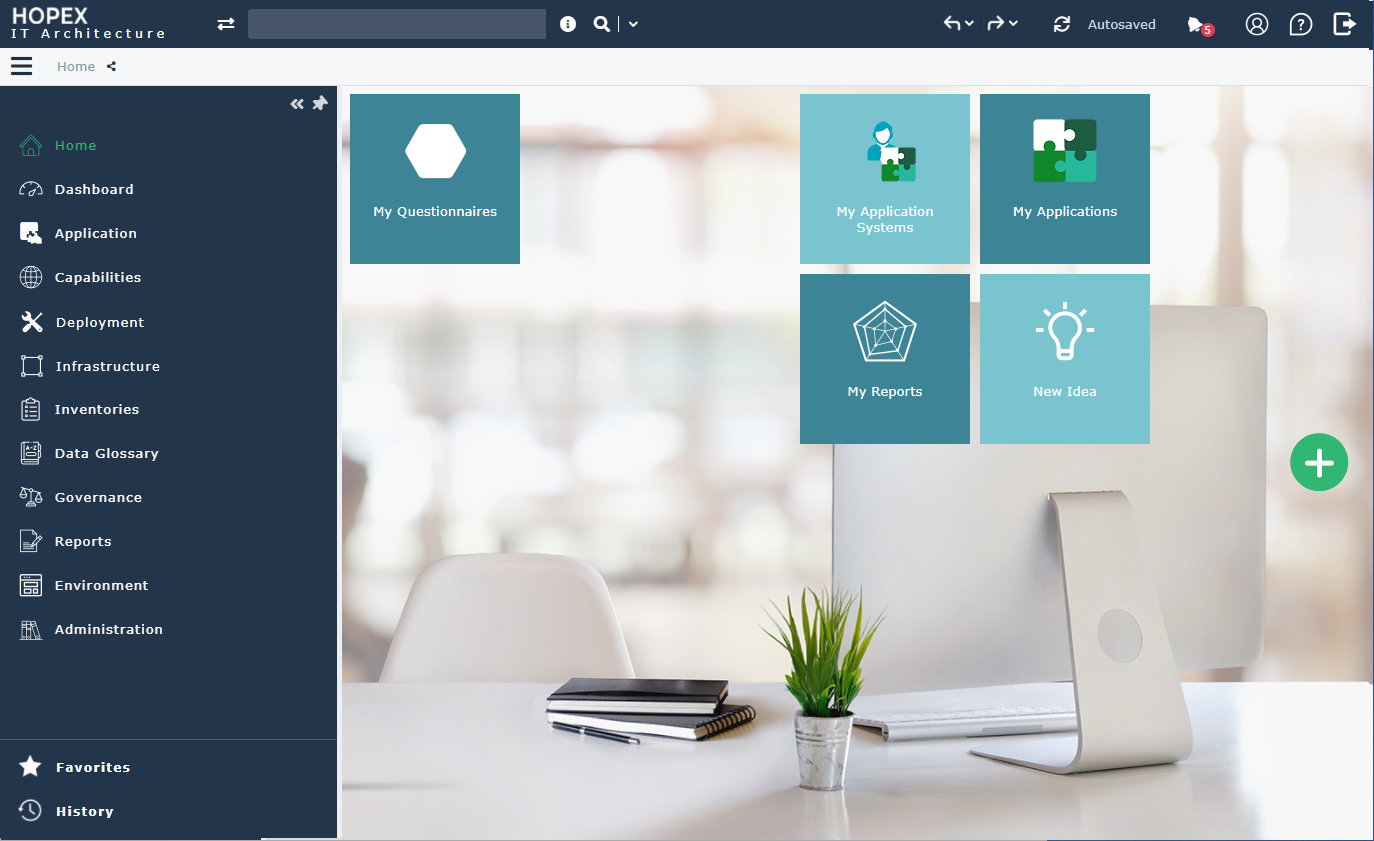
Users connected with the Applications Contributor (lite) profile have access to the Entreprise Architecture desktop for HOPEX solutions via the HOPEX Explorer application.
Presentation of the Application Viewers space
Users connected with the Applications Viewer profile have access to the panes offered in standard mode to all users of the HOPEX IT Architecture desktop.
Users connected with the Application Viewer (Lite) profile have access to the Entreprise Architecture desktop for HOPEX solutions via the HOPEX Explorer application.
Presenting the IT Application Designer desktop
In addition to the panes offered in standard mode to all users of the HOPEX IT Architecture desktop, the IT Application Designer has access to Design (UML) pane which provides access to the objects of the repository via the OO Implementation (UML) navigation menu.
For more details on the use of UML concepts, see About UML implementation.Depending on the selected options, two menus are also available:
To see those menus , open the Options window and check that IT Architecture > HMI modeling and batch processing functionality (ADES) option is activated.• Batch and Program Implementation,
For more details, see Describing Batch Processing.• User Interface Design,
For more details on describing user interfaces, see the Defining User Interfaces.