Administration Desktop Description
To access the Administration desktop, see Connecting to the Web Administration Desktop.
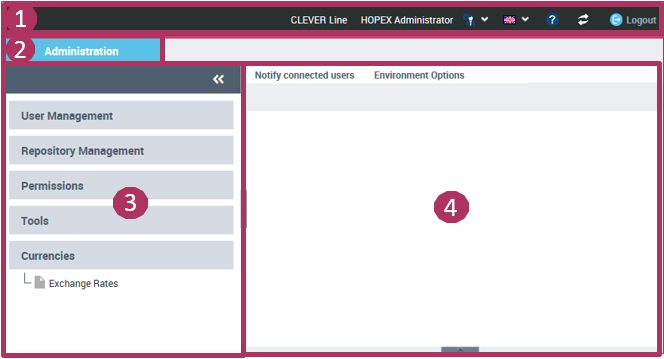
1: Toolbar, 2: Administration tab, 3: Navigation panes, 4: Edit area
The Administration desktop includes:
• a toolbar.
 See Toolbar.
• an Administration tab that contains panes and trees to select the objects to manage.
• an edit area to manage objects.
See Edit area.Toolbar

The toolbar displays the name of the user connected as well as the profile with which the user is connected.
From the Administration desktop toolbar, you can:
• switch profile
• access your account  (My account) to:
(My account) to:• modify your password
• modify your options
For information on options available at user level, see Option Groups (User Level).• modify the theme of your desktop
The theme used in the Web applications also defines the theme used in the reports. To customize reports, see Customizing Your Reports.• manage your alerts
• obtain information on your licenses
• reset your personal parameters
• access the documentation
• modify the interface data language 
To manage languages, see Managing Languages in Web Applications.• access online documentation 
• update your desktop 
• disconnect from the Administration  Desktop.
Desktop.Navigation panes and trees
In the Administration desktop, the Administration tab contains the following panes:
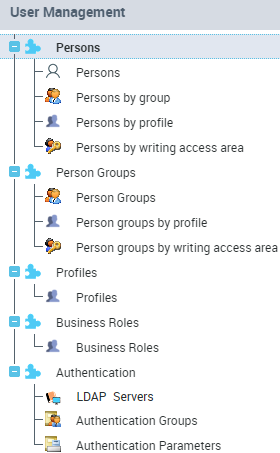
• persons
The Persons by reading access area sub-folder is available if reading access management is activated.• person groups
The Person groups by reading access area sub-folder is available if management of reading access is activated.• profiles
• authentication
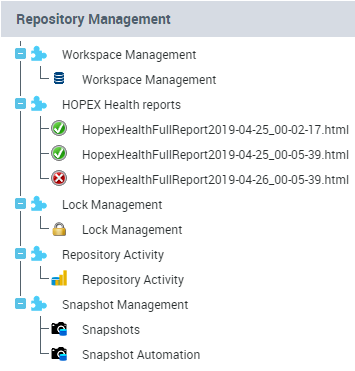
The LDAP servers folder is available only if LDAP authentication is the user default authentication mode, see Defining default authentication mode to LDAP.• Repository management to:
• access the repository health reports

• Tools to:
• import or export command files or data in XMG, MGL or MGR formats
• import or export objects with the Excel import/export wizard
• import Visio diagrams
• view the scheduling (Triggers)

• Currency to manage exchange rates.
See the "Functional Administration" chapter for the HOPEX solutions concerned.Edit area
When you select an element in the left part (navigation panes and trees), the management page of this element appears in the edit area.
You can:
• notify connected users by e-mail (Notify connected users)
• manage the environment options (Environment Options)