Managing Your Alerts on Object Modification
To follow the modifications carried out on an object, you must follow it.
When you follow an object, this alert also includes the modifications to all its component objects.
Accessing alert management
To access management of your alerts on objects:
1. Connect to your HOPEX desktop.
 See Connecting to HOPEX.
2. In the HOPEX toolbar, click Main Menu and select Settings > Alerts Management.
The Alerts management dialog box opens.
3. You can:
• view all the alerts to which you have subscribed (My Subscriptions page).
• stop receiving automatic alerts on the review notes that concern you.
• configure management of your alerts.
• view your Notification type alerts.
• cancel subscription to an alert.
Configuring management of your alerts
You can receive information by notification or e-mail on modifications to the objects you are following.
You can define the reception of your notifications:
• notification receipt frequency:
• none
• daily summary
• daily summary with choice of day and time (UTC)
• content of notifications:
• with or without details
You can define the receipt of your emails:
• e-mail receipt frequency:
• none
• daily summary
• daily summary with choice of day and time (UTC)
• content of e-mails:
• with or without details
• format of e-mails:
• plain text
• HTML
To configure management of your alerts:
1. Access your alert management dialog box.
2. In the drop-down menu, select Alerts Settings.
3. In the Notification section, select the receipt frequency and notification content.
When a user dispatches modifications on an object you are following, you receive a notification according to your configuration.
If you are working in a:
• public workspace, you receive the notification as soon as it is issued.
• private or collaborative workspace, you receive the notification after refreshing your workspace.
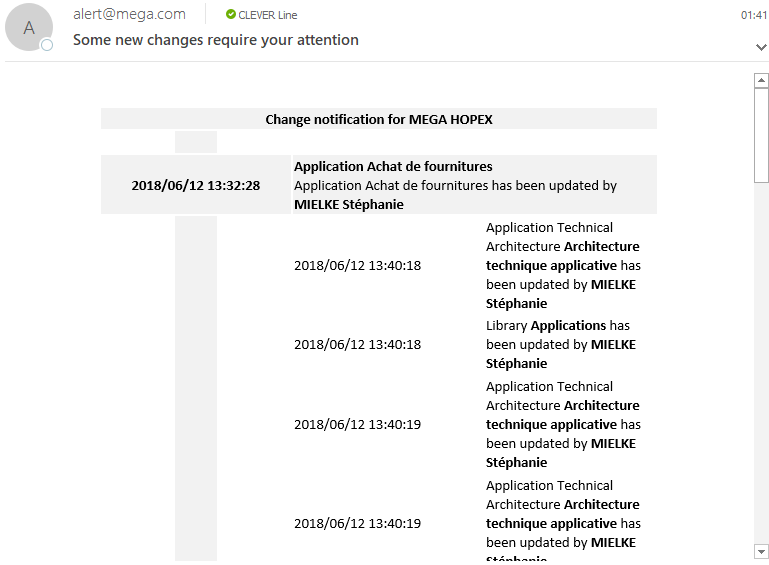
4. In the Email section, select the receipt frequency, the content and format of emails.
When a user dispatches modifications on an object you are following, you receive an email according to your configuration.
If you are working in a:
• public workspace, you receive the email as soon as it is sent.
• private or collaborative workspace, you receive the email after refreshing your workspace.
For example, you can receive a daily notification by email.
Canceling Follow-up of an Object
You can stop following:
• an object
• several objects
Canceling follow-up modifications on an object
To stop following the modifications on an object:
1. From your HOPEX desktop, access a list of objects.
2. Select the object you do not want to follow anymore and click No longer follow  .
.
.Alternatively, in the Social tab of the object concerned, in the Followers section, click Stop following .In the Collaboration window, Social tab, Followers section, your name is added to this object follower list.
You no longer receive notifications when the object is modified.
Canceling follow-up modifications on several object
To stop following the modifications on several object:
1. Access your alert management dialog box.
2. In the drop-down menu, select My Subscriptions.
3. Select the object(s) that you no longer want to follow.
4. Click Remove .
.5. Click OK.
For each object, in the Collaboration window, Social tab, Followers section, your name is removed from this object follower list.
You no longer receive notifications when these objects are modified.