Accessing Analysis Reports
Accessing all the reports of a solution
The reports of a solution are available in the Reports navigation pane of each solution.
Depending on the HOPEX solutions, dynamic analysis reports are provided by default and sorted by type.
For example, in ITPM, dynamic reports are provided for the Cost and Application objects, as well as data usage reports.
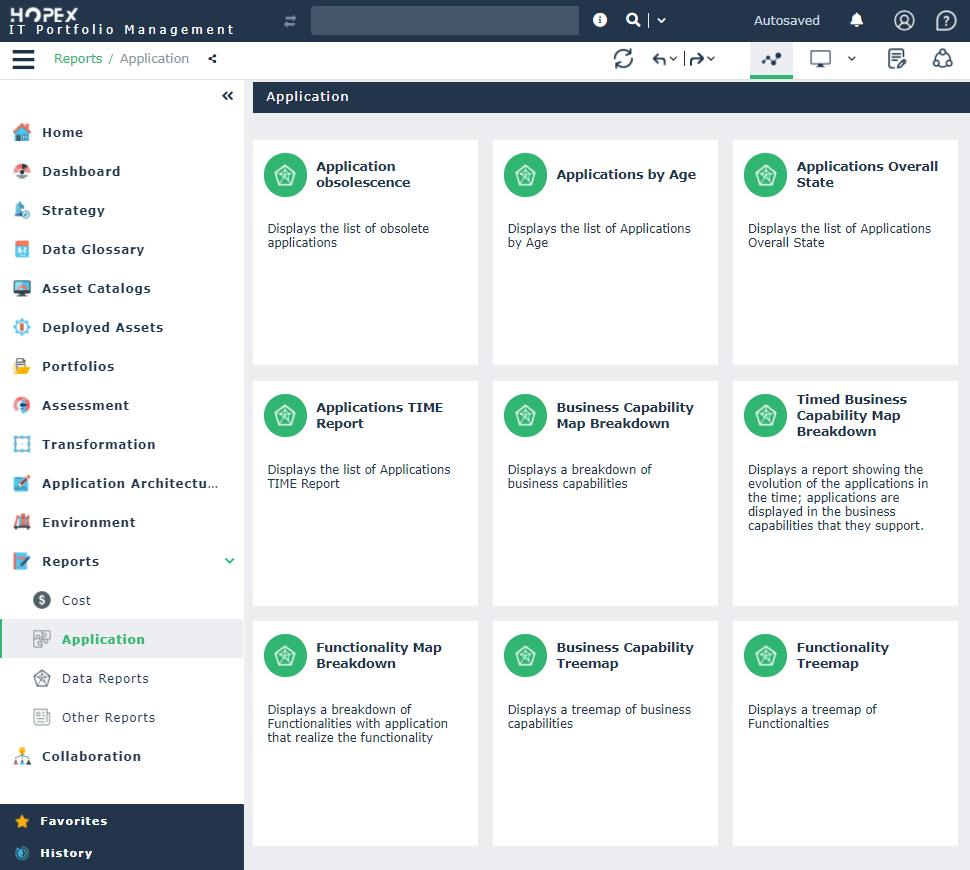
Accessing reports available on an object
Specific reports embedded in an object
Some analysis reports are embedded in the repository objects.
These reports vary according to the HOPEX solutions and provide quasi-instant analyses according to a given issue, for example:
• the functional analysis of a process
• the roadmap of a project portfolio
• the cost of the applications a portfolio
 For more details on the report templates supplied, see the documentation for the solution in question.
The reports embedded are available in the properties of these objects, in the Reporting page.
To access the complete list of reports available, see Complete list of reports available for an objectExample: In the IT Portfolio Management solution, with the Application portfolio manager profile, the Reports page of the properties of an application provides direct access to the reports specific to the Application portfolio manager profile. Other reports are also accessible, here those specific to IT Architecture.
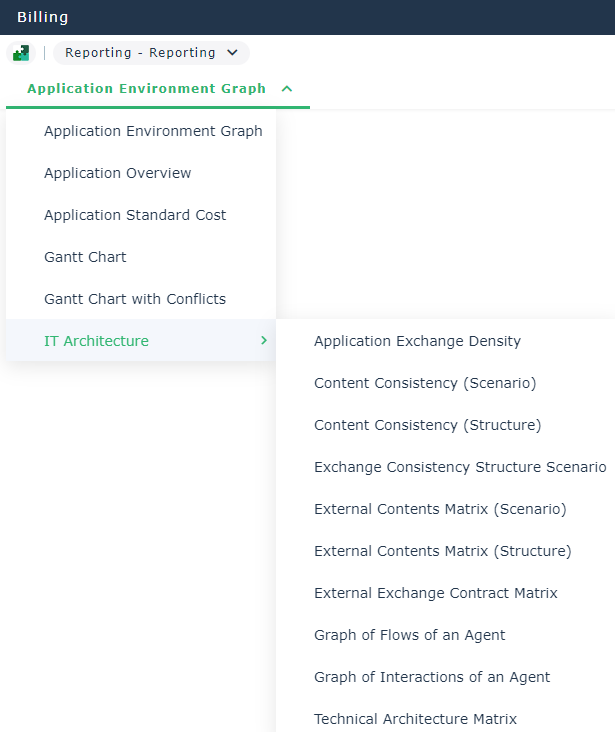
Complete list of reports available for an object
The Report Discovery command in the pop-up menu of an object is used to:
• display the list of report templates relating to the object in question, from which you can create new reports.
• launch existing reports.
To access all the reports concerning an object:
1. Right-click the object and select Documentation > Report discovery.
The list of report templates relating to the object appears in the edit window. The report templates are classified in folders by category.
2. Click the  button of the folder to display the report templates included in this category.
button of the folder to display the report templates included in this category.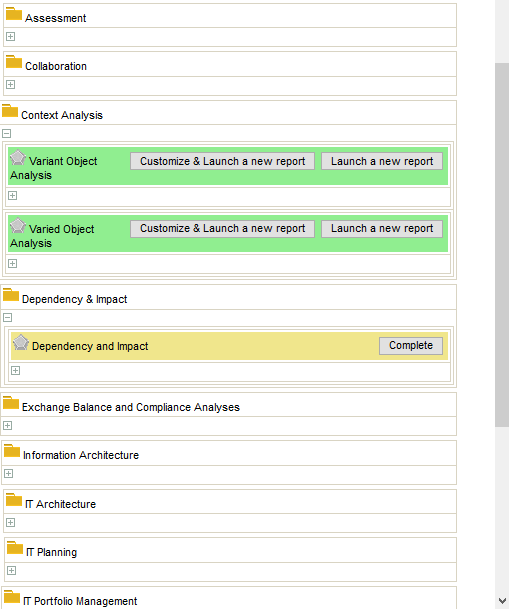
See also: Launching an analysis report for an object.
Accessing reports embedded in a dashboard
The dashboard is used to quickly access repository information. The embedded reports that you want to display in your dashboard depend on the solutions and profiles. They provide key indicators on your repository data.
You can:
• add a report as a widget in your dashboard to access it more quickly.
• add an instant report as a widget in your dashboard to access it more quickly.
To add a report to your dashboard, see Adding an Instant Report to Your Dashboard.To view a report available in your dashboard:
1. Click the navigation menu then click Dashboards.
Reports added to your dashboard are displayed.
2. (If the widget of the report is folded) Click  to expand the widget and display the report.
to expand the widget and display the report.
See also Saving the content of an analysis report.
Accessing your reports in a HOPEX solution.
The dynamic reports are updated each time they are launched. To keep the content of a report, you can save it. It is saved in the My Reports folder.
You can create your reports in this folder by defining the type of report and the data to be analyzed.
To access your customized reports in a HOPEX solution:
1. In your HOPEX desktop, click the Navigation menu  .
.
.2. Click the Reports navigation pane.
Your reports are accessible in the Other Reports section.
3. In the Other Reports edit area, click the Reports tile.
Your reports listed in My Reports.
 In your home page, My reports tile gives direct access to your reports.
See also: