Creating an Analysis Report
Some reports are embedded in the repository (Web Front-End); they are launched automatically. See Specific reports embedded in an object.
You can create reports using objects in the repository (in this case, some parameters in the report are pre-populated) or using the list of report templates. See Accessing Analysis Reports.
Launching an analysis report for an object
Object types (applications, portfolios, projects, etc.) are associated with predefined report templates.
The report templates available for an object can contain one or more parameters. When launching the report, some parameters are defined automatically with the value of the selected object. Other parameters must be specified.
To find and launch a report available on an object:
1. Right-click the object in question and select Documentation > Report Discovery.
 You can also launch a report search for several objects of the same type, for example, a list of applications.
The list of available reports appears.
2. In the Available Reports section, expand the folder that corresponds to the report that interests you.
3. If your report template includes only one required parameter, this parameter is automatically entered with the selected object. Click:
• Customize & Launch a new report to modify parameter data before launching the report.
The report Properties window opens.
Go to step 4.• Launch a new report to launch the report directly.
The report is displayed in a new tab of the edit window.

If your report template includes several mandatory parameters, you must complete the report before launching it, click Complete.
The report Properties window opens.
Go to step 4.
4. To customize or complete the report parameters before launching the report, in the report properties window, click the Parameters page.
A parameter can group several objects.
5. For each parameter, the object(s) to be analyzed.
E.g.: for a deployment report, the "To Deploy" parameter can be defined by some applications, technical infrastructures, nodes, workstations, etc.
The second parameter corresponds to the "Location" of the deployed elements. The location is defined by "Site" objects.
The second parameter corresponds to the "Location" of the deployed elements. The location is defined by "Site" objects.
6. (Optional) You can customize the report display.
7. Click OK.
The report result opens in the center page.
Report chapters that appear vary according to the report template.
8. Click each chapter title to display its content.
To export the report content in RTF or Excel format, see Exporting an analysis report in PDF or Excel Format.Creating your analysis reports
In addition to the dynamic analysis reports provided by default for the identified object types, you can create your own reports.
To create analysis report you must:
• define the report template on which the report is based.
HOPEX includes predefined report templates specific to each Solution.• (if necessary) enter the report parameters. This consists of defining report input data.
• (optional) define the report chapters.
Report chapters vary depending on the selected report type.To create an analysis report:
1. Click the navigation menu, then Reports.
2. In the Reports navigation pane, click My reports.
3. In the edit area, click New.
The report creation window opens.
4. In the Local Name field, enter the report name.
5. (Optional) In the Owner field, select an owner.
6. Click Next.
7. Select the report template on which you want your report to be based.
8. Click Next.
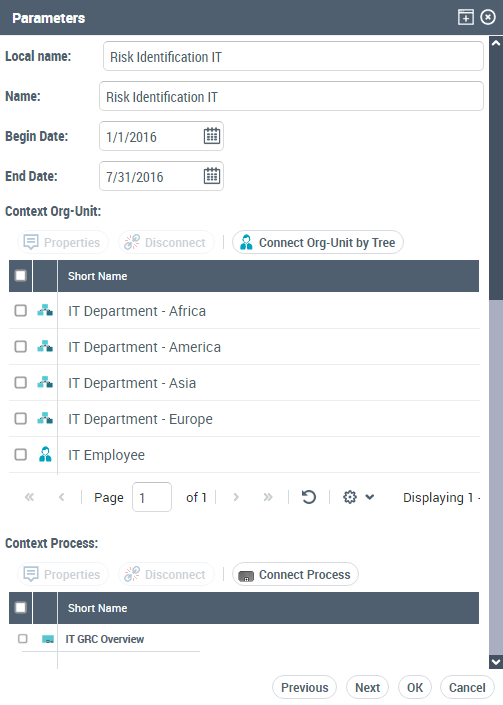
9. Specify the report parameters.
E.g.: with the risk identification report you can presents distribution of risks according to several criteria: by process, by risk type, by entity and by objective.
10. Click Next.
The configuration page of the chapters appears.
11. (optional) Define the configuration for each report chapter. In the chapter line:
• to hide the chapter: clear Presence.
By default, all chapters are present. • to display the chapter expanded at report opening: select Automatic Opening.
By default, all the chapters appear folded at report opening.12. Click OK.
(HOPEX Solution) The report is accessible in the list of your reports.
(EA Desktop) The report is saved in the folder of the associated report template.
To customize the report, see Customizing Your Reports.