Customizing Your Dashboard
The Dashboard of your desktop is made up of widgets, which use formatters in the form of reports or other HTML pages. They enable fast access to repository information.
Example: your reports.
Accessing the dashboard
To access your dashboard and widgets:
 From the navigation menu, select Dashboard.
Widget types
A widget can be of type:
• private mode
A private widget is connected to a user. It is visible in the dashboard of the user who added it.
• public mode
A public widget is displayed in the dashboard of all the users.
Adding a widget to your dashboard
To follow the reports you are interested in, you can add them as widgets in your dashboard.
To add a widget to your dashboard:
1. In you HOPEX desktop, click the navigation menu then click Dashboard.
2. In your dashboard, click Add a widget  .
.
.A window displays the tree of the elements you can add. These elements are classified according to their category.
3. Expand the folder of the category concerned.
Example: IT Portfolio Management, then the Reports sub-folder.
4. Click the report concerned.
The report is displayed as a widget in your dashboard.

You can add several widgets to your dashboard.
 If you add many widgets, you can reduce the display of some of them, see Managing your widget display.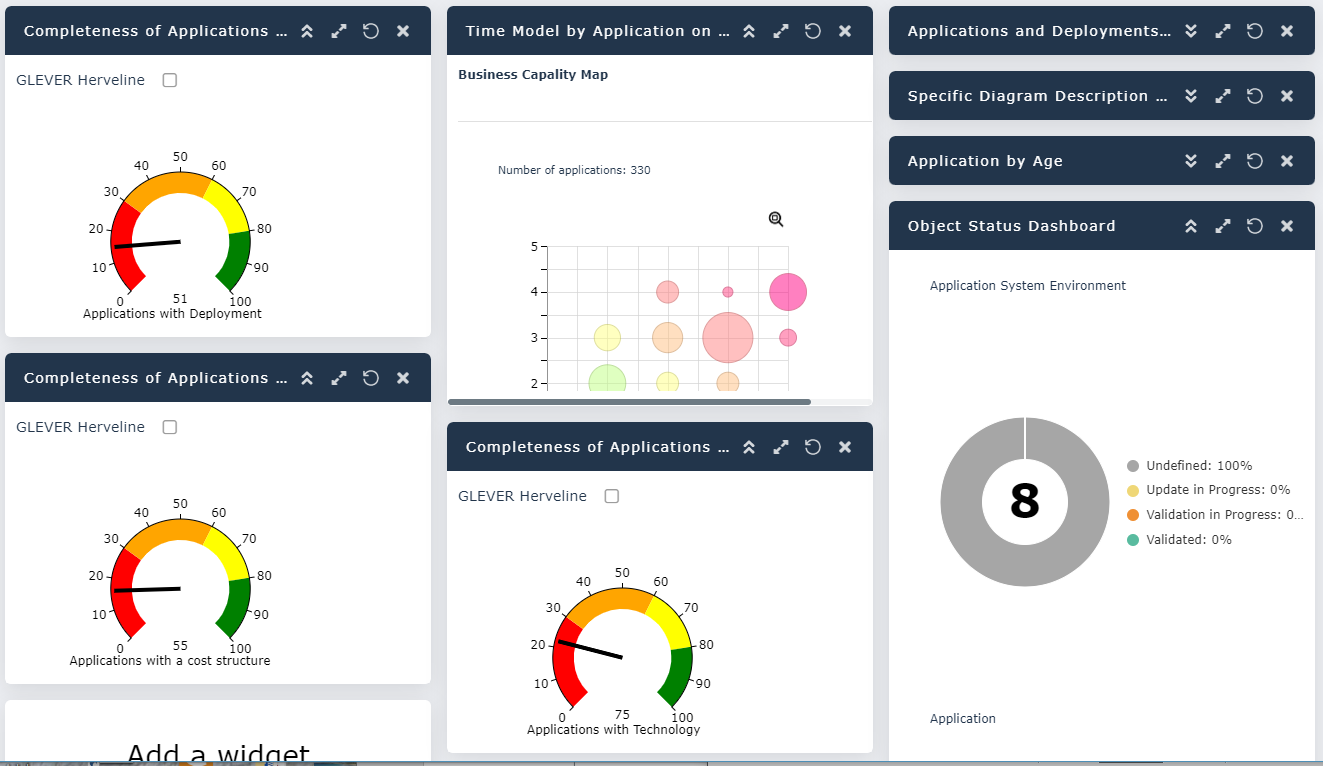
Handling a widget
Some widgets include reports with a lot of information. They may need to be displayed in full page for a better readability.
To display a widget content in full page:
In the widget title bar, click Maximize  .
.The widget content is displayed in full page.
 To return to your dashboard, in the breadcrumb trail, click Dashboard.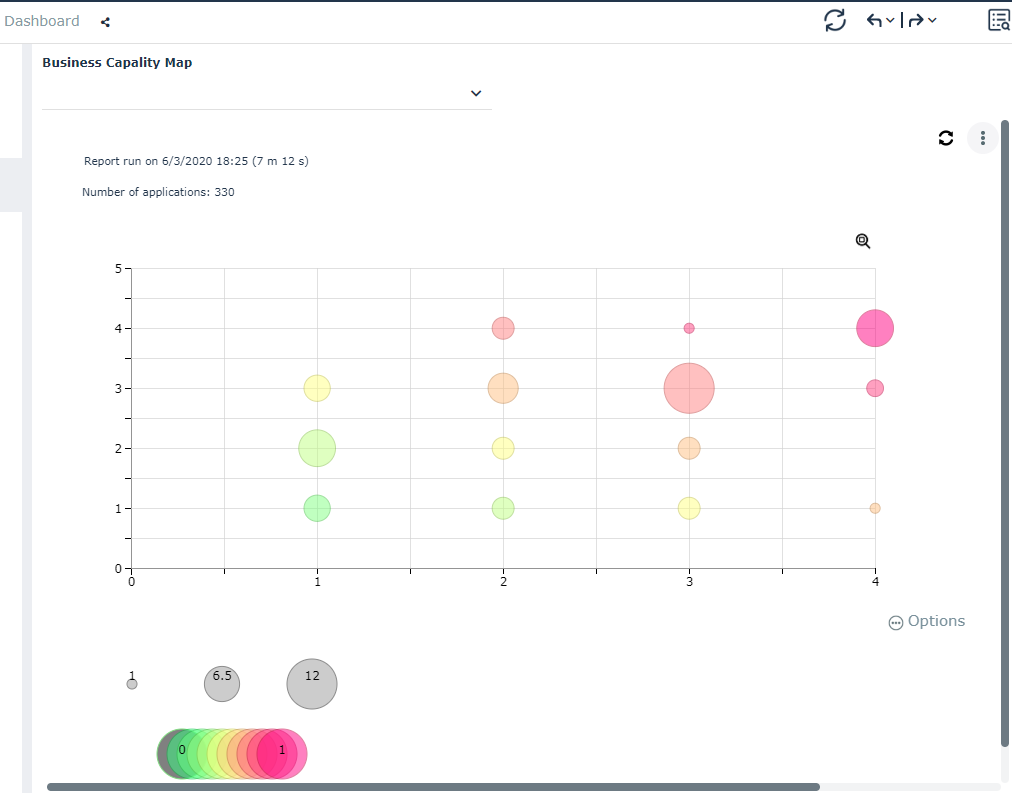
Managing your widget display
Enlarging/Folding a widget window
If you added a large number of widgets to your dashboard, in the widget title bar click  to reduce the widget and save space in your dashboard.
to reduce the widget and save space in your dashboard. Click  to expand the widget.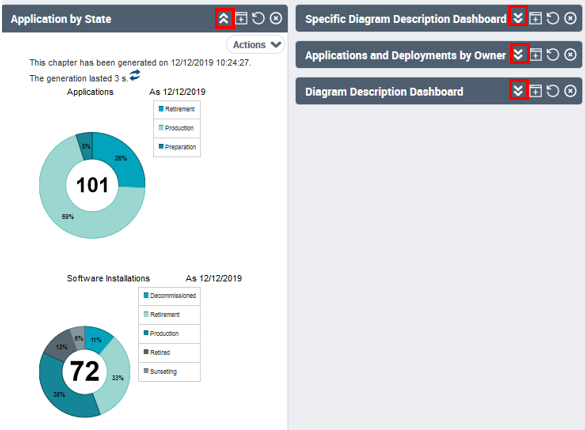
Deleting a private widget
A private widget is connected to a user.
To delete a private widget from your dashboard:
In the widget title bar, click  .
.The widget is deleted from your dashboard. It is not displayed at your next connection.