Managing Activity on Objects
You have access to the activity:
• on all repository objects (All activities tile)
• on all repository objects that you are following (What I follow tab)
• on one repository object (Activity Feed tab)
Accessing the activity on objects
To access the activity on objects:
1. From your HOPEX desktop, click the navigation menu  and select Collaboration.
and select Collaboration.The collaboration features appear in the form of tiles in the Browse  edit area.
edit area.2. Click the All activities tile.
The activity on the repository objects appears in the Browse  edit area.
edit area.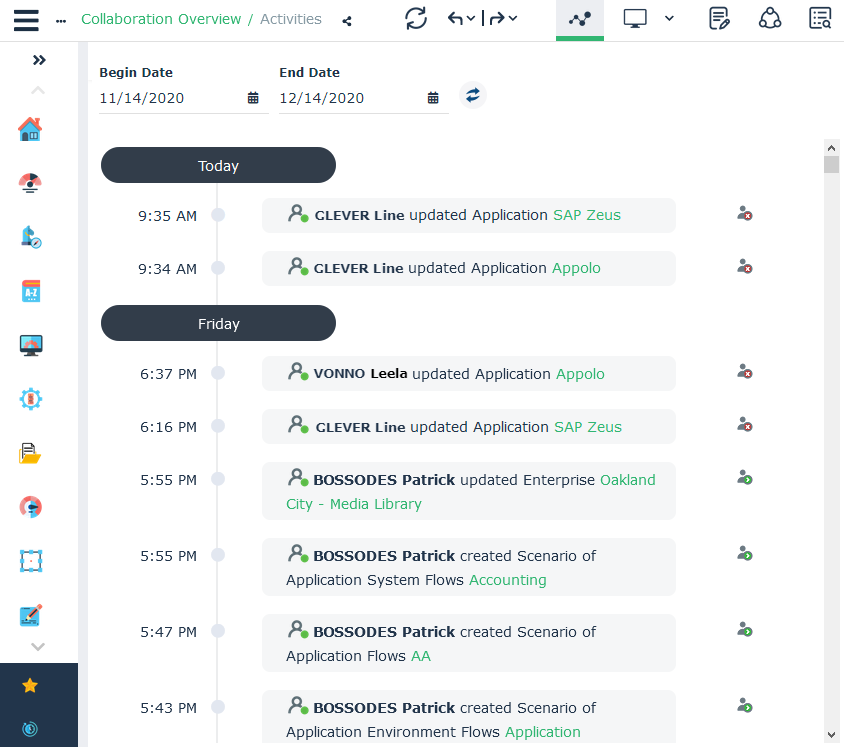
The modifications dispatched on all the objects to which you have access appear in chronological order with the most recent at the top.
Each modification indicates:
• the name of the person who performed the update
• the name and type of object concerned by the update
• if you follow the object concerned or not
 To display only the objects that you are following, see Accessing the activity on the objects that you are following.
3. See:
Accessing the activity on the objects that you are following
To access the activity on the objects that you are following:
1. From your HOPEX desktop, click the navigation menu and select Collaboration .
and select Collaboration .The collaboration features appear in the form of tiles in the Browse edit area.
edit area.2. Click the What I follow tile.
The activity on the repository objects that you are following appears in the Browse  edit area.
edit area.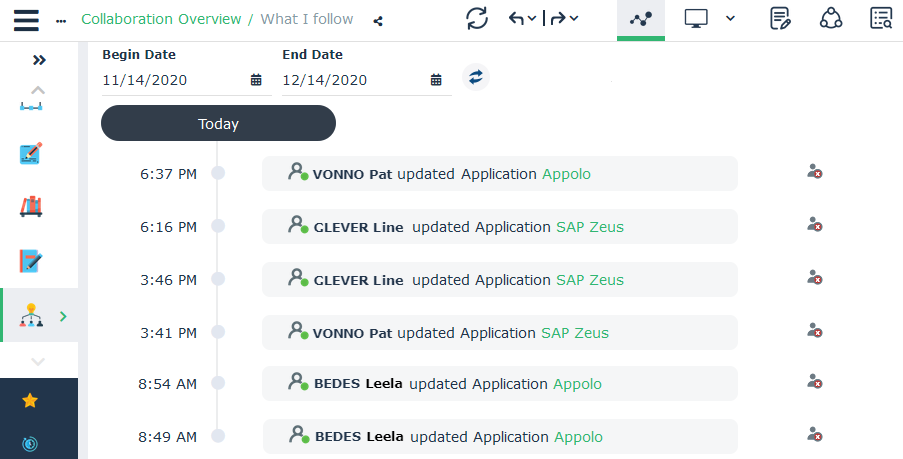
The modifications dispatched on the objects that you are following appear in chronological order with the most recent at the top.
Each modification details:
• the name of the person who performed the update
• the name and the type of object concerned by the update.
To access the activity on all the objects, see Accessing the activity on objects.3. See:
Using the activity on objects
To use the activity on objects:
1. Access the activity on the objects.
See Accessing the activity on objects or Accessing the activity on the objects that you are following.2. (if necessary) Define the display period for the activity.
3. View an activity: click the name of the object updated.
The properties of the object are displayed in the Properties page of the edit area.
4. If you want to follow/stop following the changes of an object, click Follow  / Stop following
  at the end of the activity line.
/ Stop following at the end of the activity line.Modifying the display period for the activity
By default, the activity displays the modifications made to the objects for the past month.
To modify the default value for displaying modifications, see Managing the options on the activity of object.To modify the display period for the activity:
1. Access the activity on the objects.
See Accessing the activity on objects or Accessing the activity on the objects that you are following.2. Using the calendars, define:
• The Begin Date
• The End date
3. Click Refresh  .
.
.The list of modifications is updated according to the MetaClass selected.
Managing the options on the activity of object
You can modify the default value ("month") of the activity display period on objects.
To modify the default value of the activity display on objects:
1. Access the options (Main Menu > Parameters > Options).
2. In the Options tree, expand Collaboration.
3. Select Notification management and object follow-up.
4. In the pane to the right, in the Period by default for updates of followed objects select the required period.
Example: Week, Month, Quarter, Year.
5. Click OK.