Managing the Activity Feed on an Object
From your HOPEX desktop, you can view the activity on a specific object.
 To view the activity on all objects, see Managing Activity on Objects.
In the activity feed on an object you can:
• view the activity on the object
• modify the activity feed display granularity
E.g.: the last 24 hours, the last 7 days (by default), the last 30 days, the last year, or a specific period defined by two dates.
• compare the modifications performed (before/after) on the attributes or on the links
Using the activity feed on an object
In the activity feed on an object, modifications appear in chronological order (with the most recent at the top) and by user, and according to the granularity defined (the last 7 days by default).
Each modification details:
• the name of the person who performed the update(s)
• the type of action carried out on the object
• the number of actions per action type
• the attributes or links concerned by each modification
To use the activity feed on an object:
1. Access the Activity Feed feature on the object concerned.
The Collaboration window appears and displays the Activity Feed which details the modifications dispatched on the object selected.
Modifications are displayed chronologically, by user, for the “Last 7 days” (by default).
2. (If needed) In the granularity drop-down menu, select another granularity for the object activity feed display.
To define a customized granularity, select the “Custom” value and use the calendars to define the Start Date and End Date, then click Find  .
.The modification display is automatically updated according to the new granularity.

3. (optional) Compare the attribute/link values modified on the object.
Comparing the attribute/link values modified on an object
To compare the modified attribute/link values on an object:
1. Access the Activity Feed feature on the object concerned.
The Collaboration window appears and displays the Activity Feed which details the modifications dispatched on the object selected.
2. Click Compare Activity.
3. (If needed) Use the (On and Compared to) calendars to modify the comparison dates and click Compare  .
.
.By default the compared values match the granularity defined in the Activity Feed tab.By default the Attributes tab displays modified attributes only.
To display all of the attributes, in the drop-down menu select All.4. (If needed) Use the filter to display one or several specific attributes.
5. Select an attribute.
The right pane details for each comparison date, the corresponding values and author of the modifications.
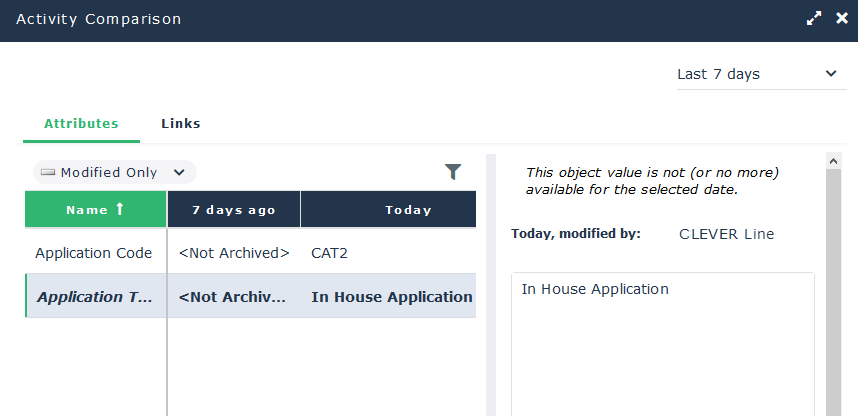
6. To display the modified links, click the Links tab.
To display all of the links, in the drop-down menu select All.The left pane displays the modified links and indicates the number of modifications for both comparison dates.
7. (If needed) Use the filter to display one or several specific links.
8. Select a link.
The right pane displays for each comparison date, the link modifications, the modification date and its author.

Managing options on the activity feed
You can hide the Activity feed feature.
To modify the default value of the activity display on objects:
1. Access the options (Main Menu > Parameters > Options).
2. In the Options tree, expand Collaboration.
3. Select History management.
4. In the right pane, clear Activate Activity Feed feature on an Object.
In Collaboration, the Activity Feed tab disappears.
In the lists, the Collaboration column no longer displays Activity Feed  .
.
.