Accessing Review Notes
You can access:
• all your review notes classified by type
• the review notes of an object
• the review notes of an object attribute
Accessing all your review notes
Your review notes are classified by type:
• opened or validated review notes for which you are the author
• opened or validated review notes in which you participate
• closed review notes
To access all your review notes:
1. From your HOPEX desktop, click the navigation menu  and select Collaboration.
and select Collaboration.The collaboration features appear in the form of tiles in the Browse  edit area.
edit area.2. Click the My review notes tile.
All the opened or validated review notes for which you are the author appear.
3. To display other types of review notes, click the drop-down list and select the type of review notes that you want to access.
Accessing the review notes of an object
Review notes are classified by type:
• opened or validated review notes
• closed review notes
• all review notes
To access the review notes of an object:
1. Access the Collaboration information of the object concerned.
2. Select Review Notes  .
.
.The Collaboration  window appears and displays the Review Notes tab with:
window appears and displays the Review Notes tab with:• the object concerned by the review note and its type
• the Open/Validated Review Notes added to the object, in chronological order (the newest first).
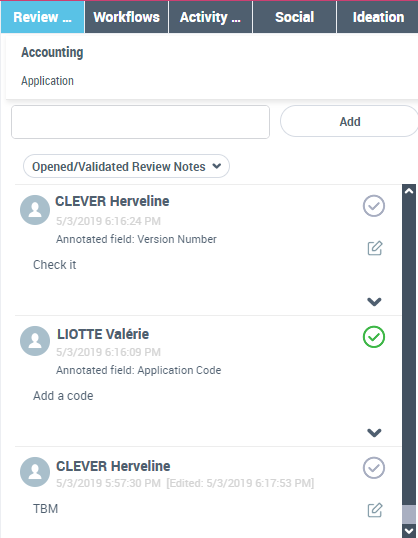
3. Select another review note type you want to access.
The review notes (of the type chosen) added to the object appear.
 To access the review notes of an object from the review notes of another object attribute, see Accessing the review notes of an object attribute.
Accessing the review notes of an object attribute
Review notes are classified by type:
• opened or validated review notes
• closed review notes
• all review notes
To access the review notes of an object attribute:
1. From your HOPEX desktop, access the properties of the object concerned.
2. Click the attribute concerned.
(HOPEX Explorer) Alongside the attribute concerned, click Display or Create Review Notes . The icon changes color  to highlight the attribute concerned by the review note.
The Collaboration window appears and displays the Review Notes tab which details:
window appears and displays the Review Notes tab which details:• the object concerned by the review note and its type
• the object attribute concerned by the review note (Annotated field)
• the Open/Validated Review Notes added to the attribute concerned, in chronological order (the newest first).
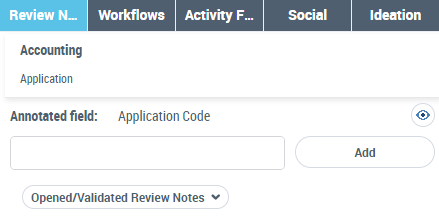
3. Select the type of review note to which you want access.
All the review notes (of the type chosen) added to the attribute appear.
To display all the review notes added to the object, click See all review notes of the object  .
.