Displaying Diagram Previews
From an object, you can view diagrams:
• describing the object
• containing the object
 To facilitate the diagram reading, click Maximize
  , to display the diagram in full page.
You can navigate between diagrams and switch to edit mode if needed.
 To view a hierarchy of diagrams within a single diagram, see Displaying Diagram Thumbnail in a Diagram.
Viewing all the diagrams describing an object
To view all the diagrams describing an object:
1. Access the object.
2. Right-click the object and select Preview.
A window displaying diagram previews appears.
To view all the diagrams describing an object:
1. Access a list of objects.
2. Roll the mouse over the Local Name of the object and click View Diagram .
Diagrams are displayed in the View window.
Viewing all the diagrams containing an object
To view all the diagrams containing an object:
1. Access the object.
2. Right-click the object and select Diagrams Containing Object.
A window displaying a diagram preview appears.
Navigating in a diagram preview
To navigate in a diagram preview:
1. Access the diagram preview.
2. Use the mouse wheel to navigate between diagrams.
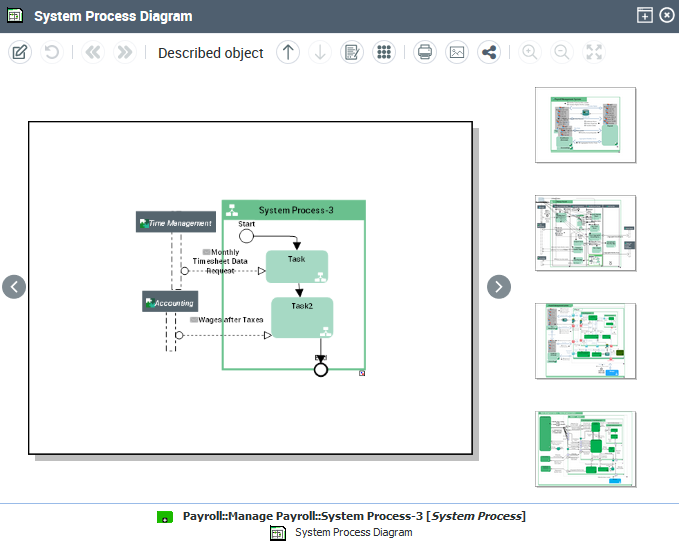
3. Click the diagram you want to view.
Handling a Diagram Preview
In a diagram preview, you can:
• perform actions on the diagram
E.g.: share and print the diagram, switch to edit mode
• perform actions on the objects of the diagram
E.g.: access diagrams containing or describing an object included in the diagram.
• return to the preview of all the diagrams
Diagram preview toolbar
Below are the main icons available.
Unavailable icons are grayed.Icon | Description |
|---|---|
 | Edit this diagram Displays the diagram in edit mode |
 | Refresh this diagram Refreshes the diagram, for example if some components have been removed from the repository. |
 | Back (in a preview in a pop-up window) Enables to return to the preview of all the diagrams |
 | Forward (in a preview in a pop-up window) Enables to display the next diagram |
 | Diagrams containing described object Enables to access the diagrams containing the described object |
 | Diagrams describing described object Enables to access the diagrams describing the described object |
 | Described object properties Displays the properties of the object described by the diagram |
 | Menu Displays the diagram pop-up menu |
 | Print this diagram Displays the diagram as a PDF file, which enables to print it See Printing a Diagram. |
 | Save the picture as Enables to save the displayed diagram as a picture in *.png, *.svg, *.emf, or *.jpg format |
 | Share this diagram Enables to share the diagram by email |
 | Zoom in Enables zooming in the diagram The mouse wheel enables to zoom in too |
 | Zoom out Enables zooming out from the diagram The mouse wheel enables to zoom out too |
 | See All Enables to return to the original size of the image |
Using the pie menu in a diagram preview
In a diagram preview, you can perform actions on objects:
• access its properties
• generate a report
• access diagrams containing the object
• access diagrams describing the object
To perform actions on an object of the diagram:
1. In the diagram preview, click the object.
A pie menu appears over the object.
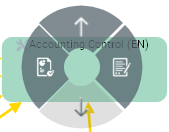
Actions available on the object have a dark gray background.
Actions not available on the object have a light gray background.
2. Roll the mouse over one of the available actions.
The background of the action turns blue.
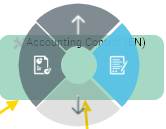
3. Click:
•  to access the object properties.
to access the object properties.•  to generate a report on the object.
to generate a report on the object.•  to access the diagrams containing the object.
to access the diagrams containing the object.•  to access the diagrams describing the object.
to access the diagrams describing the object.