Managing Implementation Projects
The lifecycle of an SAP solution typically starts with an implementation project for blueprinting, customizing, developing, testing and roll-out (which is reusing existing implementation in a new location).
After an implementation project is carried out, it becomes a solution in SAP Solution Manager.
Importing a project
Viewing the differences with the template project
If the implementation project is based on a template project, HOPEX SAP Blueprint allows you to view the differences between them.
When importing the implementation project, versions of the project are created to track the changes made in relation to the originating template project.
Technically speaking, versioning involves:
• creating variations
• locking the versioned object.
You therefore need to be able to view variations.
Viewing variations
To be able to view versions, you need to activate variations (as versioning relies partly on variations). For more information, see
"Activating Variations".
To view an object version:

In the property page of a the SolMan project select the
General tab then the
Variations sub-tab.
Viewing the differences via a report
Versioning makes immediate change impact analysis possible.
Reports make it easier to view the differences between objects.
To access a report from the implementation project level:
1. Right-click the implementation project and select Report Discovery.
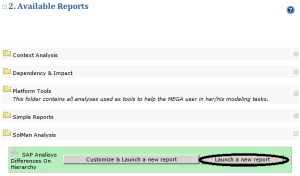
2. In the Available reports section, select SolMan Analysis.
3. Alongside the SolMan Analysis Differences on Hierarchy report, select Launch a new report.
4. Click the title "Differences on Hierarchy" to refresh the report.
The implementation project is a variant of the corresponding template project. The report shows the differences between them and their sub-elements.
To access a report from a lower level element, for example from a a SolMan Business scenario:
Open the properties dialog box of the object and click the
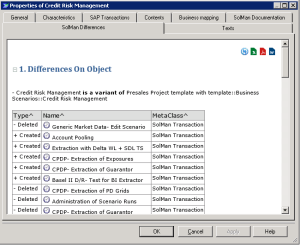
SolMan Differences tab.
The report shows the differences for the object and its first-level children.
 An implementation project is used to implement business processes in an SAP landscape.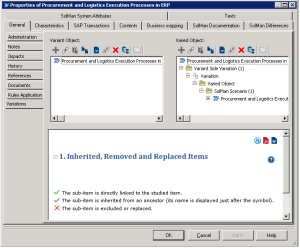
 For more information onthe contents of this report, see "Hierarchy Differences Report".