Importing/Exporting
Importing/Exporting a Whole Project
To import or export a project:
1. From the HOPEX desktop select:
• (Windows Front-End) Tools > SolMan Exchange.
• (Web Front-End) Main menu > SolMan Exchange.
2. In the window that appears, enter the Login and Password of the SAP user with the appropriate authorization.
3. Click Next.
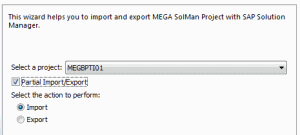
4. In the Select a project field, enter the Project ID of the project you want to import from SAP Solution Manager or export from HOPEX.
5. Select the exchange method considered:
• Import: selected by default.
The first time you use HOPEX SAP Blueprint, you must import a project from SAP Solution Manager as you cannot create SAP projects in HOPEX.
• Export
 The Project being exchanged must not be edited in SAP Solution Manager during the exchange.
6. If you want to import/export some scenarios only, select the Partial Import/Export check box.
7. Click Next.
The project data import/export is being launched.
8. Click Finish.
If the exchange does not start or you have an error message:
• view the trace file: from the HOPEX workspace, select ? > About MEGA. Click the System Information button then Error Log > Edit.
Importing/Exporting Scenarios
You can import or export only part of a project by selecting the scenarios which are of interest to you.
To import or export scenarios:
2. In the import/export wizard, select the Partial Import/Export check box.
This check box is not selected by default.
3. Click Next.
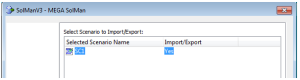
4. From the list of scenarios listed, select "Yes" in the Import/Export drop-down list.
For more details about the scenarios listed, see:
You must select at least one scenario here.
5. Click Next.
Depending on the action selected, the import or export is being launched.
Importing scenarios
When you choose to import a project partially, the list of scenarios listed is built from the SAP server.
You can import a scenario:
• regardless of its presence or absence in the MEGA repository,
• even if the corresponding project still does not exist in the MEGA repository.
Only the objects located below the selected scenarios are updated.
Exporting scenarios
You can export scenarios which have never been exported before.
When you export a project partially, the SAPId of the objects located below the selected scenarios are updated.