Initializing a SolMan Project from Business Objects
A specific wizard enables initialization of contents of a SolMan project from business objects i.e. HOPEX objects. It consists in transforming a BPMN diagram into a SolMan structure.
Prerequisites
Before launching the wizard, you need to make sure:
• the object from which you want to launch the wizard is already mapped with a HOPEX SolMan element.
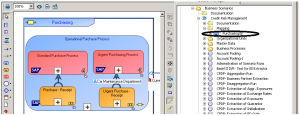
In the example below, the "Purchasing" business process is mapped to the "Credit Risk Management" Solman scenario.
• you have created a parameter file indicating the mapping levels between MEGA objects and Solman elements. For more information, see
"Creating a parameter file".
Creating a parameter file
Before launching the wizard, you need to create a parameter file which specifying the mapping levels between MEGA objects and Solman elements.
Location of the parameter file
The "megasolmanbusinessimport.ini" file should be located in the USER folder of the appropriate environment:
<Environment>\Db\<Repository>\USER\<User name>
Syntax used
Parameterization is found in a [MetaAssociationEnd] section.
The syntax is as follows:
[Metaclass field]=[MetaAssociationEnd1 field];[MetaAssociationEnd2 field];[MetaAssociationEnd3 field]

The list of MetaAssociationEnds are those to browse from the MetaClass occurrence. The sub-objects taken into account are those obtained by the defined link.
A * sign before the MetaAssociationEnd means there is a change in mapping level.
No change in mapping level | The SolMan element created is of the same type as the SolMan element mapped with the parent MEGA object. |
Change in mapping level (* before the MetaAssociation) | The SolMan element created is of a lower level than the SolMan element mapped with the parent MEGA object. |
In the event of a change in mapping level:
• If the owner was mapped wih a SolMan Scenario, the object is mapped with a SolManProcess
• If the owner was mapped with a SolMan Process, the object is mapped with a SolMan ProcessStep
• if the owner was mapped with a Solman ProcessStep, the object is mapped with a SolMan Transaction
Example
[MetaAssociationEnd]
~pj)grmQ9pG90[Business Process]=~Zs()h50XBn70[Owned Business Process];*~6R65VIXKpG10[Organizational Process]
~gsUiU9B5iiR0[Organizational Process]=*~prUiaCB5iOB2[Operation]
In the above example the sub-processes of the process from which you want to initialize the wizard must be owned by the process.
Launching the wizard
To launch the wizard:
1. Open a BPMN diagram, for example a business process diagram.
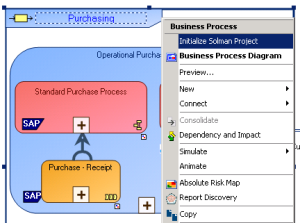
2. Right-click on the root HOPEX object from which you want to initialize the Solman project and select Initialize Solman Project.
The
HOPEX object from which you want to initialize the project must be already mapped with a Solman element. For more information, see
"Prerequisites".
For this object and all the sub-objects below, an object is created in the Solman hierarchy.
In the example above:
- A business scenario named "Purchasing" is created and mapped with the "Purchasing" business process.
- A business scenario named "Operational Purchasing" is also created and mapped with the owned business process "Operational Purchasing"
- A SolMan Process named "Standard Purchase Process" is created and mapped with the organizational process "Standard Purchase Process"
Hierarchy of SolMan objects created
The Solman hierarchy is created according to the structure defined in the parameter file.
A business process produces a scenario.
The sub-processes could produce:
• a SolMan Scenario if there is no change in mapping level
• a Solman Process if there is a change in mapping level (*)
You can launch the wizard several times while designing your diagram. Updates in your diagram are transfered to your new SolMan structure.
Generating a report
A report gives you an overview of the business objects that have been mapped to a SolMan object.