Mapping SolMan Objects with Business Objects
Objects of the SolMan hierarchy can be linked to objects of the business view according to the correspondence table below.
 SolMan Concept SolMan Concept |
HOPEX Concept |
|
Project
|
Library
|
|
Scenario
|
Business Process
Organizational Process
Functional Process
Activity
Task
System Process
Business Function
Operation
|
|
Process
|
Business Process
Organizational Process
Functional Process
Activity
Task
System Process
Business Function
Operation
|
|
Process Step
|
Business Process
Organizational Process
Functional Process
Activity
Task
System Process
Business Function
Operation
|
|
Master Data
|
Content
Data Model
Package
|
|
Organizational Unit
|
Org-Unit
|
|
Transaction
|
IT Service
|
Mapping
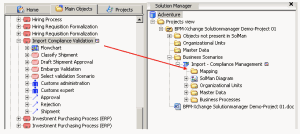
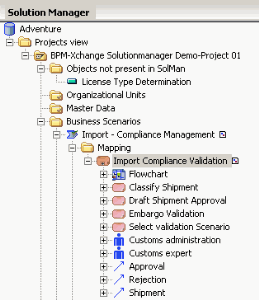
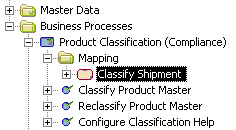
HOPEX business objects that have been linked to SolMan Objects in the project are placed in the "Mapping" folders of the Solution Manager navigation window.
Because of this one-to-one correspondence and the related identification issue, objects cannot be moved around from one place to another in HOPEX SAP Blueprint. They can only be created, duplicated or deleted.
You can map objects:
• in SolMan diagrams
• in the navigation window
In the navigation window
To map objects in the navigation window:
1. In the Solution Manager navigation window, select the SolMan object to be mapped and unfold it.
Its mapping folder appears.
2. In the Objects navigation window, select the business object to be mapped then, drag and drop it into the Mapping folder of the Solman object.
The mapping is established.
When you map a HOPEX object with an SAP Solution Manager object, its sub-objects (owned objects) are not automatically mapped with the sub-objects of the associated SAP Solution Manager object.
In the above example, an organizational process is mapped with a scenario. The sub-objects of the organizational process are displayed in the Solution Manager navigation window under the scenario, however, none of them are linked to any of the scenario’s sub-objects. The sub-objects must be explicitly mapped like the business object and the scenario, by dragging and dropping the business object sub-objects in the Mapping folder of the concerned scenario sub-object.
In a SolMan diagram
You can map HOPEX business objects with SAP Solution Manger objects in a SolMan diagram.
To create a diagram in HOPEX SAP Blueprint:
1. Right-click the SolMan object that contains the objects to be mapped. This can be a project, a scenario or a process.
2. In the pop-up menu that appears select New > Diagram.
3. In the dialog box that appears, select the SolMan Diagram type and click on the Create button.
To map HOPEX and SolMan objects:
1. In the object bar select the icon corresponding to a HOPEX object (Process, Operation, etc.) and click in the diagram.
2. Create the HOPEX business objects and place them in a vertical line in the in the diagram.
• Click the arrow of the Name field and search for the object to be added in the repository.

You cannot create new items in SolMan diagrams. If you want to add an object that does not exist, you must first create it in the correct navigation tree.
• Click Connect.
The object appears in the diagram.
3. Create the SolMan objects and place them in a vertical line to the other side of the diagram.
4. In the object bar, select the Link icon and click in the diagram on the first object to be mapped.
5. Without releasing the mouse button, draw a line to the second object to be mapped then release it.
Once mapped, the HOPEX objects appear in the Solution Manager navigation window, under the SolMan objects.
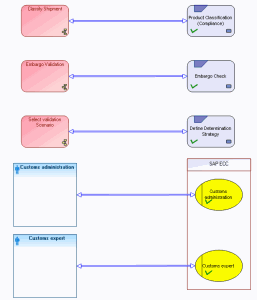
In the figure below, the "Product Classification (Compliance)" Business Process is mapped with the "Classify shipment" operation.
Example of a SolMan Diagram