Customizing the Display of a Report Graphic
You can customize a graphic in your report at the following levels:
• chapter content
• graphic style in the chapter
• style of a series in a chapter
• chapter style for export

The values modified locally override the global values defined for all reports.
You can reinitialize the values configured by default at:
• the parameter level
• the entire chapter level
You can add comments at:
• the report level
• the report chapter level
Updating the content of a graphic of a report chapter
You can, for example:
• reverse the display of the series
• show/hide the percentage values in the bars.
• add a title on the horizontal and/or vertical axis
To modify the report content:
1. Edit the report.
2. In the report page, click
Edit style parameter values 
and select
All Series.
The edit pane appears.
3. In the Content section, modify the parameters concerned

To reset the values, click
Reset Parameter Values 
.
Attention: the style parameter values in the report chapter are also reinitialized.
4. Click Apply.
Your modifications are immediately taken into account in the report.
Updating the font of a graphic of a report chapter
You can, for example:
• modify the color and the size of the font
• add a title to the graphic
To update the font of a graphic of a report chapter
1. Edit the report.
2. In the report page, click
Edit style parameter values 
and select
All Series.
The edit pane appears to the right.
3. In the Style section, modify the parameters concerned.
To reinitialize the value of a parameter, delete the value that you entered.
To reset all values, click
Reset Parameters Values .
Attention: all parameter values in the report are also reinitialized.
4. Click Apply.
Your modifications are immediately taken into account in the report.
Updating the style of a graphic of a report chapter
You can, for example:
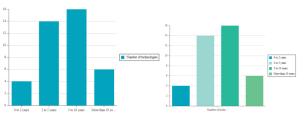
• modify the color palette of the series
• add a horizontal and/or vertical grid
• inverse the direction of the bars (vertical or horizontal)
To modify the style of a report chapter:
1. Edit the report.
2. In the report page, click
Edit style parameter values 
and select
All Series.
The edit pane appears to the right.
3. In the Style section, modify the parameters concerned.
To reinitialize the value of a parameter, delete the value that you entered.
To reset all values, click
Reset Parameters Values .
Attention: all parameter values in the report are also reinitialized.
4. Click Apply.
Your modifications are immediately taken into account in the report.
Modifying the style of labels
You can, for example:
• hide the axes
• define the maximum value of axes
• truncate the labels
• modify the display angle of the lower label text (in degrees)
Default value: 0°, the text is horizontal.
To modify the style of the labels of a report chapter:
1. Edit the report.
2. In the report page, click
Edit style parameter values 
and select
All Series.
The edit pane appears to the right.
3. In the Labels Style section, modify the parameters concerned.
To reinitialize the value of a parameter, delete the value that you entered.
To reset all values, click
Reset Parameters Values .
Attention: all parameter values in the report are also reinitialized.
4. Click Apply.
Your modifications are immediately taken into account in the report.
Modifying the legend style
You can, for example:
• hide/show the legend
Default value: yes (display)
• modify the position of the legend (on the bottom or right)
Default value: to the right
To modify the legend style of a report chapter:
1. Edit the report.
2. In the report page, click
Edit style parameter values and select
All Series.
The edit pane appears to the right.
3. In the Legend Style section, modify the parameters concerned
To reset all values, click
Reset Parameters Values .
Attention: all parameter values in the report are also reinitialized.
4. Click Apply.
Your modifications are immediately taken into account in the report.
Modifying the style of parameters in a report chapter
You can:
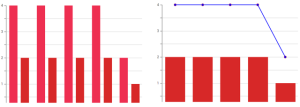
• (for a bar chart) modify the display style (as bars or as lines)
Default value: no (as bars)
• modify the series color
To modify the parameter style of a series in a report chapter:
1. Edit the report.
2. In the report page, click
Edit the Style Parameters Values and select the series that you want to modify.
The edit pane of the selected series appears to the right.
3. In the pane of the selected series, in the Graphic Style section, select the parameter values of the series that you want to modify.
4. Click Apply.
Attention: the values defined locally replace the global values defined for all reports.
Modifying the style for export
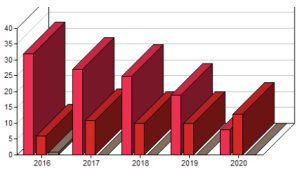
You can display your graphic in 3D in its Excel, PDF or RTF format.
This configuration is not visible in html format.
To modify the style of a report chapter for export:
1. Edit the report.
2. In the report page, click
Edit style parameter values 
and select
All Series.
The edit pane appears to the right.
3. In the Style for export section, modify the 3D Dimension parameter.
4. Click Apply.
The modifications are visible in the report in Excel, PDF or RTF format.
 or see "Expanding a Report Chapter Automatically on Opening".
 or see "Expanding a Report Chapter Automatically on Opening".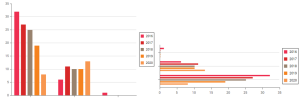
 or see "Expanding a Report Chapter Automatically on Opening".
 or see "Expanding a Report Chapter Automatically on Opening".
 or see "Expanding a Report Chapter Automatically on Opening".