Defining a Person Group
A Person Group is a list of persons belonging to the same group.

For detailed information on:
A person group can be created:
• statically
• dynamically
You can:
• define a default connection group.
• connect the person group with access to a reading area
• connect the person group with access to a writing area
• (Web Front-End) define the data language of the person group
To configure a person group, you must:
• assign a business role to the person group
• configure its login
Connecting one or more persons to a person group
To connect a on or more persons to a Person Group:
1. Access the properties of the person group you want to configure.
2. From the
Characteristics tab, in the
Person frame, click
Connect 
.
To add a person not yet created, click
New 
.
3. (Optional) In the query wizard, in the second field enter the characters to find.
4. Click
Find 
.
The persons queried are listed.
5. In the result list, select the persons you want to connect.
These persons must have a login.

A person belonging to a group connects to the application with its login. A person without a login cannot connect to an application.
Use the [Ctrl] key to select more than one person at the same time.
6. Click Add.
The person(s) are connected to the person group.
7. Click OK.
Defining a dynamic person group with LDAP

A
Person Group is a list of persons belonging to the same group. These persons share the same connection characteristics.
A dynamic group is a group that computes group users on the fly.
The LDAP Group attribute enables definition of LDAP groups belonging to this person group. Persons belonging to LDAP groups use the configuration defined on the person group.
Prerequisite: the LDAP group is already created.
To define a dynamic Person Group with LDAP:
1. Open the properties dialog box of the person group.
2. Select the Characteristics tab.
3. In the LDAP Group field, click the arrow and connect the required LDAP group.
4. Click OK.
The dynamic person group is configured with LDAP.
Defining a dynamic person group with a Macro
A
Person Group is a list of persons belonging to the same group. These persons share the same connection characteristics.
A dynamic group is a group that computes group users on the fly.
The Computed Persons attribute enables definition of a macro defining a list of persons connected to this person group. Persons defined by the macro use the configuration defined on the person group.
To define a dynamic Person Group with a macro:
1. Open the properties dialog box of the person group.
2. Select the Characteristics tab.
3. In the Computed Persons field, click the arrow and connect the required macro.
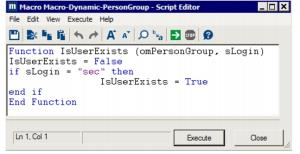
Example of macro with login "sec" belonging to group "dev":
omPersonGroup represents the person group object executing the query.
sLogin represents the authentication login of the person.
4. Click OK.
The dynamic person group is configured with a macro.
Defining a default connection group
A
Person Group is a list of persons belonging to the same group. These persons share the same connection characteristics.
A default person group is required for persons with the "Belongs to a person group" attribute selected, but who are not listed in any group.
To define a Default connection group:
1. Open the properties dialog box of the person group.
2. Select the Characteristics tab.
3. Select Default connection group option.
Connecting a person group with access to a writing area (Web Front-End)
To connect a person to a writing access area:
1. Access the User Management pages.
2. Select the Persons by writing access area sub-folder.
3. In the edit area, select a writing access area.
4. Click
Connect .
To add a person group not yet created, click
New 
.
5. (Optional) In the query wizard, in the second field enter the characters to find.
6. Click
Find 
.
The person groups queried are listed.
7. In the result list, select the person group you want to connect.
You can select more than one person group.
8. Click Add.
The person groups selected are connected to the writing access area selected.
Connecting a person group with access to a reading area (Web Front-End)
To connect a person group with a reading access area:
1. Access the User Management pages.
2. Select the Persons by reading access area sub-folder.
3. In the edit area, select a reading access area.
4. Click
Connect .
To add a person group not yet created, click
New 
.
5. (Optional) In the query wizard, in the second field enter the characters to find.
6. Click
Find 
.
The person groups queried are listed.
7. In the result list, select the person group you want to connect.
You can select more than one person group.
8. Click Add.
The person groups selected are connected to the reading access area selected.