Viewing the Repository Update Log
You can view the history of the actions performed in the repository after dispatch from:
• the Administration desktop (Web Front-End)
• the MEGA Administration application (Windows Front-End)
• MEGA (Repository Activity navigation window)
• the object History
Accessing repository dispatches from the Administration desktop (Web Front-End)
To access the repository dispatches from the Administration desktop (Web Front-End):
1. Connect to the Administration desktop.
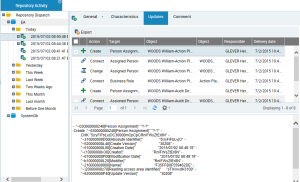
2. In the Repository Management pane, click the Repository Activity sub-folder.
All dispatches performed on the current repository and the system repository are detailed. Dispatches are filed by day, week and month.
3. Click a dispatch.
Its properties appear in the edit page.
The Updates tab details the content of the dispatch in the form of a list of actions displayed in chronological order.
4. Select a line to display the details of the action in the lower frame.
Viewing the repository update log using MEGA Administration (Windows Front-End)
To view the repository update log using MEGA Administration (Windows Front-End):
1. From MEGA Administration, connect to the desired environment.
2. Expand the Repositories folder.
3. Right-click the repository concerned and select Repository Log > Open.
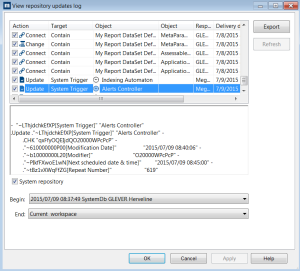
The View repository updates log appears.

Alternatively, from
MEGA (with access to the
Expert metamodel level, see
"Configuring metamodel access", page 77), select the
File > Properties menu. In the dialog box that appears, select the
Update tab. The log of the current private workspace is displayed by default.
4. In the Begin and End fields, select the dispatch interval that you want to display.
You can view the repository log in its totality, or between two given dispatches. In the
Begin drop-down list, the first element corresponds to the first dispatched private workspace of this repository.
5. Click Refresh.
The repository log appears as a list of actions displayed in chronological order.