Connecting to an Environment
To connect to an environment:
1. Connect to MEGA Administration.
2. Expand the Environments folder.
The list of referenced environments appears.
3. Right-click the environment you want to connect to and select Open.
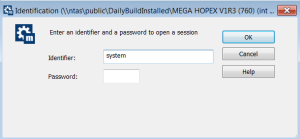
The environment connection dialog box appears.
4. In the
Identifier field, enter the identifier of an
Administrator.

Administrator and Mega users own administration rights. The Administrator user identifier is System. The Mega user identifier is Mega.
5. (optional) Type the user Password.
By default, Administrator and Mega users do not have a password.
6. Click OK.
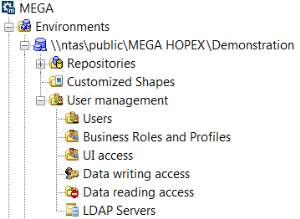
The content of the environment folder is available.
This environment folder contains the folders:
• Repositories containing repositories referenced in the environment
• Customized Shapes containing MEGA shapes customized by the user. They are stored in the Mega_Usr folder of the environment.
• User Management to manage:
Business roles do not appear when the "Assignment of business roles to persons" option (Options/Installation/User Management) is not selected.