Managing Locks on Objects (Windows Front-End)
The management window for locks is accessible from:
• the Administration application (Windows Front-End)
• the MEGA application (Windows Front-End).
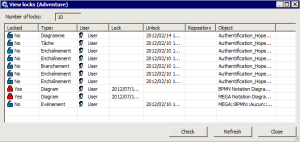
The Display Locks window displays the locks created since the creation of the oldest private workspace. The following information is provided for each lock:
• the lock state (Locked):
•  Yes
Yes: When a user locks an object, other users can only view it, even if they dispatch their work.
•  No
No: the object is locked when its modifications are dispatched. Other users must dispatch their work or refresh their private workspaces before they can modify the object.
• the name of the Object concerned
• the Type of object concerned
• The User who owns the lock
• the date and time (GMT0) of the Lock, and, if applicable, Unlock.
• the name of the Repository to which the lock relates.
Managing Locks from Administration (Windows Front-End)
To manage locks from the Administrationapplication:
1. Connect to the environment concerned.
2. Expand the Repositories folder, then that of the repository concerned.
3. Right-click the Locks folder and select Manage.
The View locks dialog box opens.
4. To:
• unlock an object, right-click the lock concerned and select Unlock.
• delete an object, right-click the lock concerned and select Delete.
Managing locks with MEGA (Windows Front-End)
To view the locks with MEGA:
1. Connect to MEGA (Windows Front-End).
2. Select Tools > Manage > View Object Locks.
The View locks dialog box opens.
The locks appear grayed, except that of the current user.
3. To:
• delete an object, right-click the lock concerned and select Delete.
• unlock an object, right-click the lock concerned and select Unlock.
 "Managing Locks from Administration (Windows Front-End)"