Administration Desktop Description (Web Front-End)
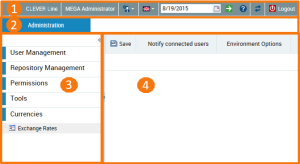
The Administration desktop (Web Front-End) includes:
• a toolbar (1).
• an Administration (2) tab that contains panes and trees to select the objects to manage (3).
• an edit area to manage objects (4).
Toolbar
The toolbar displays the name of the user connected as well as the business role or profile with which the user is connected.
From the Administration desktop (Web Front-End) toolbar, you can:
• access your account to:
• modify your password

Your password must contain between 8 and 16 characters, with at least one letter, at least one figure and at least one special character.
• modify your options
• modify the theme of your desktop
• manage your alerts
• obtain information on your licenses
• diagnose the installation
This information simplifies error diagnostics. It can help explain application slow response time.
• reinitialize your personal parameters
• modify the interface data language

• display data as it was at a prior date, with the
Time Machine 
• access online help

• update your desktop

• disconnect from the
Administration desktop (
Web Front-End)

.
Navigation panes and trees
In the Administration desktop (Web Front-End), the Administration tab contains the following panes:
• the
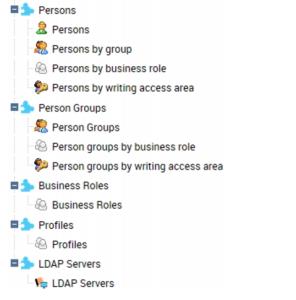
User Management pane to manage
users:
The
Persons by reading access area sub-folder is available if reading access management is activated.
The
Persons by business role sub-folder is replaced by
Persons by profile when, at the level of the environment options (Options/Installation/User Management), the "Management of assignment of business roles to persons" option is cleared.
The
Person groups by reading access area sub-folder is available if management of reading access is activated.
The
Person groups by business role sub-folder is replaced by
Person groups by profile when, at the level of the environment options (Options/Installation/User Management), the "Management of assignment of business roles to persons" option is cleared.
Business Roles is not visible when, at the level of the environment options (Options/Installation/User Management), the "Management of assignment of business roles to persons" option is cleared.
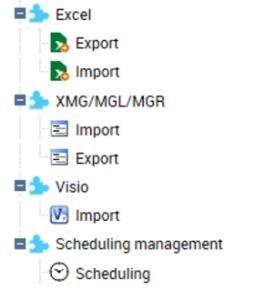
• the Tools pane to:
• import or export objects with the Excel import/export wizard
• import or export objects in different formats
• import Visio diagrams
• manage scheduling
• the Currency pane to manage exchange rates.
See the "Functional Administration" chapter for the
MEGA solutions concerned.
Edit Area
When you select an element in the left part (navigation panes and trees), the management page of this element appears in the edit area.
You can:
• save your updates

• notify connected users by e-mail (Notify connected users)
• manage the environment options (Environment Options)