Consulting Workflows
Consulting Workflows in MEGA Windows Front-End
MEGA proposes several modes for consulting workflows:
• from a tree in the Collaboration navigation window.
• from a list via the workspace edit area
• from an object
From the navigation window
To list workflows:
1. In the MEGA desktop, open the Collaboration navigation window.

To access this window, select
View > Navigation Windows > Collaboration.
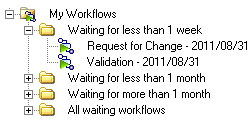
2. Expand the folders:
• My Workflows.
This folder contains the workflows with which you are involved.
• Workflows of All Users.
This folder is available if you have the necessary authorization (menu
Tools > Options > Collaborative Environment, option
View workflows of all users).
Workflows in progress appear in the tree. They are classified according to different criteria (waiting for x months or x weeks).
From the workspace edit area
To list workflows in progress:

At the top of the Collaboration navigation window, click button
Workflows > List Workflows 
.
You have to distinguish between two workflow instances:
• single-repository workflow instances, which are stored in data repositories (for instance, workflows associated to MEGA solutions.)
• multiple-repository workflow instances, which are stored in the system repository.
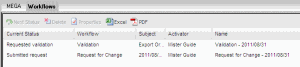
Workflows in progress appear in the workspace edit area.
From this page, you can:
• sort workflows according to your own criteria, and modify the order of appearance of columns.
• export the list of requests for change in the form of an Excel or PDF file.
From an object
To consult workflows in progress on an object:
In the properties dialog box of the object, select the
Workflows tab.
Workflow history appears.
The
Workflows tab only appears if the selected object is subject of a workflow instance.
Only those objects that are subjects of a workflow include this
Workflows tab.
Consulting Workflows in MEGA Web Front-End
You can use functions linked to HOPEX Collaboration Manager from the Web via a dedicated desktop.
When you use the Teamwork Desktopavailable with Enterprise Architecture applications, notifications are sent each time you dispatch your work.
You must work in an RDBMS environment to be able to access this.
Connecting directly to the Teamwork desktop
To connect to the desktop enabling workflow management on the Web:
1. Start the MEGA application from its HTTP address.
2. From the connection page and in the Login field, enter your identifier.
3. (Optional) In the Password field, enter your password defined by the administrator.
4. In the Environment field, select your work environment.
If you can access one environment only, this is automatically taken into account and the environment selection field does not appear.
5. Click LOGIN.
When you have been authenticated, a new dialog box appears.
6. In the Repository field, select the repository in which you want to work.
If you can access only one repository, this is automatically taken into account and the repository selection field does not appear.
7. In the Business Role or Profile field, click the arrow and select the Workflow Participant business role.
If you have only one business role or profile, this is automatically taken into account and the business role or profile selection field does not appear.
8. Click LOGIN.
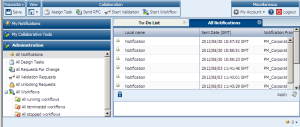
The Teamwork desktop Home Page appears.
After a certain period of inactivity, you are disconnected. To reconnect, repeat the steps of the procedure above. This inactivity period is configured by the administrator.
You will find here the functionalities linked to workflows.
From the navigation tree on the left, you can access:
• Your notifications
• Collaborative tools to execute your tasks:
• design tasks
• requests for change
• validation requests
• unlocking requests
At top left, a Collaboration options group allows you to start any type of workflow:
Accessing the Teamwork web desktop from an application
When you are connected to MEGA with the "Enterprise Architect" business role, you can consult notifications in the My notifications navigation window.
Yo can then access the Teamwork desktop to know more about the workflows you have to take part in.
To access the Teamwork desktop from a MEGA Web Front-End application:
1. Click the Teamwork button at the top right-hand side of the application:
If needed, a dialog box asks if you want to dispatch changes made in your private workspace.
The home page of the Teamwork desktop appears.