Participating in a Workflow
After initiation of a workflow, only those users assigned to the next workflow status can intervene in this workflow.

Any
MEGA user can participate in a workflow, whatever the product used. The
HOPEX Collaboration Manager option is not required.
Triggering a transition from a list of workflows
To take part in a workflow:
1. Access the workflows which are of interest to you.
If you are assigned to the next workflow status, the workflow appears:
• in the "All waiting workflows" sub-folder in MEGA Windows Front-End.
• In the "To-Do List" of Teamwork desktop in MEGA Web Front-End.
The Teamwork desktop is also available when you connect directly with the "Workflow Participant" business role.
2. To pass the workflow to the next status, right-click the workflow and click Next Status.
3. In the dialog box that appears, select the transition that you wish to trigger and click Next.
4. Enter a comment for this transition and click Finish.
You can also pass to the next status from the properties dialog box of an object subject of a workflow.
Triggering a transition from an object in a solution
MEGA solutions are based largely on workflows to manage interactions between different stakeholders.
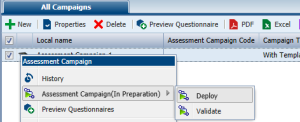
To trigger a workflow transition from an object list:

Select an object in the list and in its pop-up menu select the appropriate workflow command.
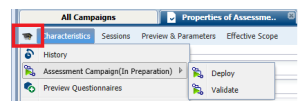
To trigger a workflow transition from the properties dialog box of an object:
1. Open the properties dialog box of the object concerned.
2. Click the icon of the object and select the appropriate workflow command.
The worflow progresses: the object passes to another workflow status and a new participant can take part in the workflow.