Using Requests For Change
Requests for change allow users that have the HOPEX Collaboration Manager option to request a modification on one or several repository objects.
Depending on workflow configuration, users receive an e-mail or a notification to inform them of the request for change.
Request For Change Workflow
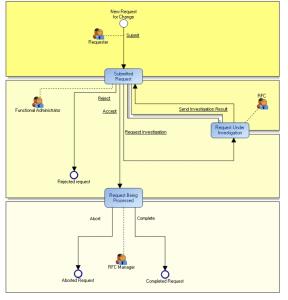
The diagram that illustrates this workflow is shown below.
In this workflow, a requester makes a new request for change. The request then passes to status Submitted Request.
An administrator of requests for change analyzes the request, with three possible decisions:
• accept request for change.
• reject request for change.
• request investigation from a modeler.
In this last case, the request for change passes to status Request Under Evaluation. Following evaluation, the modeler submits the outcome to the request for change administrator (the request returns to Submitted Request status).
When the request has been accepted, the requests for change administrator can decide to complete or abort it. The request for change then passes to final status Completed Request or Aborted Request.

You can customize behavior of requests for change. To do this, seek assistance of a
MEGA product engineer if necessary.
Creating a Request For Change
To create a request for change:
1. Click the Send RFC button:
• (MEGA Windows Front-End) at the top of the
Collaboration navigation tree through

.
• (MEGA Web Front-End) in the Teamwork desktop, Collaboration group.
2. In the dialog box that appears, enter the name of the request for change.
3. In the Related Objects frame, create or connect objects concerned by the RFC, then click OK.
4. In the next dialog box, enter a comment and click Next.
The comment allows you to enter the content of your request and motivate it if necessary.
Creation of a request for change also triggers creation of a request for change workflow; this enables sending of a notification and e-mail concerning the request for change.
5. In the next dialog box, select the recipients of the request for change, then click Finish.
You can also create a request for change from an object.
1. Right-click the object concerned and select Manage > Send RFC.
2. Enter the comment of the request for change and associate it with recipient users.
3. Click Finish.
Passing to the Next Request for Change Workflow Step
To intervene in the workflow, you must execute a workflow transition, the effect of which is to pass from one status to another.
To pass to the next request for change workflow step:
1. Select:
• (MEGA Windows Front-End) the Collaboration navigation window and expand the My Requests for Change folder.
• (MEGA Web Front-End) the My Collaborative Tools navigation pane and expand the My Requests for Change folder.
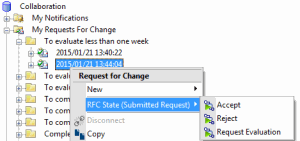
2. Right-click the request for change.
3. In the pop-up menu that appears, select RFC State, then the desired state.
This action executes a workflow transition.
4. In the dialog box that appears, enter a comment for the triggered workflow transition, then click Finish.