 For more details, see "Customizing your desktop (Web Front-End)".For more details, see "Customizing your desktop (Web Front-End)".
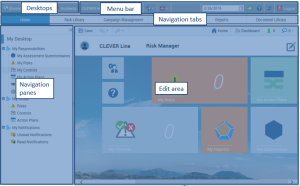 The number and titles of these tabs depend on the Solution you are using and your business role.
Desktops | Content |
Environment | Enables access to objects common to all Solutions. |
Administration | Enables access to functional administration features of Solutions. |
Risk | Enables access to the HOPEX ERM Solution, which offers functions for managing operational risks in your enterprise. |
Audit | Enables access to the HOPEX Internal Audit Solution, which allows you to rationalize internal audit activities and increase organization control capabilities. |
Control | Enables access to the HOPEX Internal Control Solution, which offers internal control and control testing functionalities. |
Compliance | Enables access to the HOPEX Regulatory Compliance Solution, which offers compliance management functionalities. |
ITPM | Enables access to the MEGA IT Portfolio Management Solution, which offers application portfolio management functionalities. |
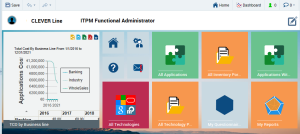
 : to save your updates.
 : to undo the last action executed.
 : to redo the last action executed.
 : to access your Home Page
 : to access your dashboard.
 and
and  : to access the chat service