Customizing the home page of your Solution desktop (Web Front-End)
In the Solutions desktop, the home page appears in the form of tiles that provide access to repository data.
The home pages delivered by default depend on the Solution and the connection business role.
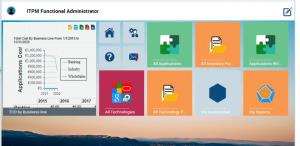
Example of the Home Page for the ITPM Solution desktop
Depending on the Solution, the home page of your desktop contains, for example:
• tiles that provide quick access to repository data.

When you roll the mouse over the tile, the number of objects contained in the list appear on the tile. To permanently display the number of objects contained in the list, see
"Resizing a tile".
E.g.: the MEGA IT Portfolio Management home page for the functional administrator includes, by default, tiles that provide access to the list of all inventory portfolios as well as the list of repository applications.
• Help 
to access online help
MEGA • Options 
to access your options
• Home 
to display the Home page in full screen in the desktop
• Alert management 
to access your alert management
See:
Accessing your home page in edit mode
To access your home page:
1. Connect to your Solution desktop.
2. Click the
Home tab or
.
Your home page appears in the edit area.
3. Click
Toggle to Edit mode 
.
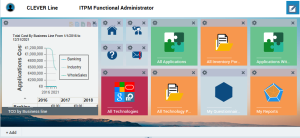
Your home page in edit mode.
Adding a tile to your home page
To add a tile to your home page:
1. Access your home page.
2. In your home page, in the bottom left, click Add.
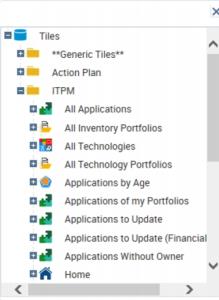
A window displays the list of tiles available linked to the product and your business role.
3. Select a tile and drag and drop it in your home page.

Expand folders if necessary.
Deleting a tile from your home page
To delete a tile from your home page:
1. Access your home page in edit mode.
2. In the tile title bar, click

.
The tile is deleted from your home page.
Resizing a tile
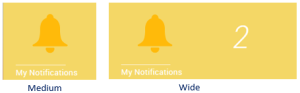
A larger tile displays more information.
To enlarge the size of a tile:
1. Access your home page in edit mode.
2. In the tile title bar, click

.
3. Select Wide.
The tile enlarges and displays more information.
To return to the average size, select
Medium.
You can for example display the number of your notifications or the diagram of a report.
Adding an object to your home page
All the business objects in the repository can be added to your home page. Other objects such as diagrams or reports can also be added to the home page.
To add an object to your home page:

Right-click the object and select
Add to Home Page.
This command creates a shortcut to the properties of the object or a diagram of the object depending on the size of the tile.