Launching a report (MEGA Windows Front-End)
The parameters define the object groups and their relationship setting in the report. They vary depending on the report template.
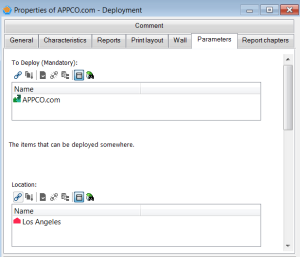
E.g.: a "Deployment" report relates the "To Deploy" parameter (defining elements to be deployed) and the "Location" parameter (defining target locations).

Each report template parameter defines a multiplicity indicating whether it is possible to connect more than one value for the parameter in question to a given report. If multiplicity is 1 or 0..1, only one parameter value can be connected.
In the report Properties window, the Parameters tab enables to define report input data.
To launch a report from an object:
1. Access the reports available for the object.
2. If your report template includes only one mandatory parameter, this parameter is automatically entered with the selected object. Click:
• Customize & Launch a new report to modify parameter data before launching the report.
The report Properties window opens.
Go to step
3.
• Launch a new report to launch the report directly.
The report is displayed in a new tab of the edit window.
If your report template includes several mandatory parameters, you must complete the report before launching it, click Complete.
The report Properties window opens.
Go to step
3.
3. To customize or complete the report parameters before launching the report, in the report Properties window, click Parameters tab.
A parameter can group several objects.
4. To connect an object to a parameter, in the parameter pane, click
Connect 
.
The query dialog box appears. It allows you to select objects of the parameter.
The query dialog box drop-down list contains the object types that you can select for the parameter.
E.g.: for a deployment report, the "To Deploy" parameter can be defined by some applications, technical infrastructures, nodes, workstations, etc.
5. Select the object type and click Find.
Example: Application.
The list of objects available in the repository appears.
6. Select the objects to be connected to the parameter.
7. Click OK.
8. Define other parameters in the same way.
E.g.: in a deployment report, the second parameter corresponds to the "Location" of the deployed elements. The location is defined by "Sites" objects.
9. (Optional) You can customize the report display.
10. Click OK.
The report result opens in the center page.
Click

to get information on the report.
Report chapters that appear vary according to the report template.
11. Click each chapter title to display its content.