Use Cases
Customizing a Profile
You can create and customize your own profiles.
 See Customizing the characteristics of an existing profile / Creating a profile from an existing profile.
You can customize a profile provided with Hopex:
• modify its available licenses (Command Line attribute)
• modify its status (Profile Status attribute: active/inactive)
• modify its options
• modify its permissions (Set of UI access rights CRUD values)
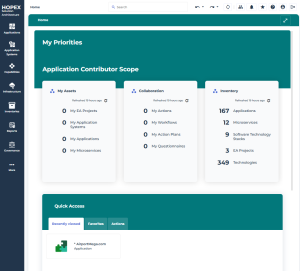
• modify its associated desktop (Homepage elements: Header, Scope, Quick Access)
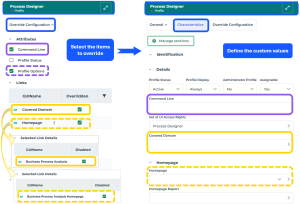
E.g.: customize the Process Designer profile:
From its property pages, select the items to override;
Characteristics page: define the custom values
Process Designer Options: modify the values concerned
Customizing a Desktop
You can create and customize your own desktops.
You can customize a desktop provided with Hopex, for example you can modify:
• its navigation menus:
• menus (Working Environment Group Template): add, remove, and reorder the menus
E.g.: to remove a menu and reorganize the menus, see Overriding multiple object links• sub-menus (Working Environment Topic Template): add, remove and reorganize the sub-menus; modify the default sub-menu
• the Homepage associated with a specific profile:
• My Priorities and Need Help? (in the Header)
• My Scope
• Quick Access
Overriding the homepage header (My Priorities)
For a specific profile, you can override its homepage elements.
For example, you can override My priorities.
To override the homepage header for a profile:
1. Access HOPEX Studio desktop (with Hopex Customizer profile).
2. Access the profile property pages.
E.g.: the Application Contributor profile property pages.
3. Display its Override Configuration page:
• In the Links section, for Covered Domain, select Overridden.
• Click the Covered Domain row.
• In the Selected Link Details section, for Solution Architecture select Disabled.
4. Display the Characteristics page.
5. In the Details section, Covered Domain field:
• connect a covered domain to override the standard covered domain, or
• leave the field empty, in the homepage My Priorities is empty.