Homepage
Accessing the homepage
When logging in to Hopex, the edit area features your homepage.
 Click the name of you Solution (navigation bar header) to come back to your homepage at any time.
Homepage description
The Hopex homepage is structured into four parts:
• Header
• My scope
• Quick access
• My favorite report
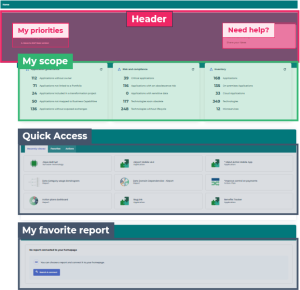
Your homepage is made of customized and customizable elements. The information contained in My scope is auto-generated from your repository data.
 The terms above-mentioned are generic and can vary according to the Solution you use.
Header
The header is made of:
• My priorities, showing three main goals assigned to your profile. It provides clickable links to object occurrences from your repository.
• Need help?, providing useful links about the use of Hopex.
The Solution Functional Administrator is able to modify the header contents. To customize the Header, see Customizing the Left Header: Principles and Customizing the right Header: Tips.My scope
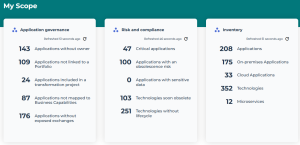
My scope provides an overview of your scope activity through key indicators (counts or percentages).
Thanks to this overview, you can:
• stay tuned on the overall condition of your perimeter
• obtain updated information about repository objects
• get a quick view on important data related to your perimeter
• Access some objects of the repository in one click
 Indicator values are not refreshed automatically, even at connection. Each frame indicates its refreshed date.
To update the indicator values of:
• a specific frame: click Refresh  .
.
.• all the frames: in the Hopex toolbar, click Refresh  .
.
.To access the repository objects related to the given indicators:
Click the indicator name. Example: indicators of the Hopex Enterprise Architecture desktop.
Quick access
Quick access contains shortcuts facilitating your work in Hopex.
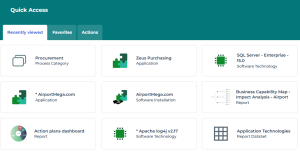
It is made of three tabs:
• in Recently viewed, you can find direct links to the objects you last viewed.
The list of elements displays as tiles. Click the tile of the object to access its properties.
• in Favorites, manage your favorites and shared favorites.
See Favorites.• in Actions, find shortcuts facilitating your use and navigation in Hopex.
The list of actions displays as tiles. Click the tile to launch the corresponding action.
To modify the tab order:
Select a tab and drag and drop it to the required place.This order is kept for this profile.
My favorite report
In My favorite Report, you can display the report of your choice in your homepage.
The Hopex Customizer profile enables to define a default report for a profile, see Defining a default report on the homepage. This report is displayed in your homepage at your first sign in with this profile. You can replace it with the report of your choice.
To define the report of your homepage:
1. Click Search and connect to access the list of reports.
2. Using the wizard, search for the name of your report.
3. In the list, select your report.
4. Click Connect.
The report displays in read-only mode.
The name of the block becomes the chosen report name.
 A green header indicates that your report has been successfully linked to your homepage.
To change your homepage report:
1. In the title bar of the block, click Change Report.
2. In the list of reports, search and select a new report.
3. Click Connect to validate your choice.
You can also define or change your homepage report from the report itself.
E.g.: report display in the Hopex Enterprise Architecture Solution.
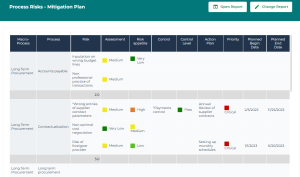
You can:
• handle the report (e.g.: navigate through the report, access the properties of contained objects)
• (if the report contains cached data) refresh the report data
• open the report to benefit from all the report features: click Open Report to open the report in the edit area.
See Handling Reports.