Saving a Report
To keep the results of a report embedded in an object, you can save it. It is then accessible in the report search via the filter My reports.
To save a report:
1. Open the report.
2. In the report toolbar, click More  > Save as Report
  .
.
> Save as Report .3. Enter the Name of the report.
4. Click OK.
The report is saved in your reports.
 You can modify the report, see Managing Reports.
Adding a Report to Your Homepage
You can add a report to your homepage from your homepage or from the report itself.
To add a report to your homepage:
1. Access the report.
See Accessing a report.2. In the report toolbar, click Add report to your homepage  .
.
.If your homepage already includes a report, a message prompts you to confirm the replacement, else the report added.
See My favorite report.Adding a Report to Favorites
A favorite report is easy to access with the Favorites filter.
See Adding filters.You can add a report to your list of favorites or to the list of favorite reports shared with the other users.
In the list of reports, reports added to:
• your favorites are identified by 
• shared favorites are identified by 
To add a report to favorites:
1. Access the reports.
See Accessing Reports.2. Search for the report with the help of the filters.
3. In the result list, hover the cursor over the report title and click More > Add to favorites  .
.
> Add to favorites .4. Select the folder or sub-folder concerned:
• My Favorites
• Shared Favorites
5. Click OK.
The report is added to the selected list.
Deleting a Report
You can delete any report from the repository.
To delete a report:
1. Access the reports.
See Accessing Reports.2. Search for the report with the help of the filters.
3. In the result list, hover the cursor over the report and select More > Delete.
> Delete.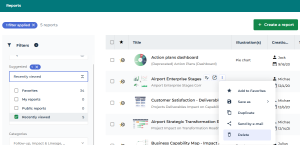
4. Click Yes to confirm deletion.
The report is deleted from the repository.
If needed, to undo this action: from Hopex toolbar, click Undo  .
.