Favorites
Favorites provide access to regularly viewed objects. They enable access to all actions possible on these objects. Favorites are useful when your repository is large and you want to save valuable time in navigation.
Adding Objects to Favorites
Adding an object to favorites


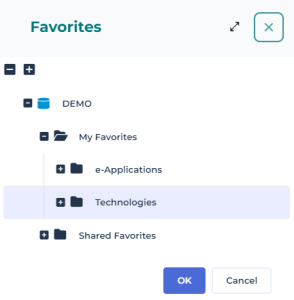
Adding several objects of a list to favorites
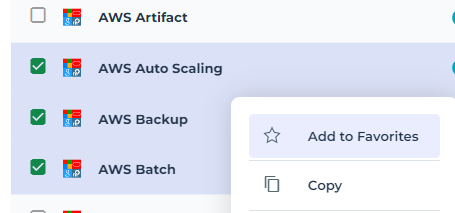
Mass adding objects to favorites
Accessing Favorites
Shared favorites are organized in trees, just as your favorites. They are available:
• from your homepage, in the Favorites tab
 See Quick access.
• from the Hopex toolbar via the Favorites shortcut 
See Toolbar.If needed, you can create sub-folders of favorites, see Organizing your Favorites.
To access favorites:
1. Use one of these shortcuts:
• In the Hopex toolbar, click Favorites .
.• In the Quick Access inset of your homepage, select Favorites.
The tree of your favorites is displayed.
2. Expand the folders concerned to access the favorites they contain.
For information on tree handling, see Expanding/Collapsing a tree by one level. Use the tree search tool to find a favorite, see Searching for objects in a tree.
3. (If needed) To access the objects connected to a favorite, expand the favorite.
For information on available actions on an object in a tree, see Actions on an Object in a Tree.
Organizing your Favorites
If needed, you can create sub-folders to organize your favorites.
Alternatively, you can create the sub-folder when adding the object to favorites, see Adding Objects to Favorites.When you drag and drop a favorite from a folder into another one, the favorite is connected to both folders. You can keep it or remove it from the source folder.
Creating a sub-folder of favorites
Classifying a favorite in a sub-folder
Removing an Object from Favorites
An object can be available in My favorites folder or in one or more sub-folders of favorites.
You can remove the object from the folder or from one or several sub-folders.
To remove an object from a favorite folder:
1. Access the favorite folder from which you want to remove the object.
2. Hover the cursor over the object and click Remove  .
.
.3. Keep Remove from “Name of the favorite file” selected and click Remove.
 If you select Delete, the object is deleted from the Hopex repository.
The object is removed from your favorites.