Diagram Edition Tools
In edit mode, the diagram bars are:
• at the top:
• a diagram toolbar
• on the left:
• a diagram edit bar
• an object insert bar
• on the right:
• a dynamic bar for component edition
 Below the bar, Reinitialize
  enables to go back to default values.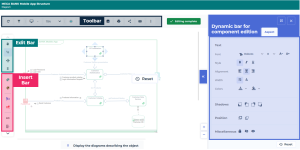
Diagram toolbar (top)
A diagram toolbar is composed of the diagram tools buttons.
Icon | Description |
|---|---|
 | Refresh diagram |
 | Views and Details To define the types of objects to be displayed in diagrams |
 | Fit to page Fits diagram to the page: - Fit to height - Fit to width |
 | Zoom value To define the zoom percentage, or to display the full diagram |
 | Reinitialize components Adds the components created during the diagram initialization |
 | Auto Layout Enhances the diagram readability by increasing or reducing space between the diagram objects. |
 | Select All Selects all the diagram elements (objects, graphical forms, texts). |
 | Save the picture as Enables to save the diagram as a picture in *.png, *.svg, *.emf, or *.jpg format |
 | Print diagram Displays the diagram as a PDF file, which enables to print it See Printing a Diagram. |
 | Share diagram Enables to share the diagram by email |
 | Display the keyboard shortcuts Enables to display all keyboard shortcuts available See Keyboard Shortcuts. |
 | More Access the general settings of the diagram (for example: properties, page boundaries, layout, fonts and colors) |
Element arrangement bar (top center)
You can use the element arrangement bar to arrange selected elements against each other. The elements can be objects and/or graphic forms.
The arrangement bar appears when you have selected two or more elements in the diagram.Icon | Description |
|---|---|
  | Align left, Align right See Aligning Elements. |
  | Align on top, Align at bottom See Aligning Elements. |
  | Align center vertically, Align center horizontally See Aligning Elements. |
 | Group To group selected elements See Selecting Elements. |
 | Ungroup Cancels the grouping |
Diagram edit bar (left)
The toolbar on the top-left of the diagram contains buttons for the edition of the diagram.
Icon | Description |
|---|---|
 | Move To move the diagram though the page See Moving a diagram. To zoom using the mouse wheel |
 | Select To select an object in the diagram, then perform actions on this object See Selecting Elements. |
 | Add/Remove space To adjust the space between objects |
 | Link To connect objects |
Diagram insert bar (left)
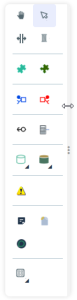
The toolbar to the left of the diagram includes:
• objects specific to each diagram that you can insert into the diagram
• objects common to all diagrams
Icon | Description |
|---|---|
 | Note To add a note to the diagram |
 | External reference To add an external reference to the diagram |
 | Title To add a title to the diagram |
 | Graphical object To add shapes, texts, fields, a title block |
To view all the Insert bar elements without using navigation arrows, you can expand the bar in order to show all the elements over several columns.
To expand the insert bar:
1. Place your cursor on the right edge of the bar so that it becomes a double arrow.
2. Click and drag your click to the expected width.
Editing tools for the diagram text (Aspect tab)
The Aspect tab contains the editing tools for each text in the diagram. It contains standard text-edition features (e.g.: font, alignment, text color) and other features detailed hereafter.
Icon | Description |
|---|---|
 | Increase font size |
 | Reduce font size |
 | Word-wrap text Enables to automatically wrap the text to a new line if it does not fit on one line |
 | Automatic width adjustment Enables automatic resizing of the frame according to the text |
| Reset Enables to go back to default values |
Editing tools for the diagram shapes (Aspect tab)
The diagram shape edit bar enables to:
• adjust the position of the elements (i.e.: grouping, moving front, aligning)
• customize the shape style (i.e.: colors, shadows, position)
• customize the line style (i.e.: orthogonal line, color)
Icon | Description |
|---|---|
 | Freeze Prohibits moving the selected element |
 | Hide To hide the selected element |
 | Show all Displays all hidden elements |
 | Front See Ordering Elements. |
 | Back See Ordering Elements. |
 | Simple line |
 | Perspective line Technical architecture diagram |
 | Orthogonal line |
 | Line style |
 | Curved line |
 | Double line |
 | Rounded angles |
 | Arrow style To set the style of line edges |
 | Style of bridges To define the default bridge style or to modify the bridge of a specific line |