Selecting Elements
Selecting an element
To select an element:
1. In the diagram editing bar, click Select  .
.
.2. Position the cursor on the element.
3. Click.
A shape is drawn around the element, with squares (the handles). These handles allow you to modify dimensions of the element.

If the drawing object selected is a line or a link, then the little squares are called "joints”. Joints are found at the ends of each segment of lines.
 See Lines in a Diagram.
Selecting several elements one by one
With the <Ctrl> key, you can select elements one by one.
To select several elements:
1. In the diagram, click an element to select it.
2. Press the <Ctrl> key.
3. Hold the <Ctrl> key down and click another element to be added to your selection.
4. Repeat the action on each element you want to add.
To unselect one of the elements, hold the <Ctrl> key down and click the element.To select all the elements of the diagram, press <Ctrl> and <A> keys simultaneously.Selecting all the elements of a diagram
In a diagram in edit mode, you can select all the elements contained in the diagram, to group them for example.
To select all diagram elements:
1. In the diagram toolbar, click Select all  .
.
.Selecting all the elements of an area
You can draw with your cursor an area over the elements you want to select.
To select all the elements of an area:
1. In the diagram, click a corner of the area you want to draw.
2. Hold your click down and move the cursor so as to draw a rectangle containing the entirety of the elements.
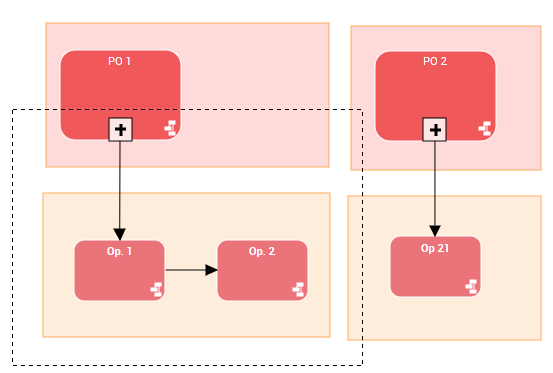
3. Let off your click.
4. The elements entirely included in the rectangle are selected.
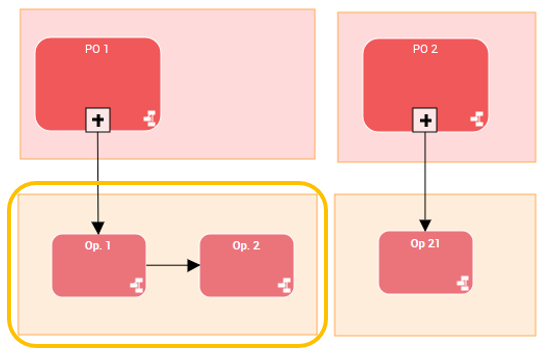
Example: both “Op. 1” and “op.2” operations and the rectangle at the botom left.