Configuring Bridges
In a diagram, bridges can help you improve the readability of diagrams when several lines cross each other. Those lines can be, for example, drawing lines, links, sequences.
|
Style of bridge option value
|
Display in the shape edit bar of the diagram
|
Appearance in the diagram
|
|---|---|---|
|
Disabled
|
 |
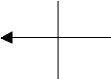 |
|
Semi-circle
|
 |
 |
|
Empty space
|
 |
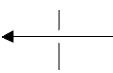 |
|
Rectangular
|
 |
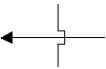 |
Lines created in a diagram are associated by default to the style of bridge configured in the user options at the time the diagram was created.
You can define a diagram specific style.
Parameterizing the default appearance of bridges
To modify the default appearance of bridges in diagrams:
1. Access your options (Main Menu > Settings > Options).
2. In your options, select Tools > Diagrams > Display.
3. In the right pane, modify the Style of bridges option value.
This style is applied by default in new diagrams.
 Diagrams already created keep their bridge style.
Modifying the appearance of bridges in a diagram
You can modify the style of bridges applied by default in diagrams or modify the style of a specific bridge.
You can modify the bridge style for each line of the diagram.
To modify the default appearance of bridges in a diagram:
1. In the Aspect  page, click Style of bridges
  .
.
page, click Style of bridges .2. Select a style of bridge.
This style applies to new bridges created in the diagram.
To change the bridge of a specific line:
1. Select the line concerned.
2. In the Aspect page, click Style of bridges .
page, click Style of bridges .3. Select a style of bridge.
The bridge style of the selected line is modified.