Managing Action Plans and Actions
 Action plans are used across all GRC solutions, except in Hopex Internal Audit (where recommendations and actions are used instead).
Context for action plan creation
Two types of workflows are available for action plans:
• top-down
• bottom-up
The actions that you can perform using the contributor desktop depend on the solution that you are using and the workflow implemented in your enterprise.
As a contributor, you may have to create an action plan, under different contexts, for example:
• In the "bottom-up" approach, you can create an action plan when you answer a requirement questionnaire.
You can submit it via the workflow so an approver can validate it.• An auditor may detect an issue and asks you to create an action plan in order to remediate it.
In this case you need to connect the issue to the action plan.Accessing Action Plans
To access action plans:
 In the navigation bar, click My Tasks > Action Plans.
Connecting an issue to an action plan
To connect an issue to an action plan:
1. In the properties of an action plan, expand the Scope section and select the Issues tab.
2. Click Connect.
You can also create an issue if needed.Indicating action plan progress
You must indicate the progress statuses for your action plan. To do this, you can create states regularly.
To indicate progress:
1. Open the properties of the action plan.
2. Expand the Action Plan Progress section, and in the Progress Update frame, click New.
3. Specify a Progress Update Percentage.
4. Specify the progress Evaluation.
You can specify whether the action plan is:
• on time, or
• Late
Managing actions
Within the context of the internal audit or testing activities, you may, as a manager or action correspondent, be required to:
• specify the actions to take to ensure recommendation follow-up
• ensure actions are correctly implemented
To access your actions:
2. In the navigation bar, click My Tasks > Action Plans > Actions.
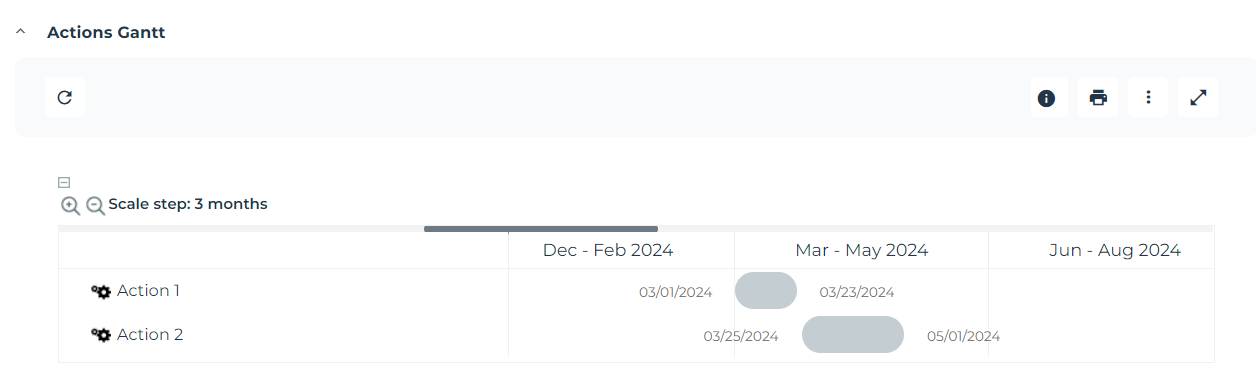
Viewing action Gantt
Hopex enables you to view the scheduling of actions within a Gantt chart.
To access the action Gantt chart:
1. In the navigation bar, click My Tasks > Action Plans.
2. Open the properties of an action plan and select the Actions page.
The action Gantt appears in the lower part of the page: