Defining the Data that Feeds the GraphSubSet
The GraphSet Definition is made up of at least one GraphSubSet. You have to define how to populate each of these GraphSubSets.
A GraphSubSet is made up of nodes, for each of which you can define arcs and/or paths.

According to your needs, you can also add fields on:
• nodes
• arcs
• nodes of paths (intermediate nodes)
By default, these fields are hidden in the GraphSet, but displayed as tooltips when the end-user roll the mouse over each of them.
A GraphSubSet can be reused in any other GraphSet Definition.
Defining the nodes of the GraphSubSet
The GraphSubSet must include at least one node.
For each of the nodes, you must define:
• its name
• the MetaClass on which it is based
• whether it Can be an entry point or not
A Node that can be an entry point is discovered from parameters or queries. The Can be an entry point parameter enables to instantiate nodes that are not discovered from another one.
To define the nodes of the GraphSubSet:
1. Access the GraphSet Definition properties.
2. Display its Definition page.
3. In the GraphSubSet drop-down list, select the GraphSubSet you want to define.
4. In the Nodes of the GraphSubSet section, click New  .
.
.5. In the Local name field, enter a name for the node.
Example: Vendor
6. In the Node MetaClass drop-down list, select the MetaClass (concrete or abstract) on which is based the node.
Example: Org-Unit
7. (If you do not want these nodes to be used as entry points in the GraphSet) Clear the Can be an entry point option.
 By default the node is an entry point.
8. Click OK.
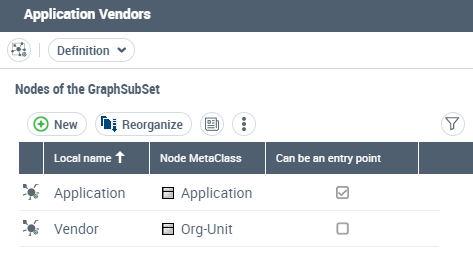
For example, the "Application Vendors" GraphSubSet includes:
- the "Application" node based on the Application MetaClass
- the "Vendor" node based on the Org-Unit MetaClass.
Only the Application node is defined as entry point.
Defining the arcs of a node
In the GraphSubSet, you must define at least one arc (or path, see Defining the paths) for one of the nodes, otherwise the GraphSet corresponding layer would display nodes only.
An arc links two nodes, which can be from:
• different sources
Example: an arc can link the technologies used by an application.
• similar source
Example: an arc can link the applications that are connected via a message flow.
The arc provider can be based on:
• a MetaAssociationEnd, or
• a query
The arc is defined through the following attributes:
• Behavior to define the propagation behavior:
• Deep (default): the opposite node is added in the graph and the exploration goes on.
• Standard: the opposite node is added in the graph but the exploration stops.
• Link: the arc is added only if the opposite node exists in the graph.
• Computed: the propagation is managed through a macro and can take "Deep", "Standard", or "Link" values.
• Condition enables to consider an arc when it starts from an entry point node only or not.
By defaut: "No condition".
To define the arcs of a node:
1. Access the GraphSet Definition properties.
2. Display its Definition page.
3. In the GraphSubSet drop-down list, select the GraphSubSet concerned.
Else directly access the GraphSubSet properties, see Displaying the GraphSubSet properties.4. In the Nodes of the GraphSubSet pane, select the row of the node from which you want to define the arcs.
5. In the Arcs of the node pane, click New .
.6. In the Local Name field, enter a name
The Node From field is already defined with the node selected.
7. In the Node To field, use the drop-down list to select the node at the opposite side of the arc.
The drop-down list lists the nodes included in the Nodes of the GraphSubSet section.Node From and Node to can be of different or similar source.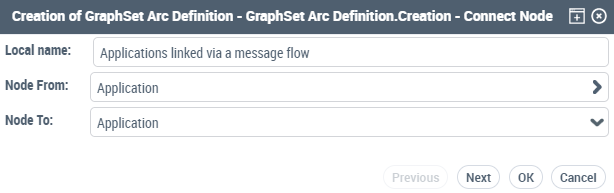
8. Click Next.
9. (If your arc provider is query-based) Select Query.
By default the arc provider is based on a MetaAssociationEnd.
10. Depending on the arc provider:
• in the MetaAssociationEnd drop-down list, select the MetaAssociationEnd that provides the arc.
• in the Query drop-down list, select the query that provides the arc.
11. Click Next.
12. Define the arc attributes:
• Behavior
By defaut: "Deep".
• Condition
By defaut: "No condition".
13. Click OK.
The defined arc is added in the Arcs of the node section.
Defining the paths
In the GraphSubSet, you must define at least one path (or arc, see Defining the arcs of a node) between two nodes, otherwise the GraphSet corresponding layer would display nodes only.
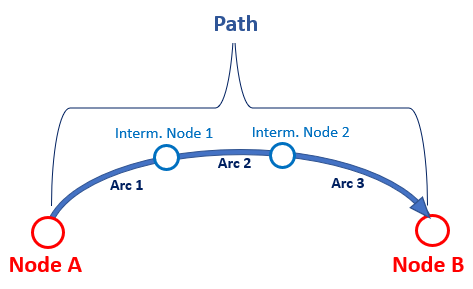
A path links two nodes through arcs and intermediate nodes.
The path definition includes the following phases:
• Phase 1
Definition of its extremity nodes.
• Phase 2
Definition of its intermediate nodes.
• Phase 3
Definition of each arc, which is part of the path, starting from the starting node of the path to the opposite node of the path.
For example:
1: Definition of Arc 1, starting from Node A to Intermediate Node 1.
2: Definition of Arc 2, from Intermediate Node 1 to Intermediate Node 2.
3: Definition of Arc 3, from Intermediate Node 2 to Node B.
Each arc provider can be based on:
• a MetaAssociationEnd, or
• a query
• Phase 4: Definition of the fields on the intermediate nodes of the path.
To define the paths:
1. Access the GraphSet Definition properties.
2. Display its Paths page.
3. In the GraphSubSet drop-down list, select the GraphSubSet concerned.
Else directly access the GraphSubSet properties, see Displaying the GraphSubSet properties.4. In the Paths pane, click Add  .
.
.The GraphSet Path creation wizard: Path Definition appears.
5. In the Name field, enter the name of your path.
For example: Path_ReceivedFlows.
6. In the Path From field, use the drop-down list to select the node from which you want to start the path.
The drop-down list lists the nodes included in the Nodes of the GraphSubSet section.7. In the Path To field, use the drop-down list to select the node at the opposite end of the path.
The drop-down list lists the nodes included in the Nodes of the GraphSubSet section.Path From and Path to can be of different or similar source.8. In the GraphSet Path Intermediate Nodes, click Add Node as many times as you need intermediate nodes in your path.
as many times as you need intermediate nodes in your path.Intermediate nodes are created with default names.
For example, if you click twice: "InterNode1" and "InternNode2".
9. (Optional) In the Name fields, modify the intermediate node default names.
10. For each intermediate node, click its Node MetaClass field and use the drop-down list to select its object type.
11. (If needed) Modify the intermediate node order: click Reorganize and drag and drop the intermediate nodes to get the order required.
Else you can use the Alphabetical order.12. Click Next.
The first arc definition window is displayed, with both of its two nodes already entered according to the intermediate node order you previously defined.
13. In the Name field, enter the first arc name.
14. (If your arc provider is query-based) Select Query.
By default the arc provider is based on a MetaAssociationEnd.
15. Depending on the arc provider:
• in the MetaAssociationEnd drop-down list, select the MetaAssociationEnd that provides the arc.
• in the Query drop-down list, select the query that provides the arc.
16. Click Next.
The second arc definition window is displayed, with its two nodes.
17. Define the second arc (and the next ones if any) as above:
• its Name
• its arc provider.
18. Click OK.
The full path is created. In the Paths page, for the selected path:
• the Ordered Intermediate Nodes pane displays the intermediate nodes of the path
• the Arcs pane details the arcs building the path.
 Once created you can no longer modify the path (neither ts intermediate nodes nor its arcs).
In the GraphSet Definition (Definition page), the path is added in the Arcs of the node and Is Path attribute is selected.
If you need to modify the path definition, see Modifying a path definition.19. According to your needs, add fields on intermediate nodes.
Modifying a path definition
Once the path is created, you may want to add an intermediate node or change the node order of the path.
To modify the path definition:
1. Access the GraphSet Definition properties.
2. Display its Paths page.
3. In the paths pane, select the path and click Edit  .
.
.4. Use the wizard to modify the path according to your need.