3. Install Must licence
3.1. Copy Must licence file
Once you have a .must licence file valid for a shared folder path:
• Browse the shared folder path, ex: \\Server001\Licences.
• Copy the .must licence file (ex: Licence-Y9999.must) to this folder.
You can check there is no mismatch by viewing licence file content with a text editor.
|
Licence file content
|
…
[MEGAShareLicence]
MG_SERVER_PATH=\\Server001\Licences\Licence-Y9999.must
…..
|
|
Check
|
MG_SERVER_PATH = <share folder path> \ <.Must licence file>
-> OK
|
3.2. Configure file permissions
At runtime, files will be created dynamically in a hidden subfolder in the licence folder.
It is necessary to configure file permissions so that execution is correct.
Grant the permission Modify for the licence folder (ex: \\Server001\Licences and its subfolders) to Windows account that run HOPEX Core components.
The list of windows users varies with the front-end:
|
Front-end
|
Users to be configured
|
|
Web Front-end (HOPEX Application Server)
|
Local user SYSTEM by default (1)
|
|
Windows Front-end (customization or administration)
|
Local user SYSTEM by default (1)
Each account allowed to
• Run HOPEX.exe for customization tasks
• Run Administration.exe for administration tasks
• Run Licensing.exe
|
(1) if another account is used, configure identify of windows service HAS Instance Manager.
3.3. Specify licence folder during installation
From HOPEX V5.0 and HOPEX Application Server, deployment is different from previous versions.
Installation of the license is a step of the overall installation procedure.
• Installation of HAS Instance Manager
• Creation of HAS instance.
o Licence folder can be specified (optional)
o HOPEX Core programs are installed
o A configuration database is created.
• Configuration of the HAS instance.
o Licence folder must be specified if not done earlier.
• Restart of the HAS Instance.
To install HOPEX Application server, follow document HOPEX Application Server - Installation V5.0 EN.
The key step is 'Adding Must license to MegaSite.ini setting'
You must be ready to add the following section
[Must Licence]
Path=<licence folder>
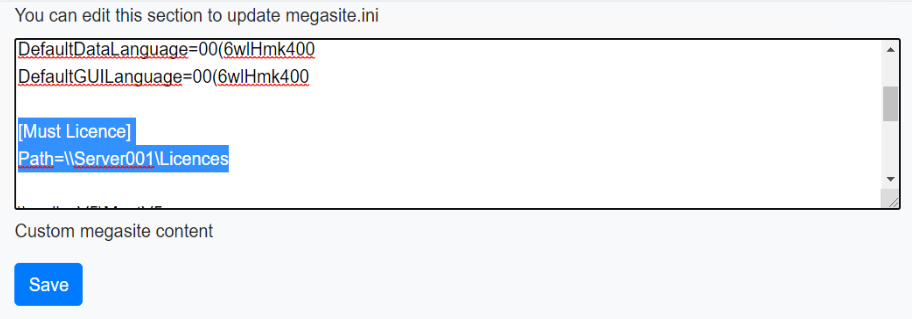
This specification is saved in the configuration database used by the HAS instance.