3. Configuration Examples
3.1. OKTA Configuration with SAML2
3.1.1. Configuring OKTA application
To configure OKTA application:
1) Connect to your OKTA account.
2) Go to Admin Portal > Applications: create an application.
3) Select SAML2 sign-in method.
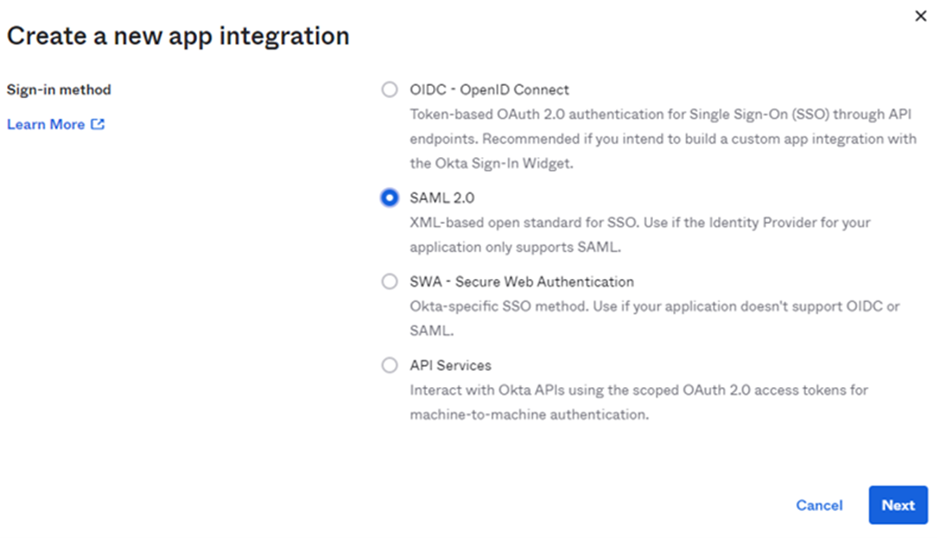
4) Click Next.
5) In General Settings:
• Enter the App name.
Example: Hopex
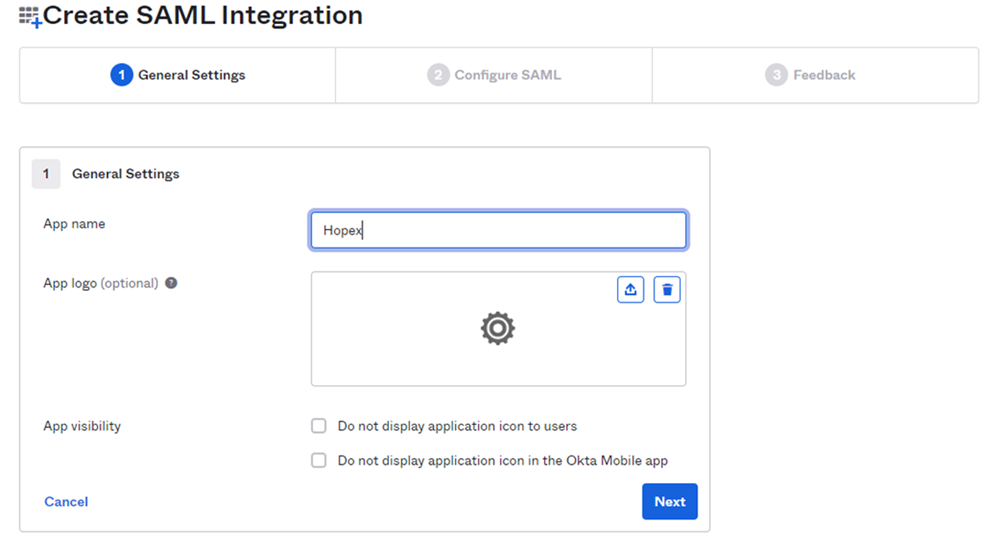
6) Click Next.
7) In Configure SAML:
• Enter Single Sign on URL with the following URL syntax:
https://<server name>/UAS/AuthServices/Acs
• Enter Audience URI with the following URL syntax:
https://<server name>/UAS

• In Attribute Statements, add an attribute:
o Name: “sub”
o Value: user.email.
8) Click Finish.
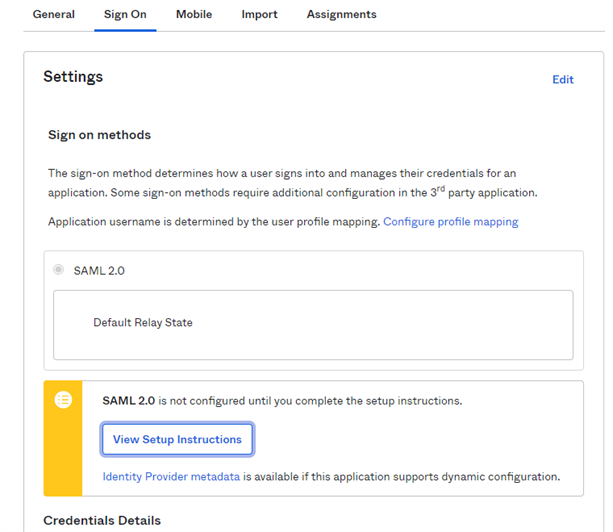
At the end of the App creation, from the View Setup Instructions, write down the following information carefully as you will need it for the UAS configuration:
• Identity Provider Issuer
• Identity Provider metadata
9) Create users that are allowed to connect to HOPEX with OKTA \ SAML2 authentication:
a. In Directory > People: click Add person.
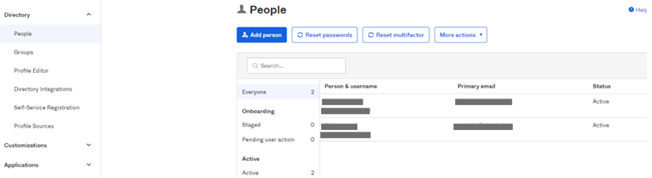
b. Enter the person characteristics and Save.
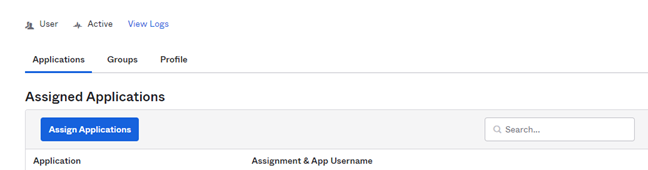
c. Click the user to access its properties
d. Click Assign Applications and assign the OKTA application (“Hopex”) to the user.
3.1.2. Configuring UAS with OKTA
To configure UAS with OKTA:
1) Connect to HAS console.
2) Access the Authentication module.
a. In the left pane, expand Modules.
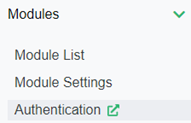
b. Click Authentication.
3) In UAS Administration, in the Identity providers section, select SAML2.
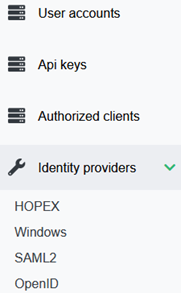
4) Click Create.
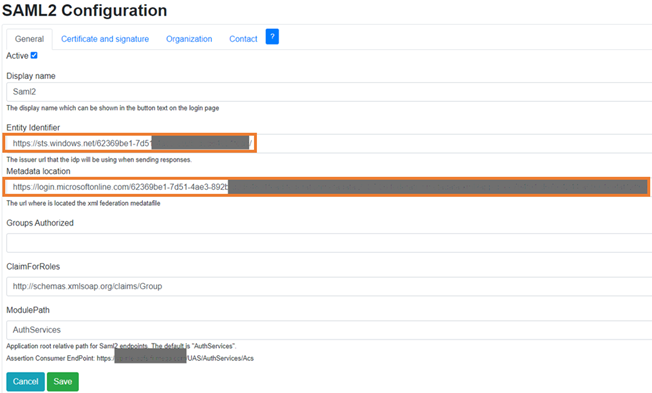
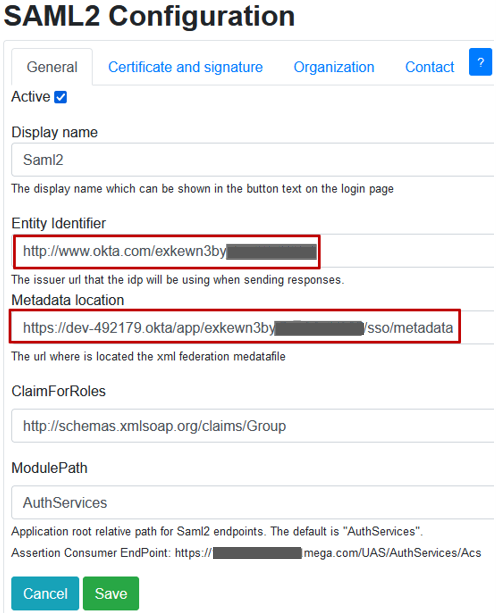
5) In SAML2 Configuration, to activate SAML2 Identity Provider, select Active and enter the required information:
• Entity Identifier
• Metadata Location
3.2. OKTA Configuration with OpenID Connect
3.2.1. Configuring OKTA application
To configure OKTA application:
1) Connect to your OKTA account.
2) Go to Admin Portal > Applications: create an application.
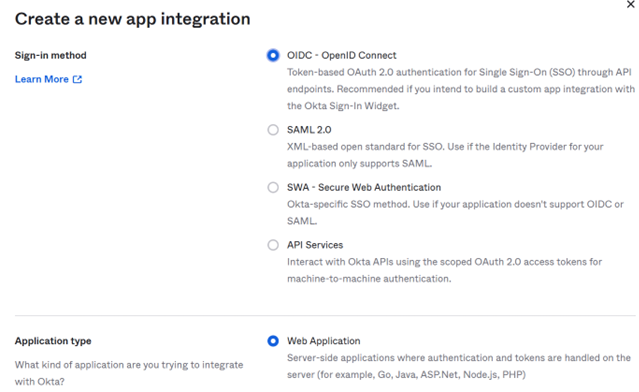
3) Select:
• Sign-in method: “OIDC – OpenID Connect“
• Application type: “Web Application”.
4) Click Next.
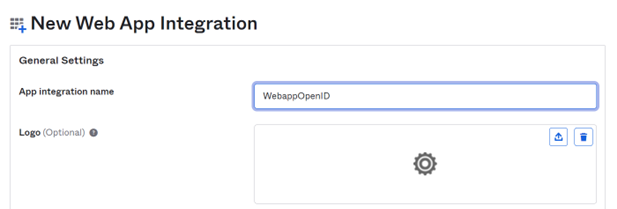
5) In General Settings:
• Enter the App integration name.
Example: WebappOpenID
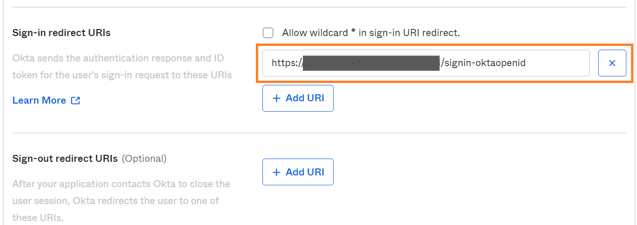
• Enter the Sign-in redirect URIs with the following URL syntax:
https://<server name>/signin-oktaopenid (in lower case letters)
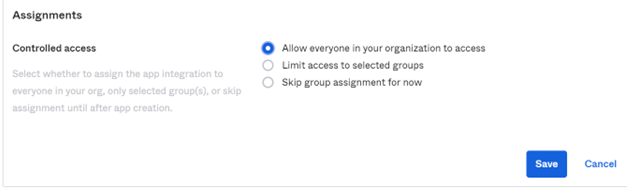
• In Assignments: select your Controlled access.
For example: “Allow everyone in your organization to access”
6) Click Save.
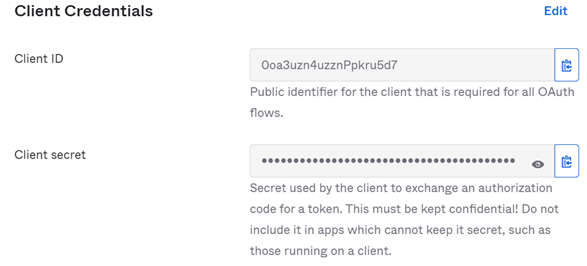
You get Client Credentials information.
7) Write down the following information carefully as you will need it for UAS configuration:
• Client ID
• Client secret
3.2.2. Configuring UAS with OKTA
To configure UAS with OKTA:
1) Connect to HAS console.
2) Access the Authentication module.
a. In the left pane, expand Modules.
b. Click Authentication.
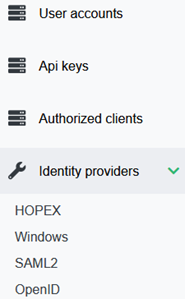
3) In UAS Administration, in the Identity providers section, select OpenID.
4) Click Create.
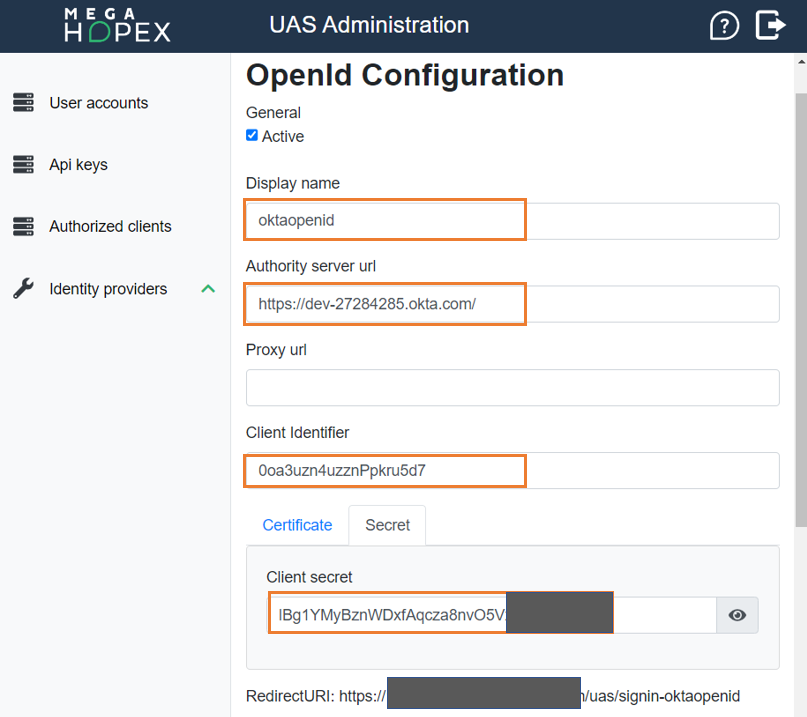
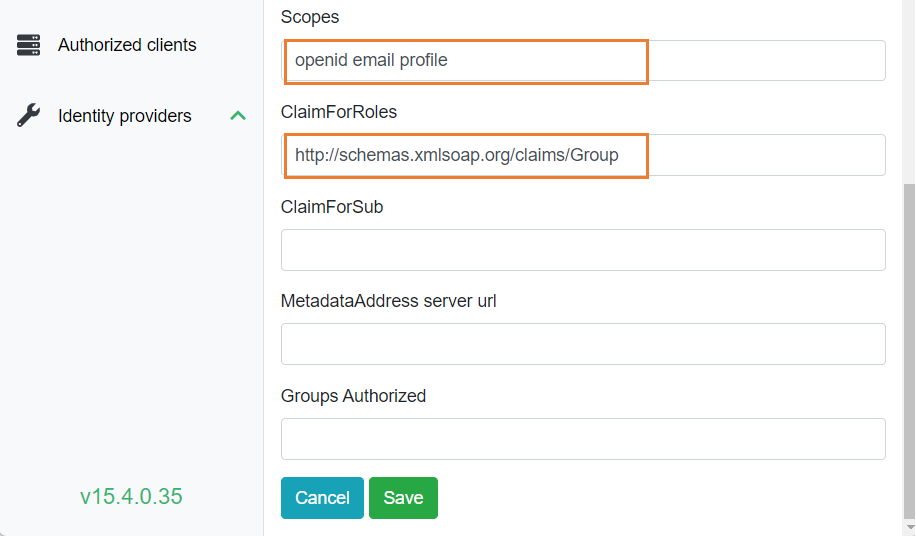
5) In OpenId Configuration, to activate OpenId Identity Provider, select Active and enter the required information:
• Authority server url
• Client Identifier
• Client secret
3.3. Pingfederate Configuration with SAML2
3.3.1. Configuring Pingfederate application
To configure Pingfederate application:
1) Connect to your Pingfederate account.
2) Go to Admin Portal > Applications: create a Web application with SAML sign-in method:
• WEB APP
• SAML
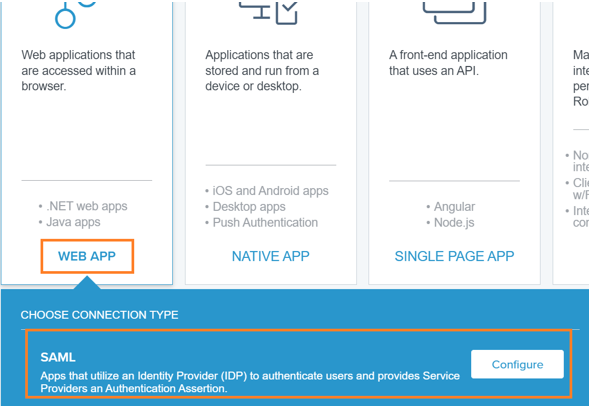
3) Click Configure.
4) Enter the Application name.
Example: SAML2Pingfed
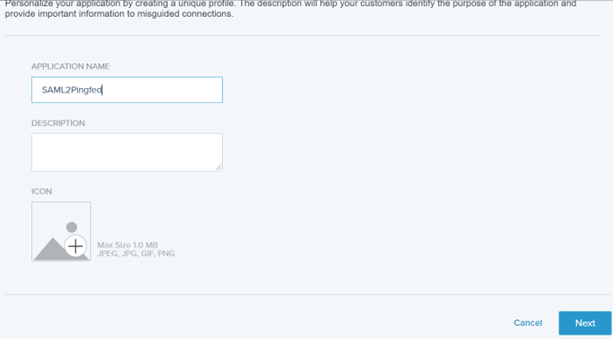
5) Click Next.
6) Configure SAML Connection as follows:
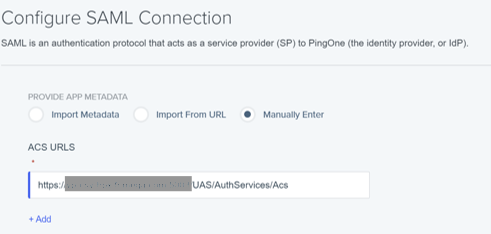
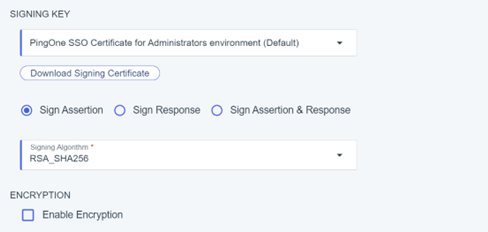
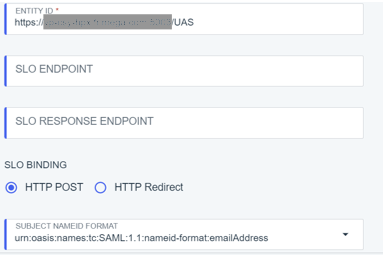
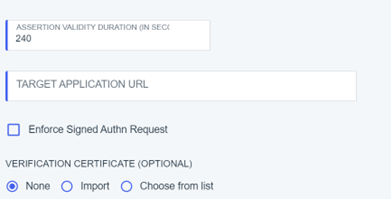
7) Click Save and Continue.
8) In SAML ATTRIBUTES, add an attribute statement “sub” and select “Email Address” as Outgoing value.
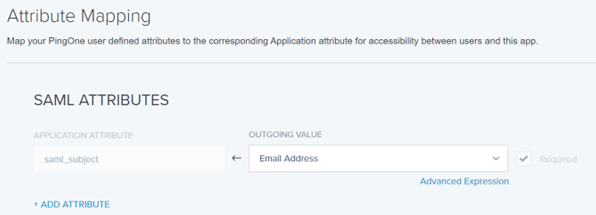
9) Click Save and Close.
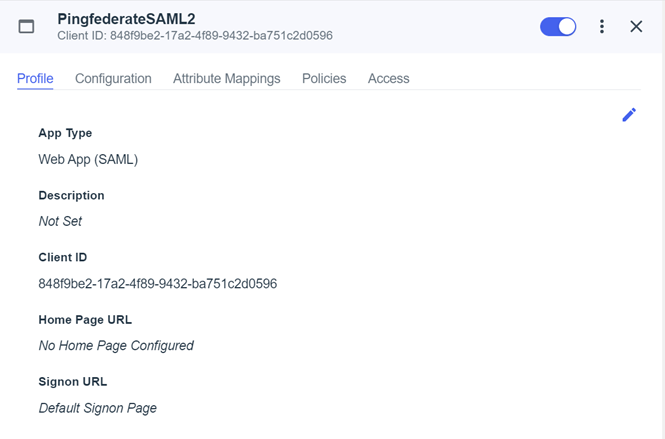
10) Write down the following information carefully as you will need it for UAS configuration:
• Client ID
3.3.2. Configuring UAS with Pingfederate
To configure UAS with Pingfederate:
1) Connect to HAS console.
2) Access the Authentication module.
a. In the left pane, expand Modules.
b. Click Authentication.
3) In UAS Administration, in the Identity providers section, select SAML2.
4) Click Create.
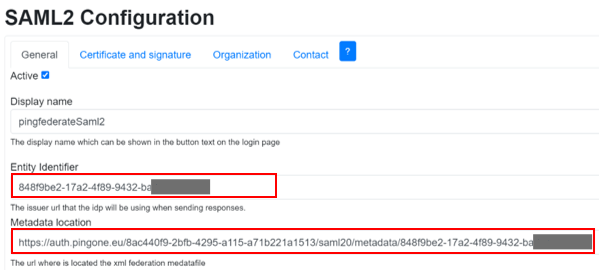
5) In SAML2 Configuration, to activate SAML2 Identity Provider, select Active and enter the required information:
• Entity Identifier
• Metadata location
6) 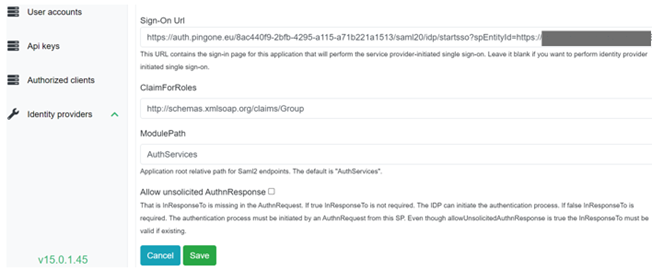 Click Save.
Click Save.To save and apply your changes, the instance and all related nodes need to be restarted. Any connected user will be disconnected.
7) Click I understand the consequences, restart.
3.4. Pingfederate Configuration with OpenID Connect
3.4.1. Configuring Pingfederate application with OpenID Connect
To configure Pingfederate application:
1) Connect to your Pingfederate account.
8) Go to Admin Portal > Applications: create a Web application with OIDC sign-in method:
• WEB APP
• OIDC
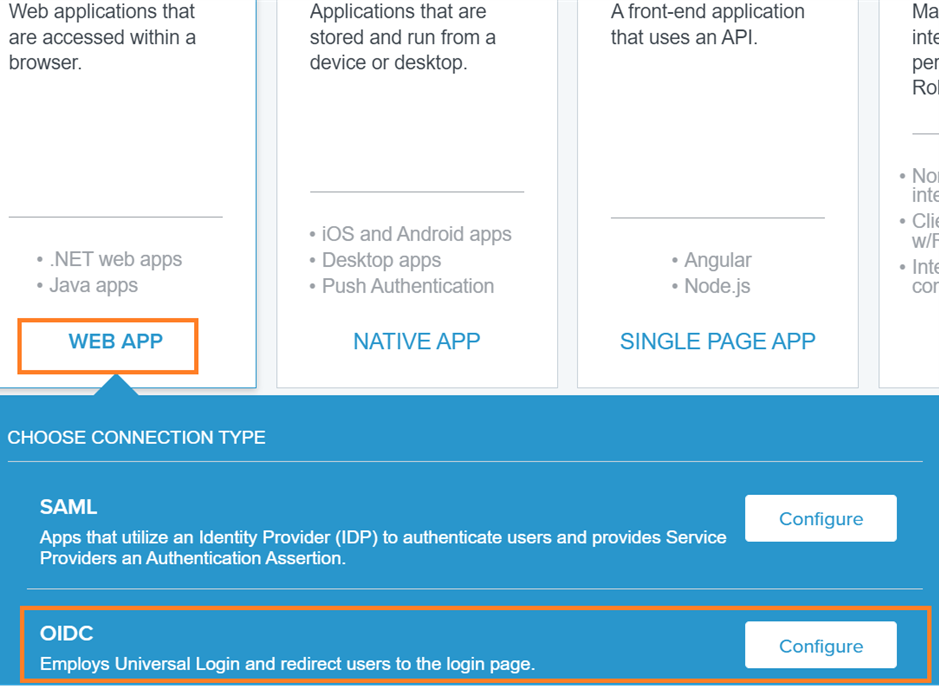
9) Click Configure.
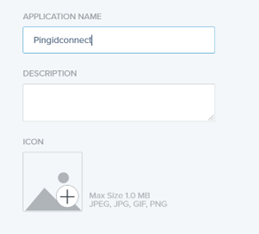
10) Enter an Application Name.
Example: Pingidconnect
11) Click Next.
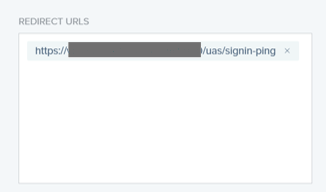
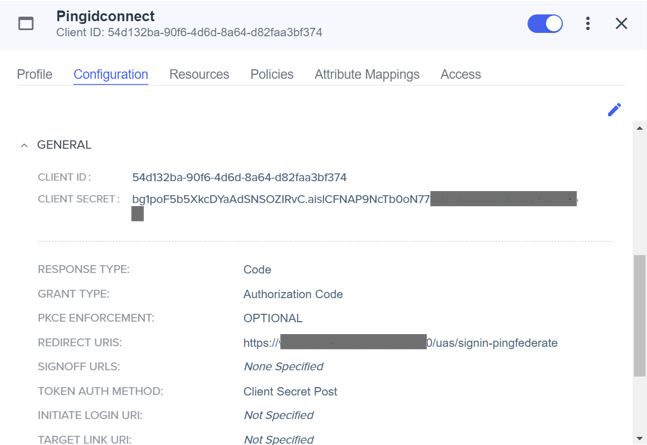
12) In Redirect URLS enter the URL in the following format:
Error! Hyperlink reference not valid. name>/uas/signin-ping
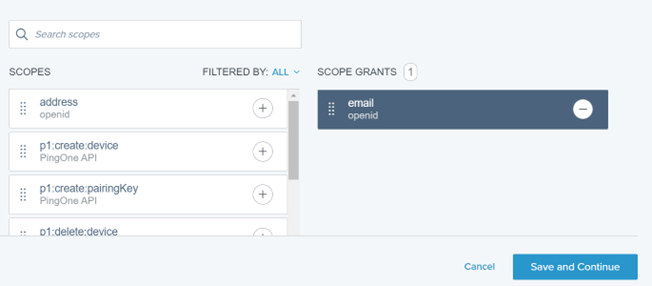
13) Click Save and Continue.
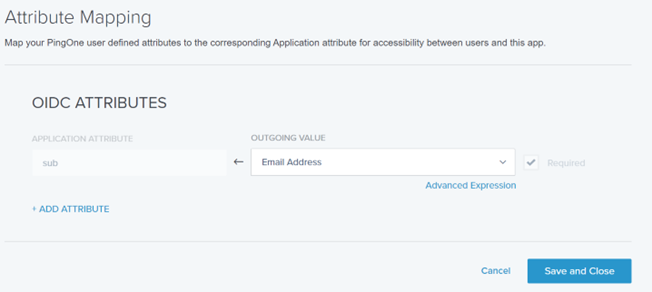
14) Click Save and Close.
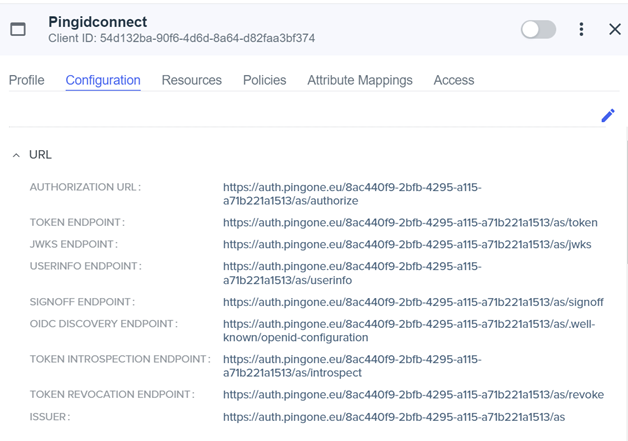
15) Write down the following information carefully as you will need it for UAS configuration:
• Client ID
• Client secret
3.4.2. Configuring UAS with Pingfederate
To configure UAS with OKTA:
1) Connect to HAS console.
2) Access the Authentication module.
a. In the left pane, expand Modules.
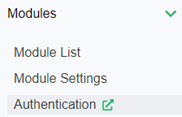
b. Click Authentication.
3) In UAS Administration, in the Identity providers section, select SAML2.
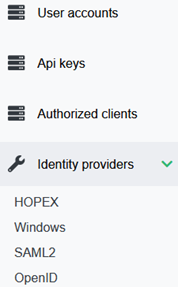
4) Click Create.
5) In OpenId Configuration, to activate OpenId Identity Provider, select Active and enter the required information:
• Authority server url
• Client Identifier
• Client secret
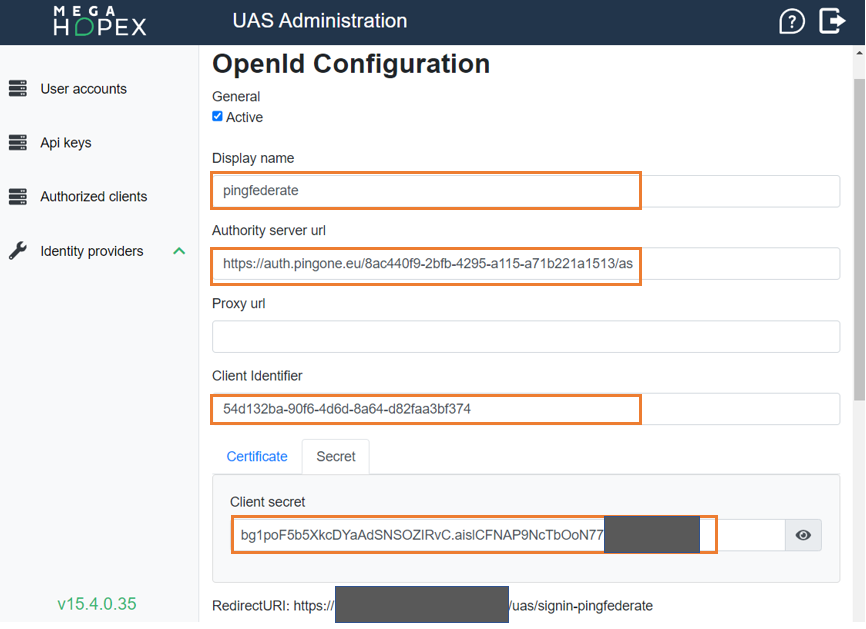
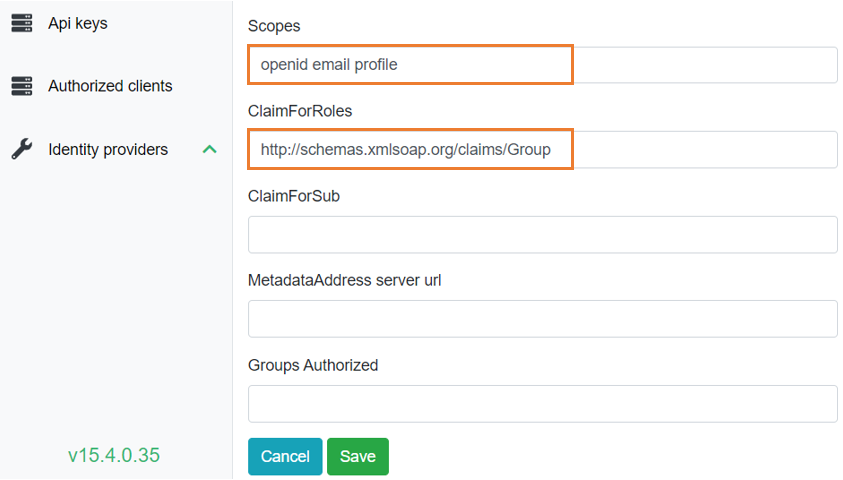
6) Click Save.
3.5. Azure AD Configuration with SAML2
3.5.1. Configuring Azure AD application
Follow Microsoft documentation for detailed configuration:
https://docs.microsoft.com/en-us/azure/active-directory/manage-apps/add-application-portal-setup-sso.
To configure Azure AD application:
1) Connect to your Azure AD account.
2) In Enterprise applications create an application (e.g.: “Azure AD SAML Toolkit”).
3) Access the SAML SSO configuration page (e.g.: in the Manage section > Single Sign-On page > SAML)
4) Configure the Azure AD application as follows:
In Basic SAML Configuration:
• Reply URL (Assertion Consumer Service URL) enter the reply URL in the following format:
https://<server name>/UAS/AuthServices-Azure/Acs
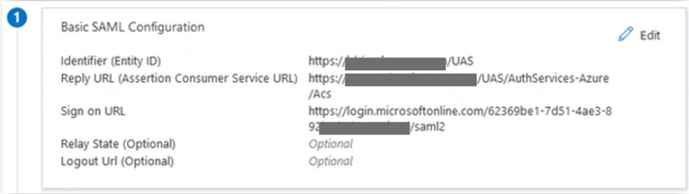
In Attributes & Claims, configure at least one attribute and claim.
Example: emailaddress user.mail
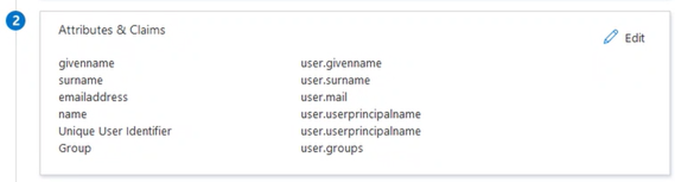
In SAML Certificates, write down the following information carefully as you will need it for UAS configuration:
• App Federation Metadata Url
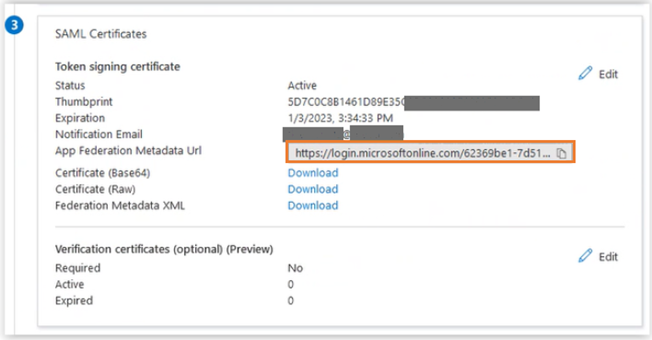
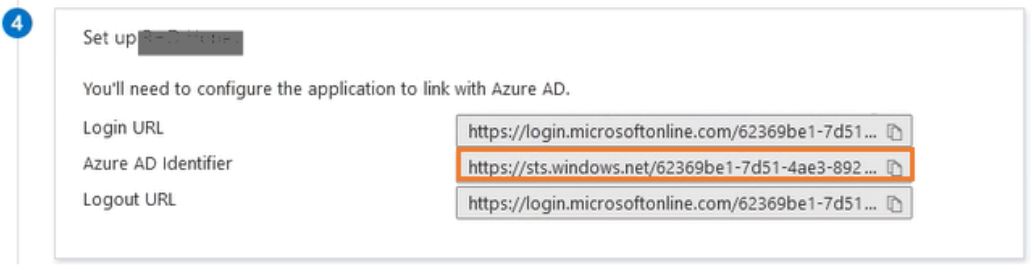
In Set up <application name>, write down the following information carefully as you will need it for UAS configuration:
• Azure AD identifier
3.5.2. Configuring UAS with Azure AD
To configure UAS with Azure AD:
1) Connect to HAS console.
2) Access the Authentication module.
a. In the left pane, expand Modules.
b. Click Authentication.
3) In UAS Administration, in the Identity providers section, select SAML2.
4) Click Create.
5) In SAML2 Configuration, to activate SAML2 Identity Provider, select Active and enter the required information:
• Entity Identifier
• Metadata location