9. Other installation topics
This section corresponds to specific use case.
9.1. Using Server API
If you are coming from a previous MEGA HOPEX version, you might have used our server API. This server API in VB, JAVA or C# enables to run external programs and communicate with HOPEX. If you have not used this Server API, use our REST API and ignore this section.
To enable this Server API, you must reference your installation in Windows registry.
CAUTION: There can be only one instance reference in the registry at a time.
Steps to perform:
1. Go in your installation folder. Default: C:\ProgramData\HOPEX Application Server\5000
2. Run the PowerShell script “HOPEX-regserver.ps1”. You must run it with sufficient privilege:
o Rights to run PowerShell script
o Rights to write in the Windows Registry.
3. Repeat this operation each time you install an HF / CP or major version.
9.2. Publishing Static Website
Read this section if you are creating and publishing static website with HOPEX.
In HOPEX V5 you can publish a static website:
• directly in HOPEX Application Server recommended choice.
• in IIS as a web application
9.2.1. Publish In HAS Instance
For this scenario either:
• From the HOPEX Store, download the Enterprise Portal Application package https://store.mega.com/modules/details/website.static.navigator.bundle
• From the HAS Console > Modules, install the “Enterprise Portal Application package” module.
Follow the instruction from the store and read the Read.me file located here C:\...\HOPEX Application Server\...\.shadowFiles\website.static.content
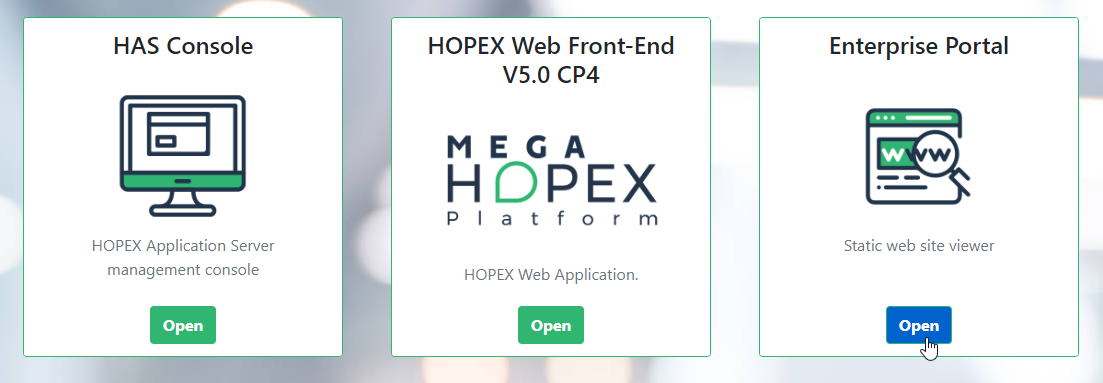
When your static website is generated, it can be accessed from the HAS portal or directly from the URL https://www.myurl.com/website.static.navigator
9.2.2. Publish In IIS
In this scenario you generate your static website and then manually publish it on IIS. You need to configure IIS to enable user to access this website.
To configure IIS:
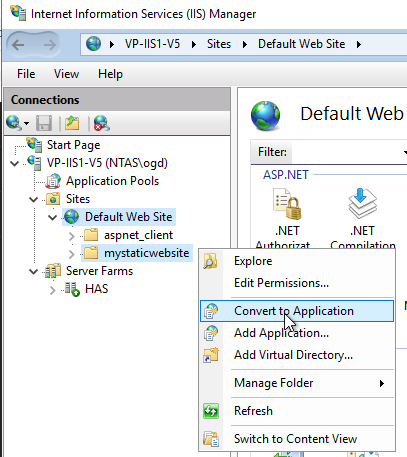
1. Create your IIS Application from the folder by converting it to Application.
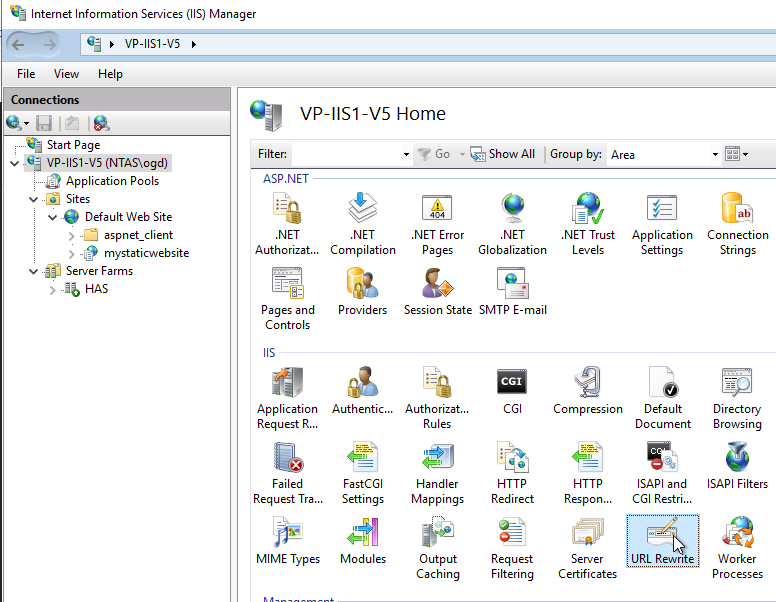
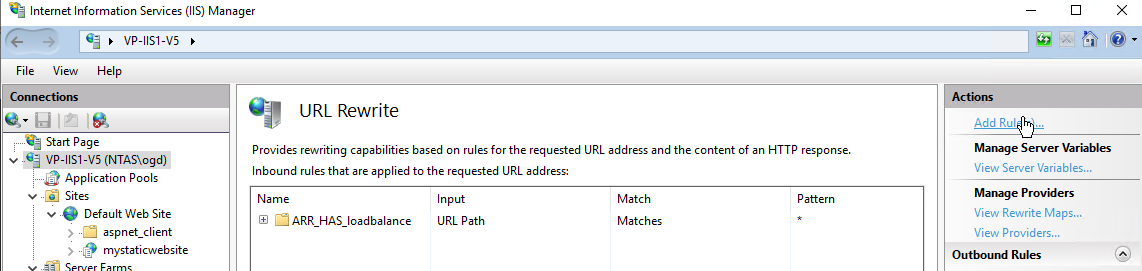
2. In IIS, go to root level and double-click URL Rewrite.
3. Click Add Rule.
4. Select Blank Rule.
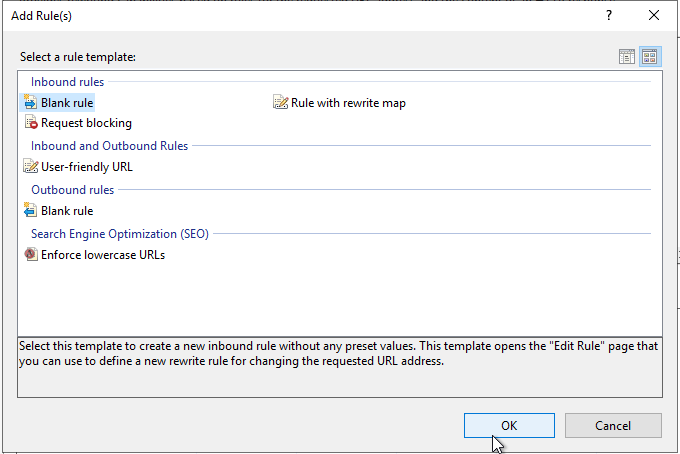
5. Click OK.
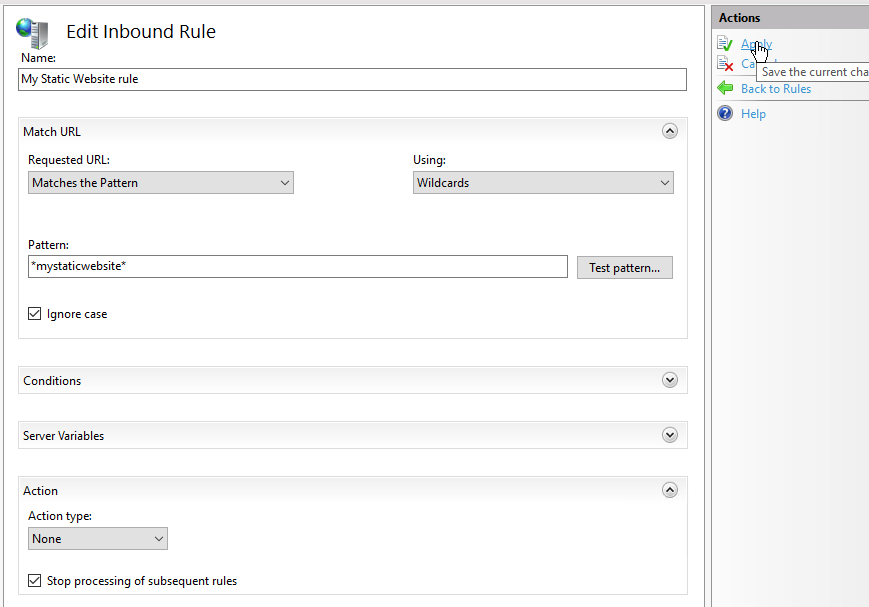
6. Fill in the rule
o Name
o Using: “Wildcard”
o Pattern: “*mystaticwebsite*” where mystaticwebsite is the name of the folder in IIS of your website
o Action Type: “None”
o Select Stop processing subsequent rule.
o Click Apply.
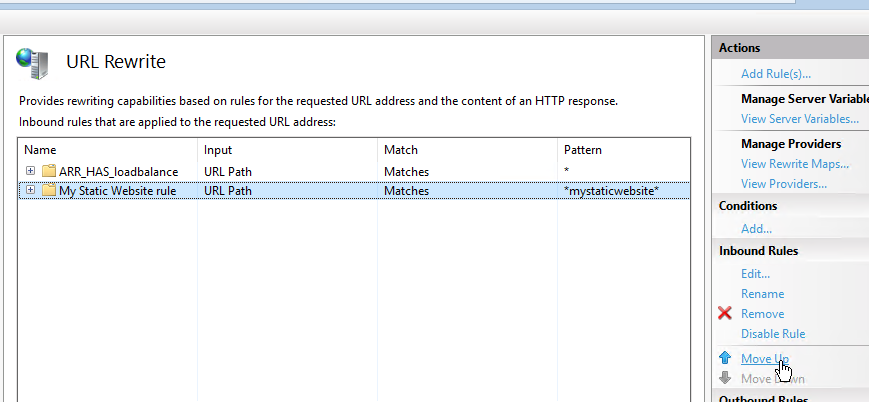
7. In the list of rules select the rule you just created.
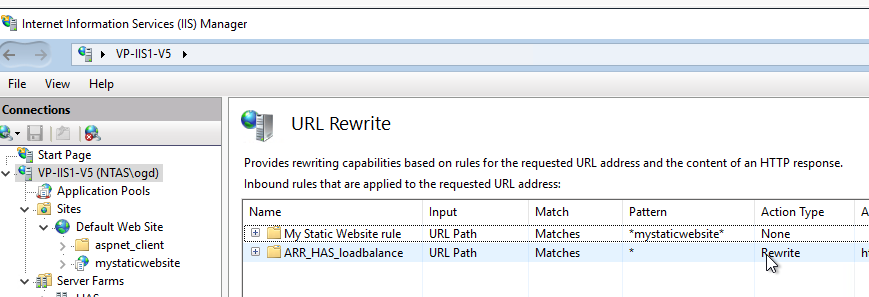
8. Click Move Up until your rule is at the top of the list.
9. Access your static website from your preferred web browser. For example: https://www.myurl.com/mystaticwebsite