8. Security
8.1. Windows Users and Groups
When you install HAS Instance Manager, at least one user is necessary to manage the process authentication. By default, the process that launches HAS Instance Manager is defined as a “Local System account”.
It is recommended to create a dedicated additional user, preferably in the Domain. In case it is not possible to have a domain user, it is still possible to have a local user.
Beware, the domain user or local user must have read/write/execute rights:
• On the shared folder for the licenses and HOPEX environments folders
• On the “default” installation following folder.
C:\Program Files\MEGA
C:\ProgramData\MEGA\
No active directory groups are required for this user.
If you have decided to configure the database with a Windows Account please ensure that the user as sufficient privilege.
8.2. HAS Self-signed certificate
The server works with a self-signed certificate for internal communication. It is possible to change this certificate manually after the first installation.
By default, this certificate is located in:
• C:\ProgramData\MEGA\Hopex Application Server\5000\.certificates
Caution: this certificate cannot be changed without also reinitializing the HAS configuration options.
8.3. Running processes
At runtime, the following processes must be allowed. There can be multiple processes of the same kind running in parallel, depending on the deployment options.
|
Process name
|
Comment
|
|---|---|
|
HAS.Instance Manager.exe
|
The main process for the Instance Manager.
|
|
HAS.server.exe
|
The main HOPEX server process
|
|
HAS.Modules.UAS.exe
|
The identity manager
|
|
HAS.Modules.Dtpx.exe
|
The web front end of HOPEX
|
|
HAS.Modules.Console.exe
|
The web console for the administrator
|
|
HAS.Modules.Portal.exe
|
The web portal of modules
|
|
HAS.Hopex.BackEnd.exe
|
The core back-end of HOPEX.
|
Complementary exe files can be launched, depending on modules deployed. Their naming convention follows the pattern “HAS.*”
8.4. Antivirus
To maintain good performances, it is recommended to exclude certain folders and files extensions from the antivirus real-time scanning (on access scanning). These folders and files are in the HAS Server.
Default folders, sub-folders and files to exclude:
• C:\Program Files\MEGA
• C:\ProgramData\MEGA
All files within this servers *.* should be excluded for maximum performance.
For environment and must license some extensions must be exclude:
• *.MZL, *.MOL, *.MGL, *.MGR
• *.MGS
• *.haspkg
8.5. Firewall
The firewall and proxy must be configured to allow communications by the different protocols on the ports mentioned above, across all the servers of the deployment.
The firewall and proxy need to allow downloading of the *.haspkg files.
8.6. User Authentication
After installation, the default HOPEX authentication is available. Other authentication models need to be configured in the HAS console. An authentication workflow, based on Identity Server 4, provides:
• secure authentication requests.
• leverage standard identity providers.
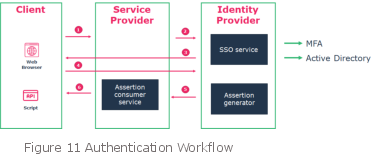
In all cases, the service provider is managed by the HAS and the Identity Provider (IP) can be HOPEX or external.
Several authentication models can be implemented (one or several at the same time):
Authentication model | Comment | IP | SSO | |
|---|---|---|---|---|
Default HOPEX | HOPEX | Users and passwords are stored, hashed, within the HOPEX SystemDb database. The full workflow of login is managed by HOPEX (SP+IP) | HOPEX | No |
Windows | Passwords are managed by Windows | HOPEX | No | |
Windows Authentication | The identity provider is based on Windows Identity Foundation. | ADFS | Yes | |
SAML2 | The identity provider is external and manages the user credentials | ADFS, Okta… | Yes | |
OpenID | The identity provider is external and manages the user credentials | Microsoft, Google, Salesforce… | Yes |
For HOPEX Identity Provider the passwords are encrypted in AES256.
8.7. Data Access
Access to data is controlled using profiles:
• repository access,
• CRUD data permissions,
• CRUD GUI permissions.
Complementary features enable:
• writing access management: control of updates on existing objects.
• reading access management: control of visibility regarding existing objects.
• data access rules: computed control of visibility regarding existing objects.
8.8. Cookie security policy
Before performing any audit on the application and checking cookie settings, make sure you are in full HTTPS (IIS and internal communication).
The following table lists the cookies the web page might use or generate.
The table shows default values for a full HTTPS deployment. Values may vary in HTTP.
Cluster name: is the name of the cluster when you created the instance.
Cookie name | Domain | Expires | Http only | Secure | Same site |
.oidc.nonce.”clustername” | Public URL | 10 min | True | True | None |
.oidc.correlationId.”clustername” | Public URL | 10 min | True | True | Lax |
.antiforgery.”clustername” | Public URL | Session | True | True | Strict |
idsrv.session | Public URL | Session | False | True | None |
.token.”clustername” | Public URL | 20 min | True | True | Lax |
.token.”clustername”C1 | Public URL | Session | True | True | Lax |
.token.”clustername”C2 | Public URL | Session | True | True | Lax |
8.8.1. Why Idsrv is always http only = false
As per specification of open id the idsrv session cookie will always be in Http only = false.
For more details, see the official documentation:
“… If a cookie is used to maintain the OP User Agent state, the HttpOnly flag likely cannot be set for this cookie because it needs to be accessed from JavaScript. Therefore, information that can be used for identifying the user should not be put into the cookie, as it could be read by unrelated JavaScript…”
8.8.2. How to enforce Same site Strict or Lax
Should you want to enforce cookies “Same site” to be:
• None
• Strict
• Lax default
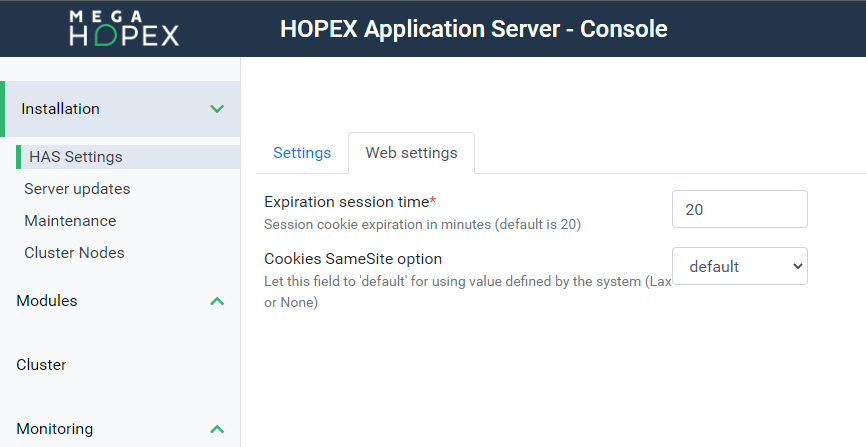
You can edit the value in the HAS Console.
Limiting to Strict may limit module and feature enablement.