Managing Processing Activity Elements
If you need to have a global view you may want to deal with the general processing only (which means there is no need for processing elements).
For more information, see:
However if there is an IT application or a third-party involved, you may want to define processing elements in order to properly describe the processing activity.
Creating a processing element
To create a processing element:
1. Access a processing activity and open its property page.
2. Select the Details tab.
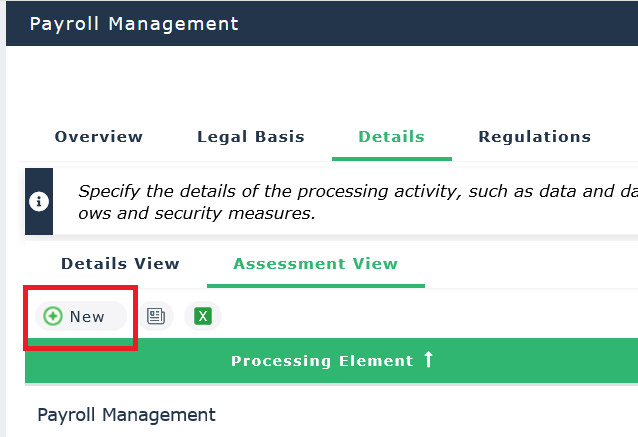
3. In the Details View section, click New.
4. Select a type of processing element.
• Organization
• Third-party
• Application
 For more information, see Specifying an application processing element.
You can provide information about the data protection role of the application provider or third-party.
To describe the processing element:
1. Select the processing element created.
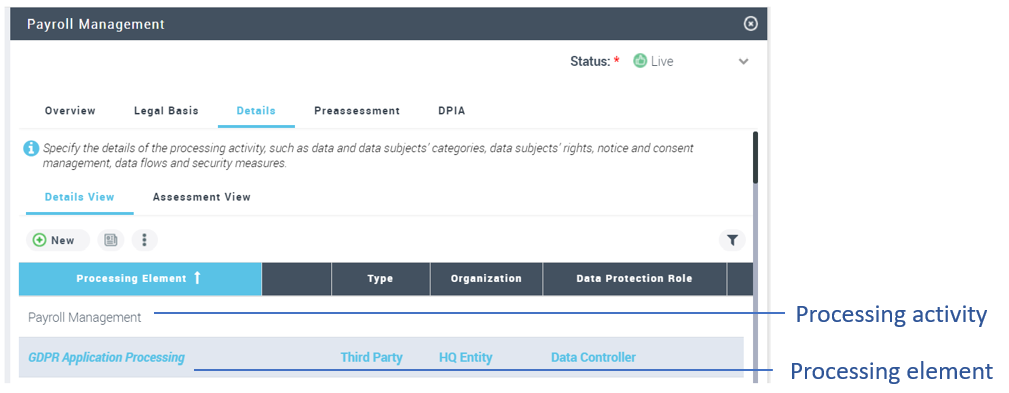
2. Notice that from now on the property page applies to the processing element:
Specifying an application processing element
To specify a processing element of application type:
1. Create a processing element.
2. In the Type drop-down list, select "Application".
3. If applications from other HOPEX solutions have been imported in HOPEX Privacy Management, select one of them in the corresponding drop-down list.
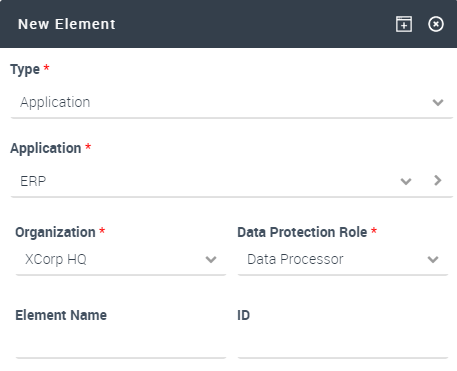
4. Click OK.
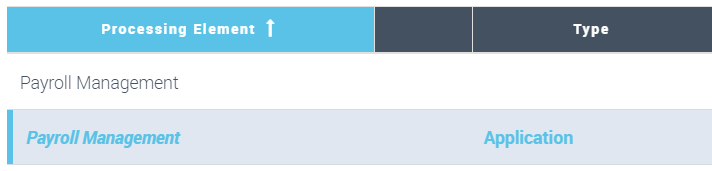
5. The processing element appears below the main processing activity.
Displaying the application properties and web site
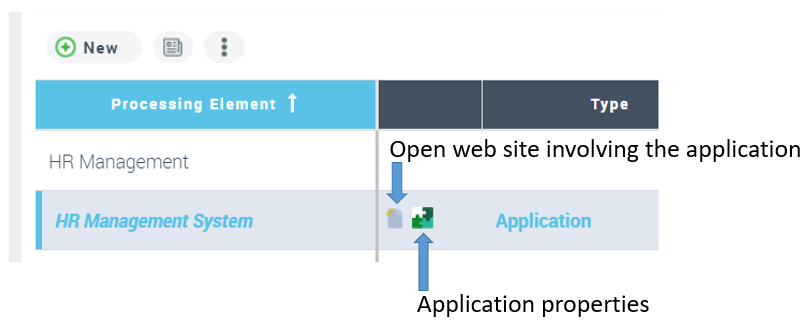
The applications coming from other HOPEX solutions such as HOPEX IT Portfolio Management are indicated by an application icon.
A link to an external web site is available when the application is described in a statical web site.