Project Analysis Reports
Dynamic reports are provided by default for projects; they are used to analyze project content from different angles as well as their impact on the business capabilities and architecture building blocks.
Reports on the Project Content
Embedded reports on a project are visible in the Reports page of the project properties window.
Project Costs
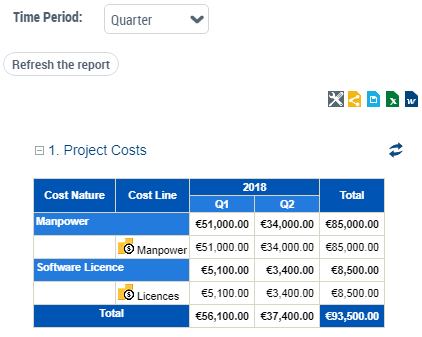
This report details the project costs for a given period and by cost type (labor, infrastructure, etc).
Its input data concerns the costs defined in the project properties (on the Business case page).
 To define the costs of a project, see Project costs.
It is possible to configure the cost consolidation period via the Time Period parameter; for example a sub-total of project costs is possible per quarter.
Project and Deliverable Timeline Gantt Chart
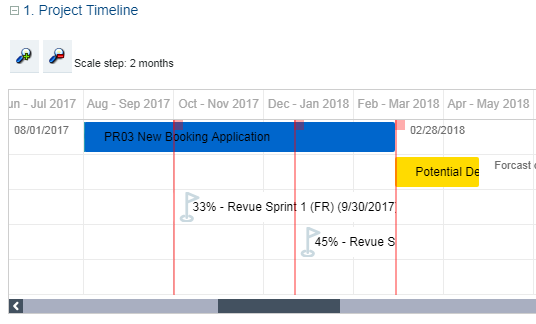
This report presents the lifecycle of deliverables in the project schedule.
Its input data concerns the production dates of the deliverables as well as the milestones defined for the project.
The progress of the project and the projected deadlines declared during the follow-up of the execution of the project are also reported on the graph.
See also:
Project KPIs
This report analyses the key indicators of the project. It collects the following data:
• The progress and any delays in the project (defined on the Execution Follow-up page for projects in progress)
• The budget and the costs defined on the project properties (on the Business case page).
• The Return on Investment (calculated)
• Cost variance (calculated)
• The project risks
Progression and delays
Project progression and delays are defined using the last update performed on the project.
For more details, see Assessing the Progress State of a Project.Budget and costs
A bar chart presents the following data:
• The planned budget, input manually.
• The total forecast cost, calculated according to the last update of the project (amount spent + remaining to be spent)
• The effective cost, input manually at the end of the project.
The "Total cost" displayed in the Costs section is calculated based on cost lines; it is for information purposes and is not used in the report calculations.For information on project cost input, see Project costs.
Return on investment
A bar chart presents the following data:
• Forecast ROI (as a percentage)
• Effective ROI (as a percentage)
Calculation of the ROI = (profit - budget) / budget.
Forecast variance and effective variance
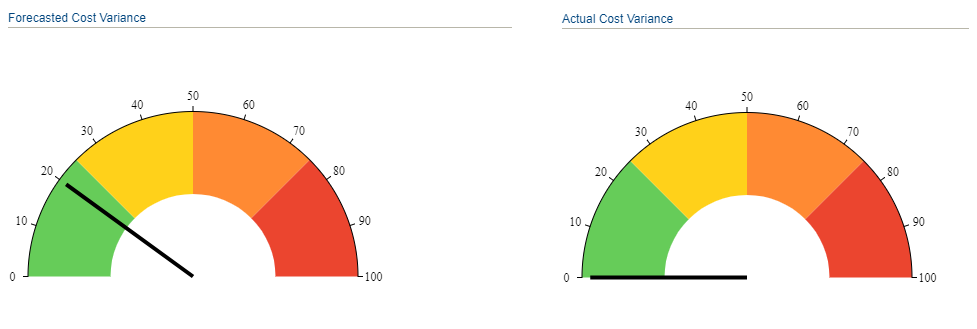
A gauge displays the following data:
• Forecast variance = (total forecast cost - budget) / budget, as a percentage.
• Effective variance = (effective cost - budget) / budget, as a percentage.
Risks
A bar chart displays the risks per risk level (low, high, etc.)
Project summary
This report offers a summary of the characteristics of the project, that is:
• The project charter
• The persons responsible
• The Business case
• The execution follow-up
• The key project indicators.
Impact Reports for Projects
The Project Portfolio Manager can use a report to analyze the impact of transformation projects on business capabilities.
This report aims to identify, for the business capability map of a given Enterprise phase, the relevant transformation projects and their impact on capabilities, according to the objective of the transformation projects.
To generate the impact report of transformation projects:
1. Click the Reports navigation menu.
2. In the edit area, click Create a report.
3. Search for report type "Projects Impact on Capability Map".
4. Create a report of this type.
Report parameters
The report takes as input:
• A capability map. The list of capability maps included in an enterprise phase is proposed by default.
• A project portfolio.
Filters allow you to customize the display of objects in the report:
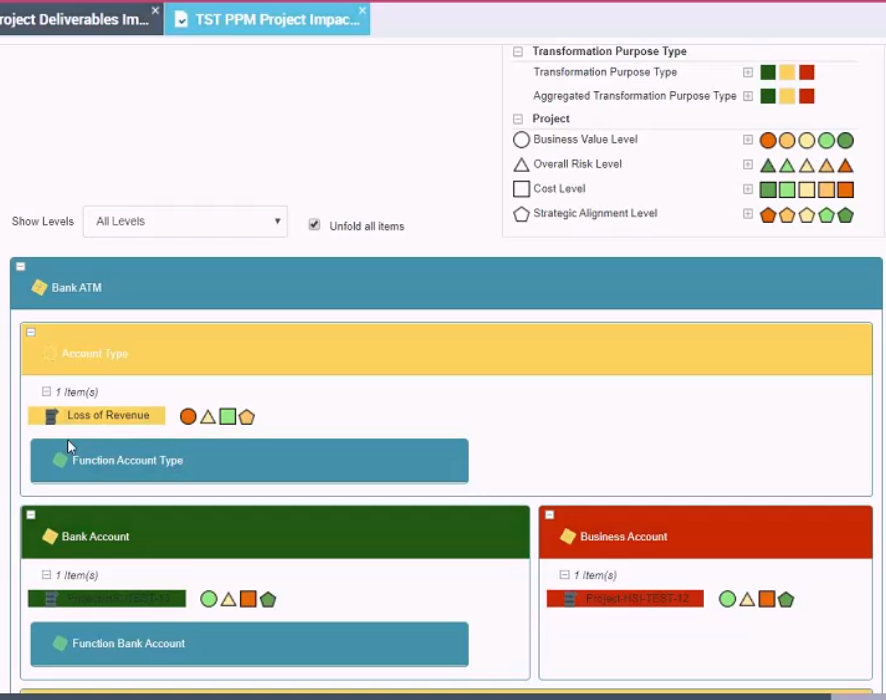
• Enable Purpose Type Criterion: you can display or hide the purpose type of the projects. This option is enabled by default, with the form "Fill color": a color highlights the capabilities and projects in the report according to the type of purpose of the projects.
• Capability Filter: you can only display capabilities that are covered by solution building blocks. Criteria also allow you to represent the functionalities associated with capabilities in a specific shape (circle, triangle, etc.).
• Project Filter: you can display only on-going projects. Criteria also allow you to display the assessment levels defined on the projects (business value, cost, etc.).
Other filters can be added in customization (by specific queries connected to the type).Report Results
The report presents two chapters:
Transformation Projects Impact on Capability Map
By default, projects are displayed in the relevant capability boxes and highlighted in a color that depends on the type of transformation purpose.
• Innovate -> green
• Improve -> yellow
• Rationalize -> red
Capabilities are highlighted in a color depending on the associated transformation purposes.
• Majority of innovation -> green
• Majority of improvement -> yellow
• Majority of rationalization -> red
Enterprise Stage and Transformation Projects
This chapter displays in a table the projects that are not mapped in the capability map selected at report entry.
They correspond to the following elements:
• projects that produce new capabilities in the "target" capability map
• projects that do not achieve any capability
• projects that achieve capability but are not declared in the enterprise phase.