Assessing the Progress State of a Project
You can indicate the progression of a project in progress and the different milestones defined on a project.
Example
My project is 25% complete at this time.
I have reached the first milestone, so I can put it at 100% this same day.
Updating the project progress
To update the progression of a project in progress:
1. Click the Projects > Projects navigation menu.
2. In the edit area, click the Projects tab.
3. Display all the projects.
4. Click the project in question to open its properties.
5. In the properties window, click the Execution Monitoring page.
6. In the History of Project Progression Updates section, click New.
The progress rate creation window appears.
7. In the Progress Rate section, specify:
• the progress rate percentage
• the progress rate date
• the assessment of the progress rate (On time or Late)
• the forecast end date
• the amount spent
• the remaining forecast amount
8. Click OK.
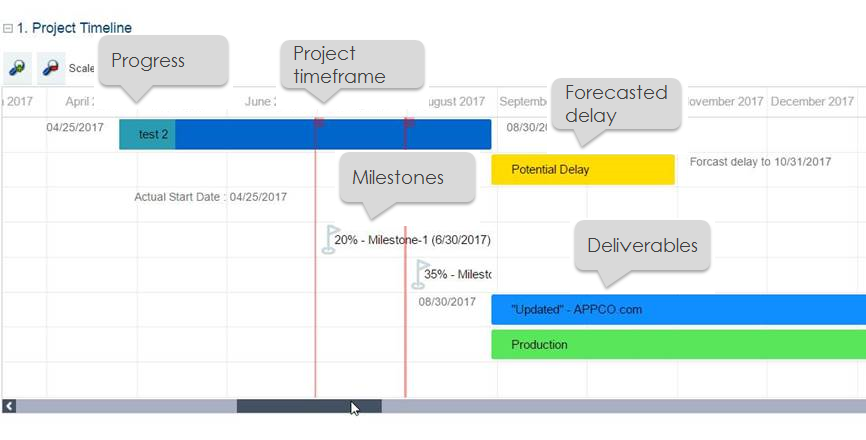
Viewing the timeline of a project
A report enables you to view the timeline of the project.
To access the Reports tab:
1. In the project properties, select the Reports page.
2. Select the "Lifecycle Gantt Chart for Project Deliverables" report.
The project calendar appears.