Distinguishing technologies from applications
(AI-Driven APM)
(AI-Driven APM)
The AI-driven APM tool is based on a repository of technologies standardized with IT-Pedia. Following standardization of technologies in the HOPEX repository, you can use the tool to identify technologies that turn out to be applications, and thus distinguish technical bricks from business applications.
 For more information on standardization, see Initializing the list of your technologies in IT-Pedia.
HOPEX creates its own classification of IT-Pedia technology products to help the enterprise architect make the technical/business distinction, but also to indicate to which business capability in HOPEX an application contributes. The tool makes recommendations - it's up to the architect to arbitrate and validate them. HOPEX records the decision and updates the repository.
Prerequisites
AI-Driven APM is a module that requires HOPEX Aquila release to be installed.
The AI-Driven APM module contains two features: Application detection and Capability Smart Mapping. The Application detection feature requires also the IT Pedia module.The recommendations provided by the AI-driven APM tool are based on a calculation performed by the Remote-Taxonomy service hosted by MEGA.
To use the tool, you need to specify the URL of this service in the administration options:
1. Access the HAS Console and stop HOPEX Core Back-End module. Make sure to perform this action when users are not connected.
2. Open the HOPEX Administration window.
3. Right-click on HOPEX and select Options > Modify.
4. Unfold the Tools > Data Exchange > Remote Taxonomy folder.
5. In the Root URL of remote taxonomy field, enter the following URL: https://ea-ai.saas.mega.com.
6. Click OK.
7. In the Administration application, connect to the environment and perform an Automatic Environment Update.
8. Restart the HOPEX Core Back-End module.
Application Detection
HOPEX can identify which technologies correspond to which applications. For each technology, it provides a recommendation; it's up to you to validate it or not.
Presentation of the wizard
The application detection wizard presents a list of technologies awaiting arbitration.
It consists of three steps:
• Qualification of software assets
• Assignment to responsible persons
• Preview and update of the repository
Qualifying software assets
You can display:
• all assets. These are "Product" type technologies standardized from IT-Pedia, all versions included.
If a new version of a technology is imported, it is attached to the existing technology. You can view the versions of a technology in its properties, under the Version page.• assets to qualify, for which no decision has yet been made.
• assets whose recommendation is "Application".
• assets qualified as "Application", i.e. whose recommendation has been approved by the user.
Each recommendation is associated with:
• a confidence level. Using this confidence rate, you can sort technologies.
• a justification.
Assign responsibilities
At this stage, you can modify some of the properties of technologies classified as "Applications".
When a technology corresponds to an application, the application takes the name of the technology by default, but you can override the name.
You can associate the application with a portfolio and a manager to make it easier to find.
Preview and update the repository
This last step presents the applications and their properties that will be created in the HOPEX repository.
When you validate, all the lines you have modified are processed (name and objects associated with the application).
The applications created are linked to the source technologies.
Starting application detection
You can launch application detection with the Enterprise Architect and EA Functional Administrator profiles.
To launch application identification:
 In the navigation bar, click Tools > IA-driven APM> Application Detection.
A table lists the technologies awaiting qualification.
1. For each one, validate or invalidate the recommendation by selecting Yes or No in the Decision column.
Depending on the decision, the asset is qualified as either a Technology or an Application.
At this stage, objects are not yet created.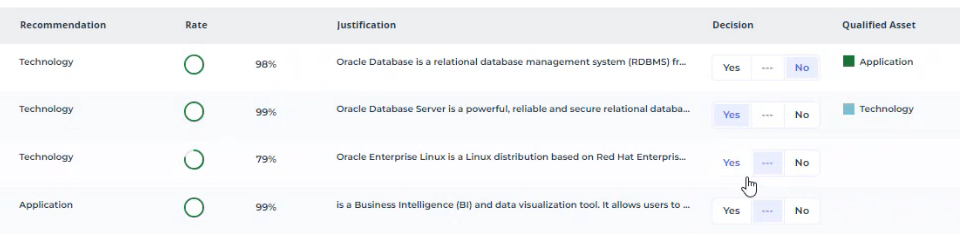
2. Click on step 2: Assign responsibilities.
A table lists the technologies that have been qualified as Applications.
3. If necessary, complete the information before creating them.
By default, if the Application name field is empty, the tool creates applications with the name of the source technologies.
4. Click on step 3: Preview and update repository.
You can :
• create all the applications in the list at once: click the Create Applications button. You will be prompted to validate. Click Yes to create all the applications displayed.
• create applications one by one: tick the application in question and click Create Applications.
You can view the applications created in the repository's Applications list.
Connecting Applications to Business Capabilities
Once the technologies have been requalified as applications, the AI-driven APM tool defines the functional coverage of these applications by associating them with business capabilities.
Applications must be connected to an application portfolio.Business capabilities are derived from standard MEGA business capability maps, delivered in a module: https://store.mega.com/modules/details/sample.itbm.stdcapamaps?prerelease=False.For each application, the tool displays a list of capabilities to which it is likely to respond. You can modify this list.
Launching Capability Smart Mapping
You can launch Capability Smart Mapping with the Enterprise Architect and EA Functional Administrator profiles:
1. In the navigation bar, click Tools > AI-Driven APM > Capability Smart Mapping.
2. Select the Portfolio containing the relevant applications and the Business Capability Map.
3. The wizard presents:
• the application list
• the recommended capabilities
• business capabilities already linked to applications.
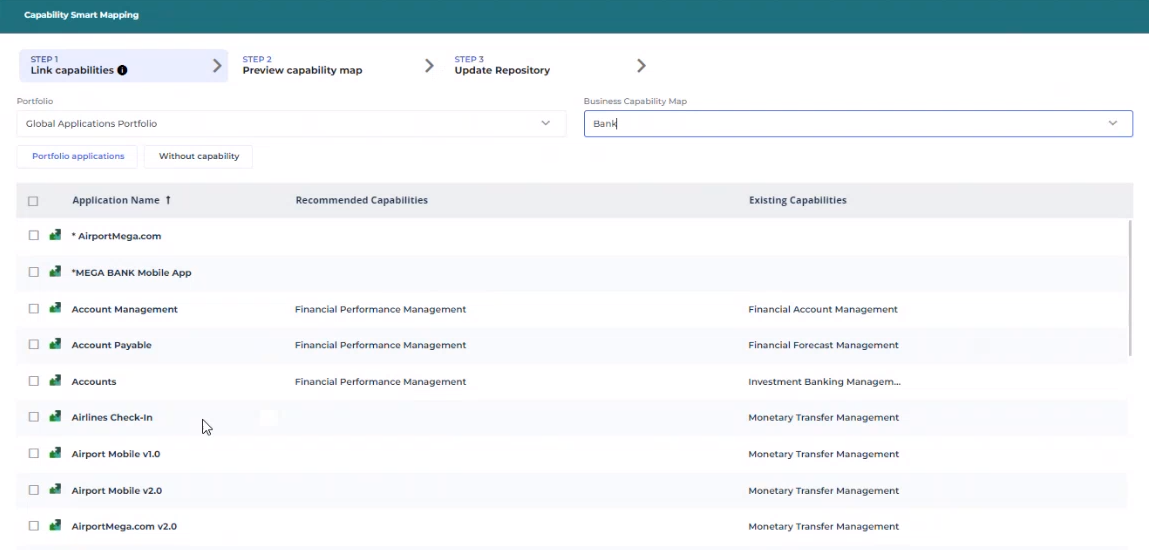
You can define or modify recommended capabilities manually. Recommended applications are displayed in the capability map in step 2. If required, you can go back to step 1 and modify the recommendation.
4. Click on step 2 to preview the business capability map.
Applications associated with business capabilities appear in green.
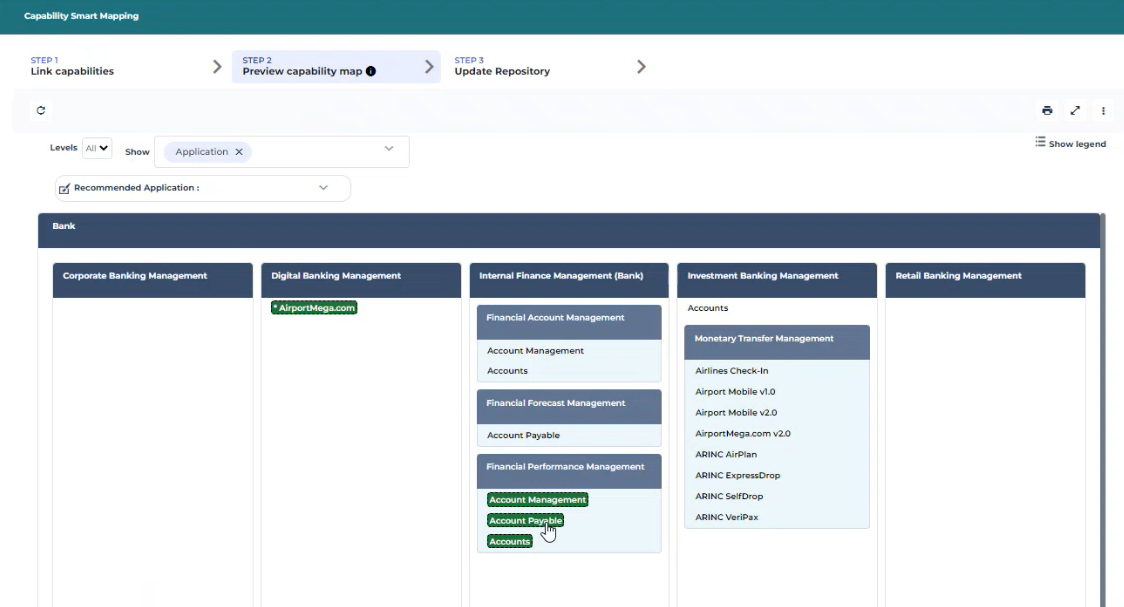
5. Go to step 3.
6. You can:
• connect all applications on the list to the recommended capabilities at once: click Link Applications to Capabilities and confirm.
• connect applications one by one: check the application in question and click Link Applications to Capabilities.