Prerequisite Conditions (IT-Pedia Connector V3)
The IT-Pedia connector is available as a module. You can install it in HOPEX IT Portfolio Management and HOPEX IT Business Management .
 For more information on importing a module, see Importing a Module into HOPEX.
Communication and protocols
HOPEX connects to IT-Pedia using the java command: HttpURLConnection.
The server must have an active Internet connection.
HOPEX must have the right to establish outgoing connections.
The protocol used is HTTPS (standard port = 443).
Any firewalls must allow this connection to pass through.
Connection options to IT-Pedia
After installing it, before you can import content from IT-Pedia, you must authorize exchanges with IT-Pedia in HOPEX.
To set the required import options:
1. Open the Administration desktop.
2. In the edit area, click Environment Options.
The options window opens.
3. In the navigation tree, click Tools > Data Exchange > Import > IT-Pedia.
4. In the right pane of the window, enter information to access IT-Pedia API (provided by Eracent):
• IT-Pedia URL address: this is the URL of the IT-Pedia public catalog.
• IT-Pedia API user
• IT-Pedia API password
Eracent APIs are available at the following address: https://itpedia.eracent.com/API/.
Initializing the list of your technologies in IT-Pedia
Before using the IT-Pedia connector, you must initialize the list of technologies in your repository in IT-Pedia for standardization. This initialization is done through a macro.
You can also standardize the technologies in your repository with the IT-Pedia connector Update command. See Normalizing Technologies.To launch the macro:
1. Log into HOPEX (Windows Front-End) as Hopex Customizer.
2. Launch the initialization macro ~kKAycUFMZzWC [IT Pedia V3 - Initialize my Products from Hopex Repository].
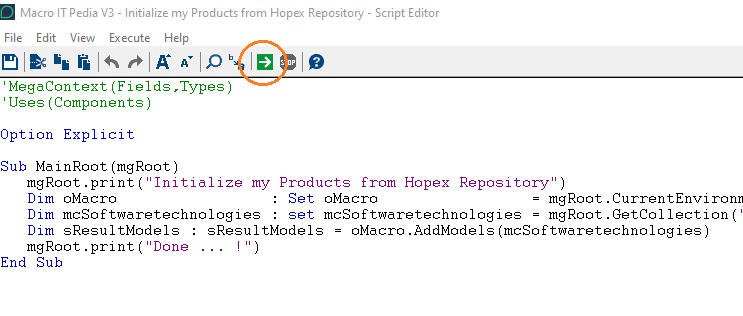
After the macro is launched, the My Products Procurement list in IT-Pedia is populated by HOPEX technologies to go through the normalization process.