Importing an Existing Breakdown of Business capabilities
HOPEX IT Business Management Use Excel data exchange wizards to export import and breakdowns of business capabilities.
 For more information on managing you work context, see Data Exchange with Excel.
Structure of the import/export Excel template of HOPEX IT Business Management
The Excel template of HOPEX IT Business Management allows you to import a breakdown of business capacities and a breakdown of functionalities.
• At the level of business capabilities, the elements are as follows:
• Business Capabilities
 .A business capability is a set of features that can be made available by a system (an enterprise or an automated system).
• Business capability maps
A business capability map is a set of business capabilities with their dependencies that, together, define a framework for an enterprise stage.• Business capability components, which define the link between a business capability and the business capability map (or business capability) in which it is referenced.
• Business Capability fulfillments, which define the link between a business capability and the application that implements it.
• At the level of functionalities, the elements are as follows:
• Functionalities
A technology capability is the ability to deliver a technology service which is required by a technology artifact or an application.• Functionality maps
A technology capability map is a set of technology capabilities and their dependencies that, together, defines the scope of a hardware or software architecture.• Sub-functionalities, which define the link between a functionality and the functionality map (or the functionality) in which it is referenced.
• Functionality fulfillments, which define the link between a functionality and the application that implements it.
• Applications, which here represent the supports for implementing business capabilities or functionalities.
An application is a software component that can be deployed and provides users with a set of functionalities.The information contained in the Excel template delivered with HOPEX IT Business Management is presented as follows:
• One page per element type: Business capability, Business capability map, Functionality, Functionality map, Application, ...
• For each element of Business capability, Business capability map, Functionality, Functionality map or Application type:
• Short Name : name of the object concerned.
• For each element of Business capability component (or Sub-functionality) type:
• Business Capability Building Block (or Owner Functionality Building Block): name of the composite object (business capability map, for example).
• Business Capability Used (or Sub-functionality): Name of the component object.
• For each element of Business Capability fulfillment (or Functionality fulfillment) type:
• Fulfilled Business Capability (or Fulfilled Functionality): name of the implemented business capability (or functionality).
• Realizer Agent (or Fulfilling Enterprise Articfact): name of the application that implements the capability or the functionality.
• Short Name : name of the object associated with the implementation.
Importing the breakdown of business capabilities into an enterprise
For more information on the structure of the Excel template, see Building the import file for HOPEX IT Business Management.Several steps must be followed in order for the Excel import of a business capability breakdown to be performed correctly:
For more information about the structure of the Excel file to import, see Building the import file for HOPEX IT Business Management.Specifying the current library
A library and an enterprise are used to represent a unique work context.
Libraries are collections of objects used to split repository content into several independent parts. They allow creation of virtual partitions of the repository. In particular, two objects owned by different libraries can have the same name.In order for the data you import with Excel to be linked to a specific library, you must specify the current library.
To link the imported objects to your enterprise, see Importing the breakdown of business capabilities into an enterprise.To set the current library:
1. Click the Environment navigation menu then Containers > Libraries.
2. Expand the Libraries tree.
3. Right-click the library that interests you to open its pop-up menu and select Set As Default.
The selected library becomes the current library.
Importing the breakdown of business capabilities into the current library
To import objects using the Excel file of HOPEX IT Business Management :
1. Click the Main menu and select Import > Excel (*.xls, *.xlsx).
The import wizard appears in the edit window.
2. At the right of the Excel Import File field, click the Browse button.
3. Select the file to be imported.
For more details on the building of the file to import, see Building the import file for HOPEX IT Business Management.4. Select the Import in the default library check box.
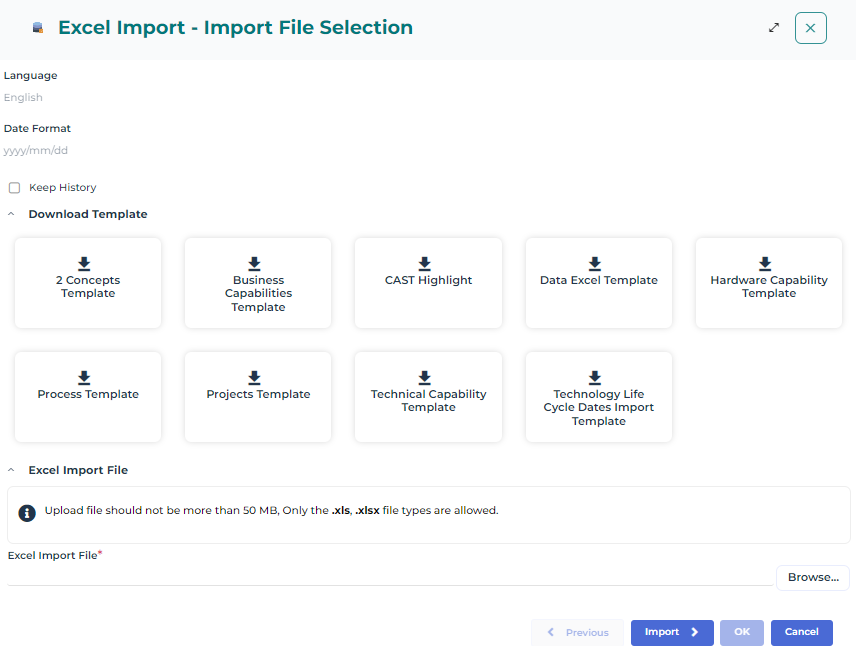
5. Click Next.
The list of sheets in the imported Excel table appears.
If you select a worksheet, the list of imported fields appears in the Worksheet Columns section.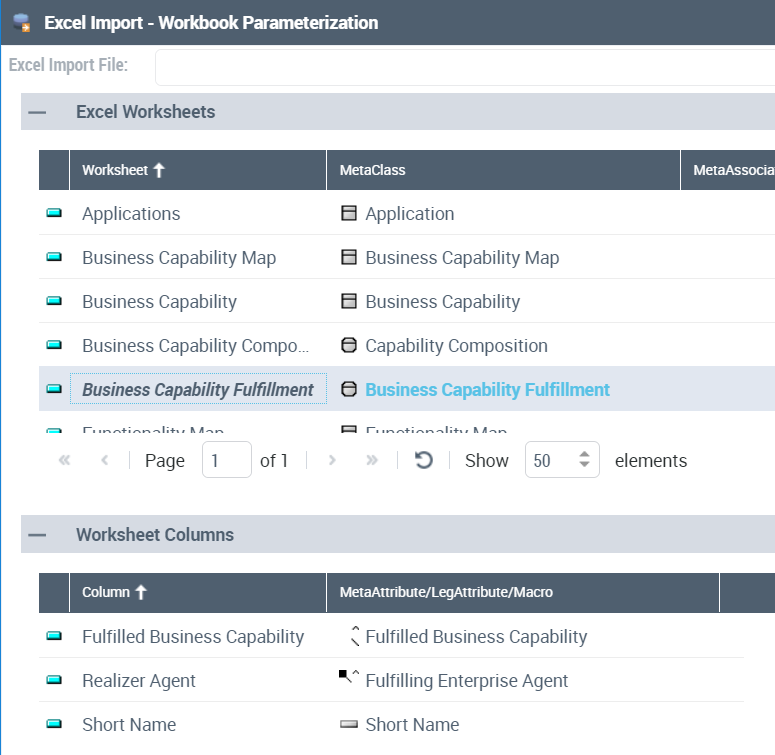
6. Click Next.
The wizard provides a report of import results.
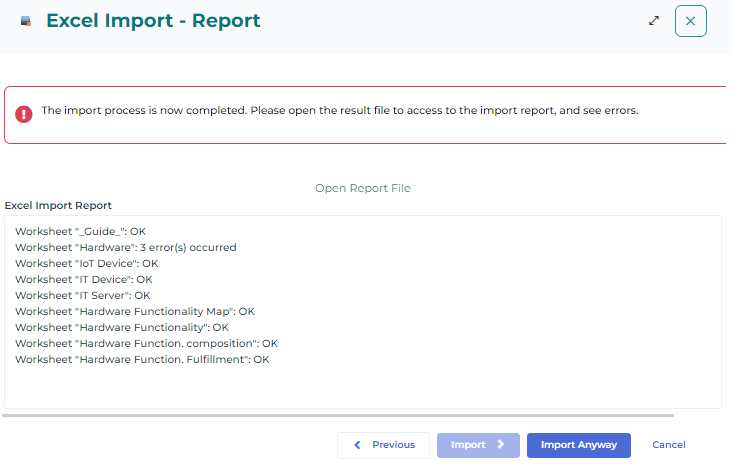
7. To obtain a detailed report of import errors, click the Open Report button.
The .xls (or .xlsx) file opens indicating in color red the problem data.
8. To have the data imported into the current library, click OK.
9. To modify the imported file or the import parameters, click Previous.
10. To discard import, click Cancel.
Importing the breakdown of business capabilities into an enterprise
To use the objects imported via Excel into your enterprise you must import the objects themselves or the library that holds them into your enterprise.
An Enterprise is a purposeful undertaking, conducted by one or more organizations, aiming at delivering goods and services, in accordance with the enterprise mission in its changing environment. During its development over time, an enterprise has to adapt to its environment and sets up transformation goals and objectives along with course of action to achieve these objectives. The design and realization of the resulting transformation stages may transcend organizational boundaries and consequently require an integrated team working under the direction of a governing body to involve stakeholders in transformation initiatives. This requires the implementation of an integrated team, under the responsibility of a governing body, to involve the stakeholders in the transformation.For more details on use of external objects in an enterprise, see Defining the Scope of a Container.For example, to import library into an enterprise with HOPEX Business Architecture & Strategic Planning:
1. Open the Import property page of your enterprise.
2. In the Container Import section, click the Connect button.
A connection dialog box opens.
3. Select the library that you want to import and click Connect.
The library appears in the section and the objects it holds are also held by the enterprise.
To check the import of business capacities, you can access the breakdown report for business capacities.
Building the import file for HOPEX IT Business Management
For more information on the structure of the Excel template, see Structure of the import/export Excel template of HOPEX IT Business Management.If you want to export business capability maps or functionality maps that exist in another repository than your current one, for example, you can use the Excel template of HOPEX Business Architecture & Strategic Planning.
For more details on exporting data, see Exporting business capabilities.When the Excel file is filled with the names of the objects you want to import, you must complete the necessary information for import into HOPEX Business Architecture & Strategic Planning.
For more details on additional information, see Completing the import file for HOPEX IT Business Management.Exporting business capabilities
To access the settings of the data export wizard from HOPEX Business Architecture & Strategic Planning to an Excel file:
1. Check that your export options are correct. See Options for Data Exchange through Excel.
2. Click the Main menu and select Export > Excel (*.xls, *.xlsx).
The export wizard appears in the edit window.
3. Select From a template.
4. Click Next.
5. In the filed Predefined Template File select Business Capabilities Template.
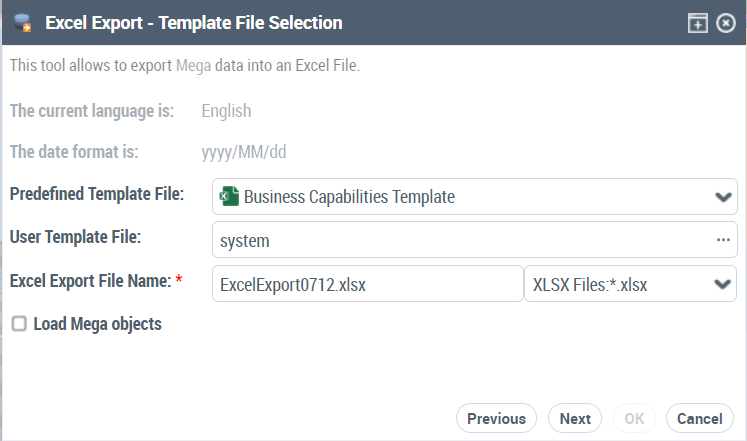
6. Click Next.
An export window appears to select the objects to be exported according to their type.
7. In the Excel Worksheets section, select the type of object you want to export and, in the Objects to be exported section, click Add objects to list.
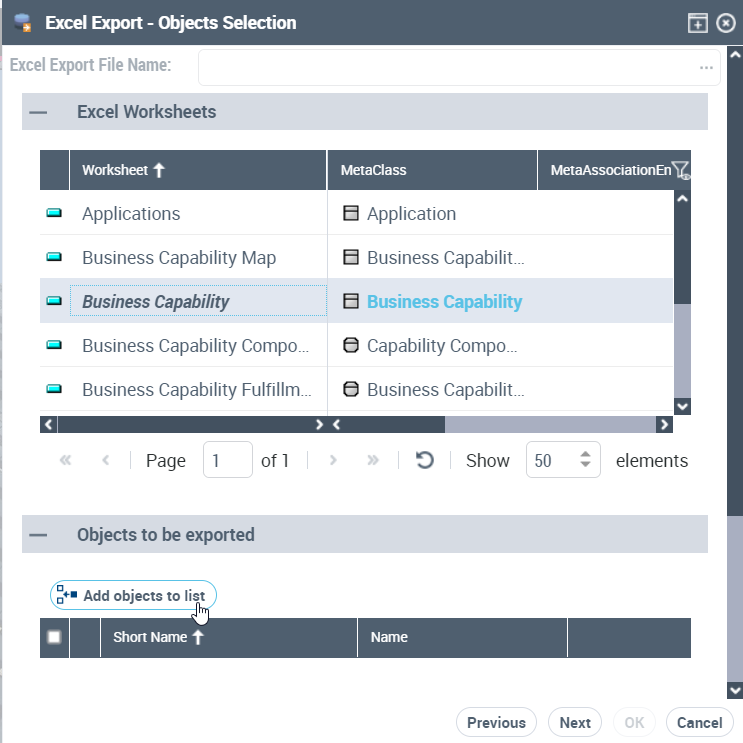
8. From the query window, select the objects you wish to export.
9. When you have selected all the objects you want to export, click Next.
10. Click Open the Export file to view the export file.
The file opens in an xlsx table. You can save it if you wish.
11. To modify export parameters, click Previous.
12. To discard export, click Cancel.
13. Click OK to finish.
The generated xlsx file is in the format expected for later import.
Completing the import file for HOPEX IT Business Management
For your import file to be correct, you must have specified the following elements:
• For each element of Business capability, Business capability map, Functionality, Functionality map or Application type, you must enter the name of each object:
• For each breakdown (Business Capability Composition or Functionality Composition Excel sheet), you must indicate:
• the name of the composite object in the Business Capability Building Block (or Owner Functionality Building Block) column.
Name of a business capability map for example.
• the name of the composing object in the Business Capability Used (or Sub-functionality) column.
Name of a business capability for example.
• To specify that an application implements a business capability, for example, you must indicate in the Business Capability Fulfillment sheet:
• the name of the business capability implemented in the Fulfilled Business Capability column.
• the name of the application concerned in the Realizer Agent column.
• the name you want to give to the object that represents the implementation in the Short Name column.
• To specify that a functionality is associated with a business capability, you must indicate in the Expected Functionality Excel sheet:
• the name of the business capability in the Business Capability column,
• the name of the functionality concerned in the Functionality column.
 The first two lines of each Excel worksheet are reserved for file configuration; ensure that the first two lines of the imported file remain identical to those obtained after an export.