The Database Editor
The database editor allows you to synchronize the different views of a database manually; the logical model and the physical (or relational) model.
The synchronization wizard automatically maps the the two views. See Synchronizing logical and physical models.
After synchronization, you can create or modify mappings in the editor manually, but this method no longer guarantees consistency of the two models. The denormalization wizard maintains this consistency. See Denormalizing logical and physical models.
Run the editor on a database
To open the editor on a database:
 Click the database icon and select Mapping Editor.
The mapping editor juxtaposes the logical view and the physical view of the database. When a mapping tree exists, it is automatically displayed. When a tree has not been created for the database, a window prompts you to create it.
Creating a Logical/Physical Mapping Tree
To create a mapping tree:
1. In the creation dialog box that opens, indicate the name of the new mapping tree.
2. In the Nature list box, select the nature of the tree: "Logical/Physical".
3. In the Left Object and Right Object frames, select the logical and physical models that you wish to align.
4. Click OK.
The editor displays the mapping tree juxtaposing the two models.
Creating a Mapping
To create a mapping between an entity and a table:
1. In the database editor, select the entity then the table.
2. Click Create mapping item.
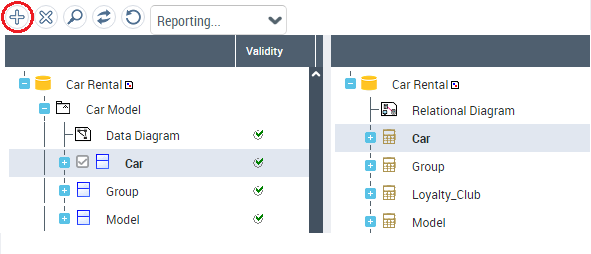
The mapping is created from the last object selected. Therefore, in order to create a mapping from the logical model to physical, in other words to define an object of the physical model from an object of the logical model, you must select the logical model object then the physical model object and create the mapping from the latter. If a mapping cannot be created, an error message appears (see Synchronization direction).
New mapping example
Consider the "Person" entity that contains the "Birth Date" attribute. In physical formalism it has as mapping the "Person" table which contains the "Birth_Date" column.
Suppose we add the "Age" attribute on the entity. This can be calculated from the birth date. So as not to create a column corresponding to this new attribute at synchronization, you can directly connect it to the "Birth_Date" column.
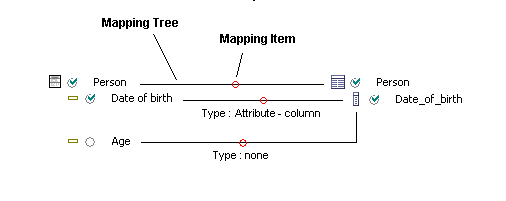
To create a mapping between the "Age" attribute and the "Birth_Date" column:
1. In the editor, on one side select the "Birth_Date" column, and on the other the "Age" attribute.
2. Click Create mapping item.
When the mapping has been created, a tick appears in front of the "Age" attribute.
Deleting a mapping
To delete a mapping on an object:
Select the object in question and click the Delete mapping item button.See also:
