Mapping Details
Objects with mappings are ticked green. When you select one of these objects, its mapping appears in the mapping properties dialog box located by default at the bottom of the database editor. It groups the names of objects connected in the two formalisms, the object types and comments where applicable.
Mapping example
The "Customer" table is selected in the logical view tree:
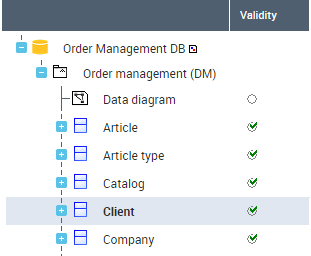
The mapping displays the following objects:

This means that the "Customer" table is derived from the entity of the same name.
Mapping Properties
To view mapping properties:
1. In the mapping editor, select the mapping item and click Properties.
2. In the window that opens, click the drop down list and select Characteristics.
See also Mapping characteristics.
Mapping Report
In a document you can generate detail of mappings between the two database models. This can be an HTML, text or XML file.
Generating an HTML report
To generate the HTML report of a mapping tree:
 In the database editor toolbar, click the drop-down list and select HTML Report.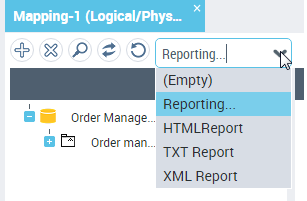
The corresponding file opens. It presents detail of mappings of the physical view and the logical view in the form of a table.
Each row of the table presents an object of the model and its equivalent in the other model. In the middle of each row appears the status of the mapping between the two objects. See Object status.
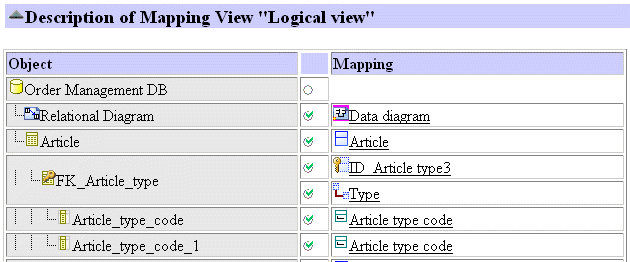
At the end of the document, you will also find a list of invalid mappings.
Object status
Indicators enable indication of status of synchronized objects. A filter bar allows you to show all or only certain of these indicators. This bar is available by selecting View > Toolbar in the editor.
Object status can be characterized as:
 Valid
Valid  Invalid (when an object has kept a mapping to an object that no longer exists)
 No mapping
 Frozen (Protected)
 Standard
Saving display of editor indicators
An option allows you to save the status of indicators in the mapping editor. It is specific to the user and the current mapping tree. A user who has selected the indicators display option will automatically find the status of objects in the previously created mapping tree.
The indicators display option of the editor is cleared by default. To activate it:
1. On the desktop, click Main Menu > Settings > Options.
2. In the left pane of the options window, select Mapping Editor.
3. In the right pane, select option Save display of editor indicators.
4. Click OK.
Mapping Source
When you select an object in the editor in one of the formalisms, you can display its mapping in the other formalism.
To display an object mapping:
In the mapping editor, select the object concerned and click Find.The editor displays the source object.
Mapping example
Consider the "Price List" table created in the logical model. In the pop-up menu of the table, select Locate. You will see that it corresponds to an association.
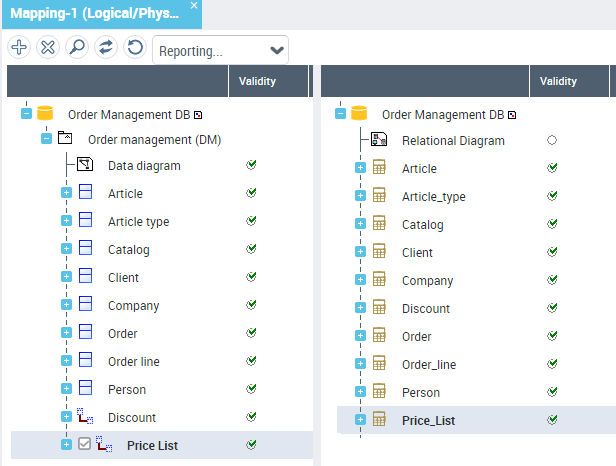
Opening the logical model diagram, you can see that this is the "Price List" association that connects the "Catalog" and "Article" entities.
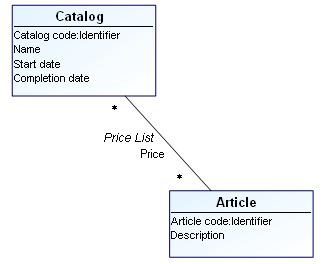
At synchronization, this non-constraint association produces a table in which:
• A column is created for each connected entity.
• The primary key for the table uses all these columns.
• A foreign key is also built for each connected entity.
For more information on synchronization of associations, see Logical to Physical Synchronization: the Associations.
Mapping Drawing
To view the mapping drawing:
In the mapping tree, select the objects concerned.A window appears at the bottom of the editor showing a drawing of objects and their connecting links.