Managing your Notifications
In your HOPEX desktop toolbar, a red dot indicates that you have unread notifications  .
.
.Your notifications are sorted by state:
• the notifications that you have not read
• the notifications that you have read
 To modify the state of a notification, see Modifying the state of a notification.
Accessing your notifications
To access your notifications:
1. In the HOPEX toolbar, click .
.Your last 10 unread notifications appear in order of creation date (the newest first).
Each notification specifies:
• the person at the origin of the notification
• the subject of the notification
• the HOPEX object associated to the notification
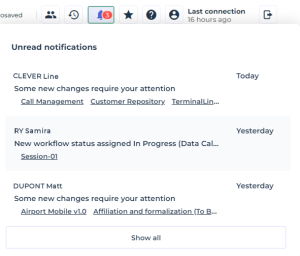
2. Use the mouse wheel or the scroll bar to show the previous/next notifications.
3. To access the properties of a modified object, click its name.
The modified object property pages are displayed in the edit area (in full page).
4. To show all your notifications, click See all.
Each notification specifies:
• the person at the origin of the notification
• the HOPEX object associated to the notification
• the subject of the notification
• the date and time of transmission (GMT) of the notification
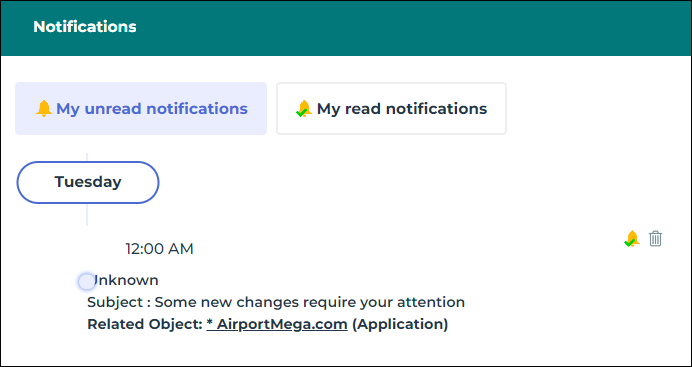
5. To access the properties of the modified object, click the name of the object.
Its properties appear in the edit area, in full page.
6. To display your read notifications, click My read notifications.
Modifying the state of a notification
When you have read a notification or when you no longer want to keep it in your list of unread notifications, you can change its state to "Notification read".
To modify the state of a notification:
1. Access your unread notifications.
2. In the notification concerned, click Mark as read  .
.
.The notification is moved to My read notifications.
In the same way, click Mark as unread  to move the notification to My unread notifications.
Deleting a Notification
To delete a notification:
1. Access your notifications.
2. In the notification concerned, click Delete  .
.
.The notification is deleted directly.
 You are not prompted to confirm the deletion.
Managing your notification and object follow-up options
You can modify the notification and object follow-up options:
• Activate Alerts: activates the receipt of alerts (notifications and emails) on followed objects.
• Activate notification pop-up window: additionally activates a pop-up window (at the bottom right corner of your Desktop) that indicates - at Desktop opening - that you have unread notifications.
• Period by default for updates of followed objects: defines the display period regarding the updates of followed objects: week, quarter, or year (monthly by default).
The email address of the notification sender can only be modified by a HOPEX administrator. This email address remains the same for all users.
To modify the notification and object follow-up options:
1. Access your options (Main Menu > Settings > Options).
2. In the option tree, select Tools > Collaboration > Notification management and object follow-up.
3. In the right pane, modify the options of interest.
Receiving your alerts in pop-up mode
Your alerts appear in the toolbar of your HOPEX desktop. A red dot indicates that you have unread notifications .
.In addition, you can get at Desktop opening a notification in pop-up mode (at the bottom right corner of your Desktop).
This option is selected by default for certain profiles.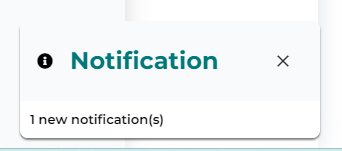
To receive your alerts in pop-up mode:
1. Access your options (Main Menu > Settings > Options).
2. In the option tree, select Tools > Collaboration > Notification management and object follow-up.
3. In the right pane, select the Activate notification pop-up window option.
No Longer Receive Notifications on Review Notes Concerning You
By default, when you participate in review note (creation or answer) on an object, you automatically receive modification alerts about these objects.
To no longer receive notifications on review notes that concern you:
1. Access your alert management feature.
2. Display My subscriptions page.
3. Clear Automatically subscribe to objects for which I create a review note.
4. Click OK.
You no longer receive notifications that concern review notes.