Querying the ArchiMate MetaModel
HOPEX for the ArchiMate Framework defines a high number of relationships to be compliant with the ArchiMate® standard.
A typical recommendation is to use the provided abstractions when building reports and querying the MetaModel, instead of looking directly at the concrete (lower) level implementation, which may be difficult to read.
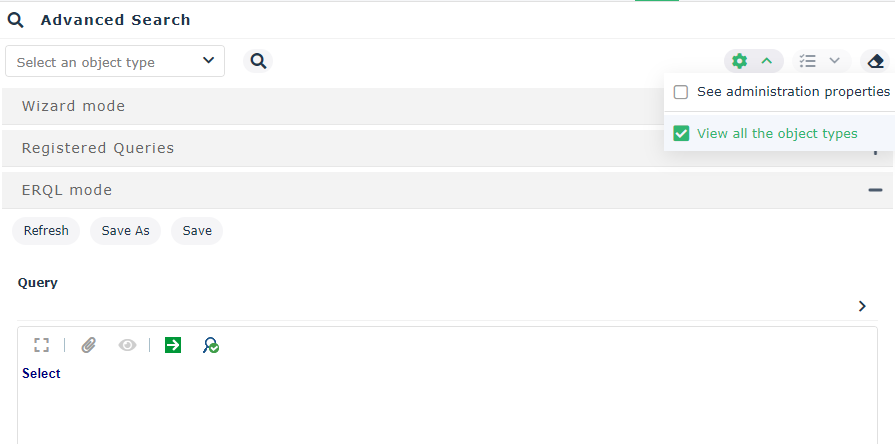
Using the Advanced Search tool
A set of useful queries can be found in the Registered Queries section of the Advanced Search tool, in the selecting the Element target, for example.
 For more details Query Tools, see Searching Objects.
To be able to select abstract MetaClasses, you must select View all the objects types in the advanced query Display options.
Querying using Relationship Target
Several typical queries can be used to access the relationships from an object according to the relationships super types.
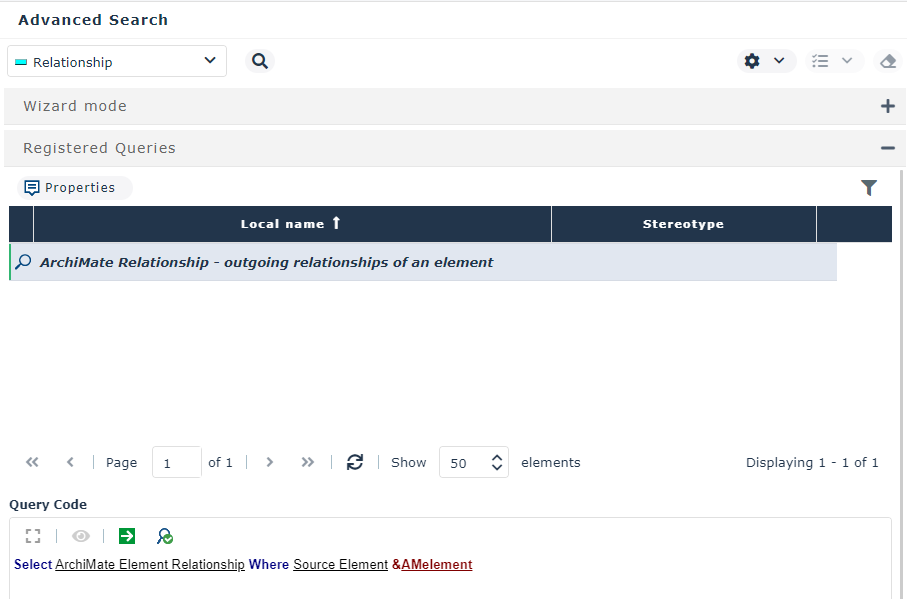
To get all the outgoing relationships the following query can be used:
Select [ArchiMate Element Relationship] Where [Source Element] &AMelement
For example, to get all realization relationships, which are relationships of the realization types 'from' the object, defining which object are realized by the object),
~)G8Ql7d7Qz57[ArchiMate - outgoing realization relationships]
For example:
Select [ArchiMate Realization] Where [Source Element] &"AMelement"
Querying using Element Target
Similarly, to browse a relationship and to reach the target object through the relationship:
1. In the Advanced Search tool, select the Element target,
2. Open the Registered Queries section to get the typical useful queries.
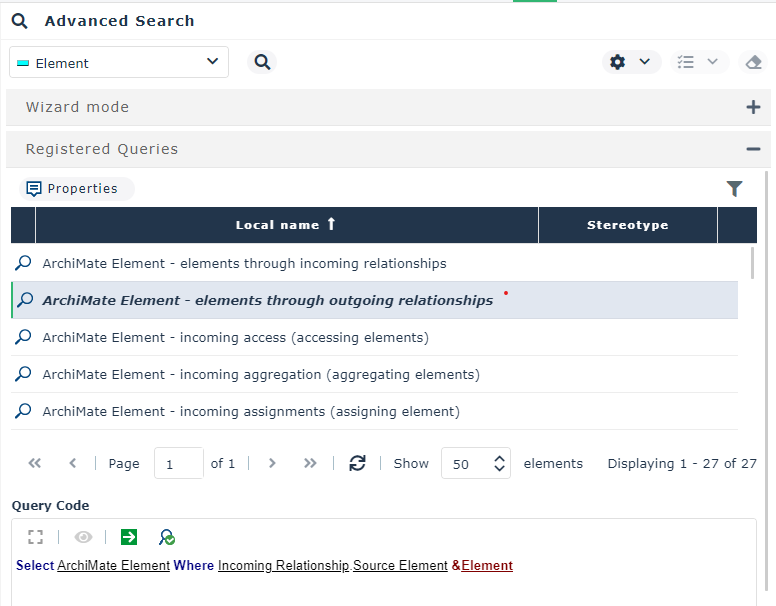
The following syntax can be used:
Select [ArchiMate Element] where [incoming Relationship].[Source Element] &AMelement
Or, conversely, to select the source elements:
Select [ArchiMate Element] where [outgoing Relationship].[Target Element] &AMelement
to get, for example, all the realizer elements of an element:
Select [ArchiMate Element] Where [outgoing Relationship]:[ArchiMate Realization].[Realized Element] &AMelement.
Querying using other target types
Some relationships, like Association, are specific. In this case the direction does not matter, so if you want to get the associated elements looking both ways; this can be done using the following: ~qRT7gJ2VQv)7[ArchiMate Element - neighboring elements through incoming or outgoing associations]
Select [ArchiMate Concept] Into @in Where [Incoming Association].[Associated Source Concept] &"concept"
Select [ArchiMate Concept] Into @out Where [Outgoing Association].[Associated Target Concept] &"concept"
Select [ArchiMate Element] From @in Or @out
Using the deeply ERQL clause
The deeply ERQL clause can be used with the ArchiMate metamodel, for instance to retrieve the objects through a type of relationship, and recursively the rank "n" objects links to this rank 1 neighboring objects, through the same relationship type.
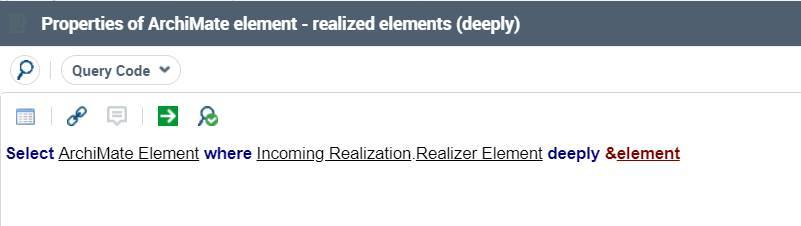
For instance, to retrieve the realized items of an object (a requirement, for example) and the realized object of these realized objects, the following query can be used:
Select [ArchiMate Element] Where [Incoming Realization].[Realizer Element] deeply &element
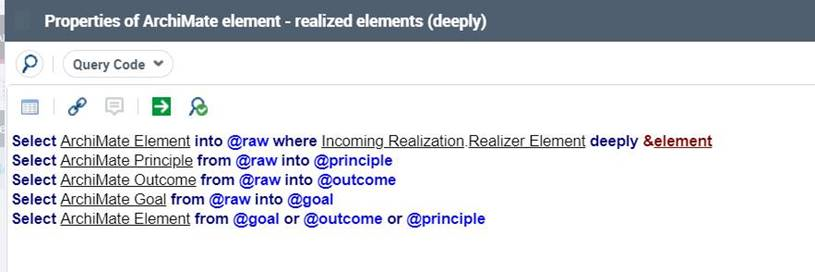
Sets can also be used to narrow down the list of resulting objects, for instance, to retrieve the Goals, Outcomes and Principles realized by a given Requirement, but filtering the intermediate junction objects, for instance, the following query can be used:
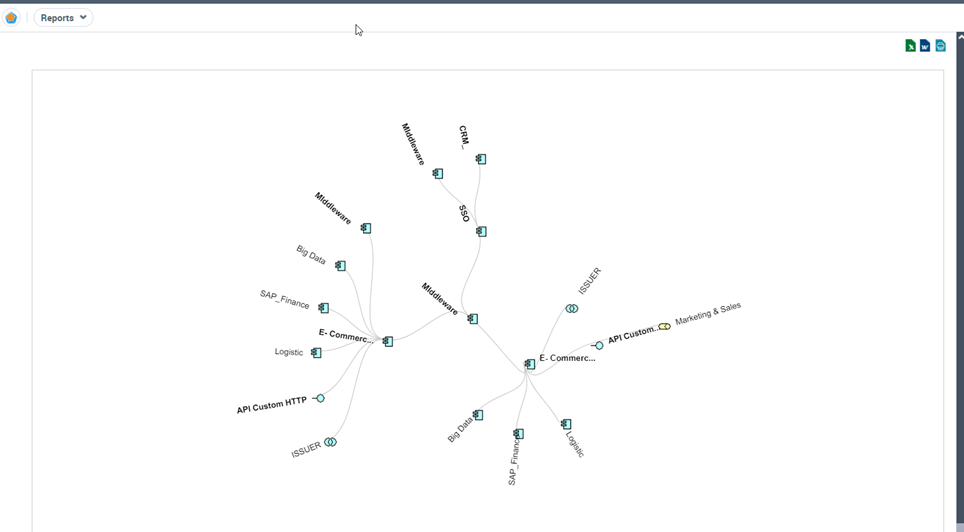
Using the Environment Report (dendrogram) report template
The dendrogram report template can be used to visualize the relationships to and from an object, at a defined depth.
For more details on dendrogram reports, see Handling a Dendrogram chapter in HOPEX Common Features guide.This can be achieved by using the appropriate query to browse the neighboring objects, in a recursive manner.
For more details on the usage of deeply clause which gives similar results, see Using the deeply ERQL clause.You can, for example, use the "ArchiMate - element through outgoing relationships" query to retrieve all the elements which are target of an outgoing relationship from the object set as parameter:
1. Create a new report, using the Environment Report report template.
2. Select the Subject of the report, for example an Application.
3. Specify the Deepness and the Number of displayed levels.
4. Define the "ArchiMate - element through outgoing relationships" query as the Query to be used.
5. Generate the report.