Handling a Dendrogram
A dendrogram illustrates the environment of an object. You can improve its display:
• in the report parameters:
• modify its Display mode (circular or horizontal)
• modify the Number of displayed levels by default
• in the dendrogram:
• display an additional level for a single branch
• modify the depth of display of a branch levels from a specific object
You can also:
• display a dendrogram in full page
• zoom in and move through the dendrogram
Example of a Report Template showing a dendrogram:
“Environment report”
With Display and Number of displayed levels parameters, this Report Template also includes the following parameters:
Subject: defines the source object of the dendrogram.
Hierarchy: defines the link (via a MetaAssociationEnd or a query) browsed recursively to display the objects.
Deepness: defines the number of displayable levels of a branch.
Improving a dendrogram readability
To improve a dendrogram readability:
1. (If needed) Zoom in and move through dendrogram.
2. Edit the report (click More  > Edit Report
  ).
).
> Edit Report ).3. In the edit pane, Styles section, modify the style parameters, then click Apply.
Select, for example:
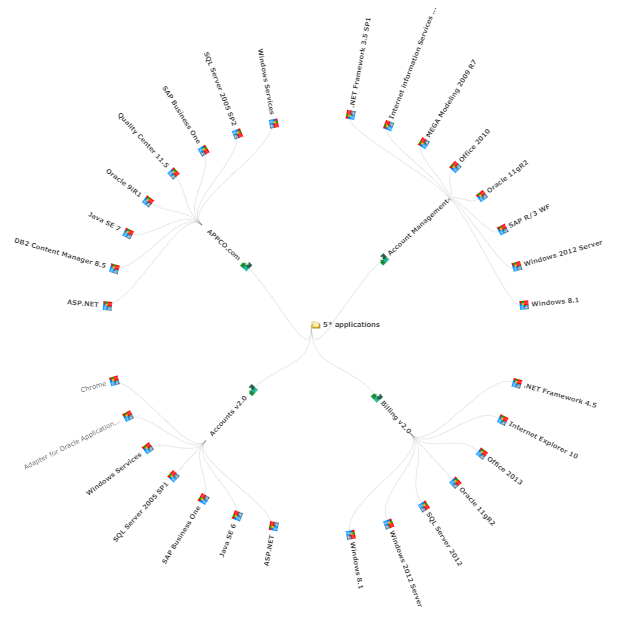
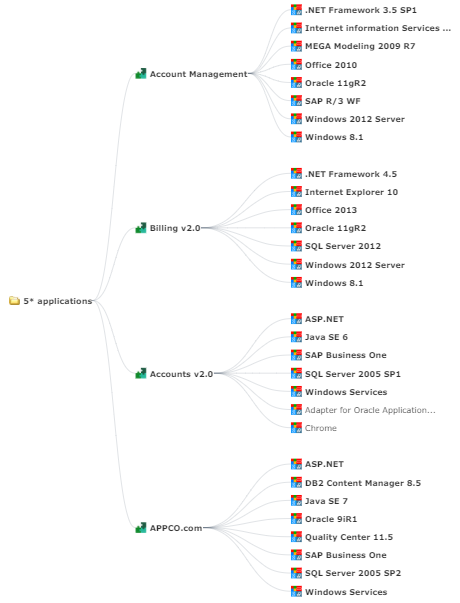
• the most suitable Display mode
Circular
Horizontal
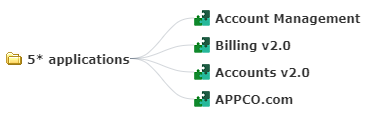
• the default Number of displayed levels for all of the branches
E.g.: 2 levels displayed by default
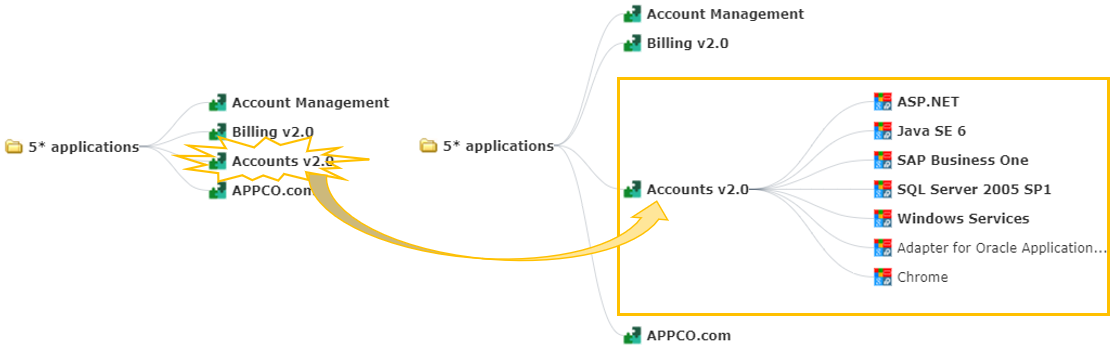
4. Click an object:
• at the end of a branch to display an additional level (objects with bold names have additional levels)
• within a branch to hide the deeper levels
Displaying the dendrogram in full page
Depending on the dendrogram size, you may want to display it in full page for better readability. Using this this display, you cannot edit the report.
To display the dendrogram in full page: at the top right corner of the graphic, click Display in full page mode  .
.
. To exit the full page mode, click Exit full page mode
  .
.Zooming in and moving through a dendrogram
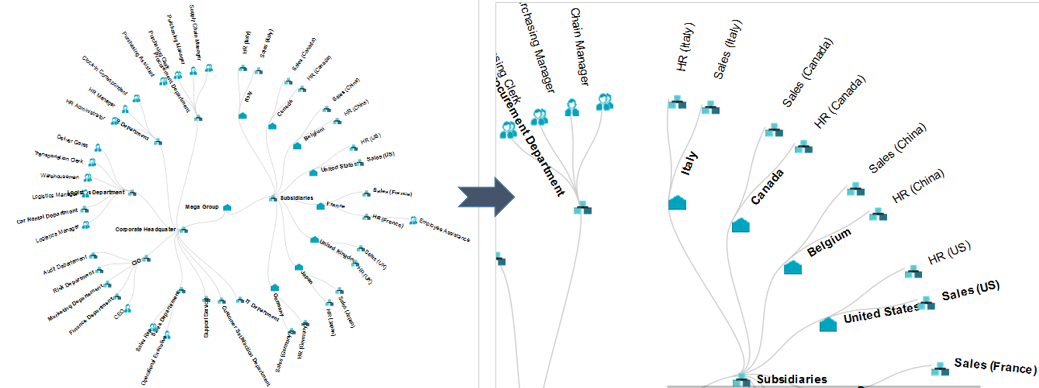
To zoom in and move through a dendrogram:
1. Access the environment type report of interest.
2. In the dendrogram, use the mouse wheel to zoom in/zoom out.
To return to the original size, at the top right corner of the graphic, click Reset Zoom  .
.The zoom is performed on the dendrogram as a whole.
3. (if necessary) To move about within the chart, click the chart, keep the mouse button pressed and move the mouse.